Foundations
Getting Help
CERQA has three ways to ask for help - a dedicated Support page for tracking tickets, a Help & Feedback dialog inside the app, and this documentation library you're reading now. This page walks through all three so you know which one to reach for and what to expect from each.
Three ways to get help
Different problems deserve different paths. Here's how to choose:
- 1Support page - Your ongoing thread with CERQA. Open new tickets, track existing ones, reply to support staff, and see resolution history. Use this when you have an issue that needs back-and-forth.
- 2Help & Feedback - A quick structured form you can submit from any page in the app without leaving what you're doing. Use this when you've hit something broken and want it logged with context.
- 3This library - Self-serve answers to "how do I..." questions. Use this when you want to learn something without waiting for a reply.
Opening the Support page
The Support page lives in the sidebar of every screen in the app. The icon shows a headset.
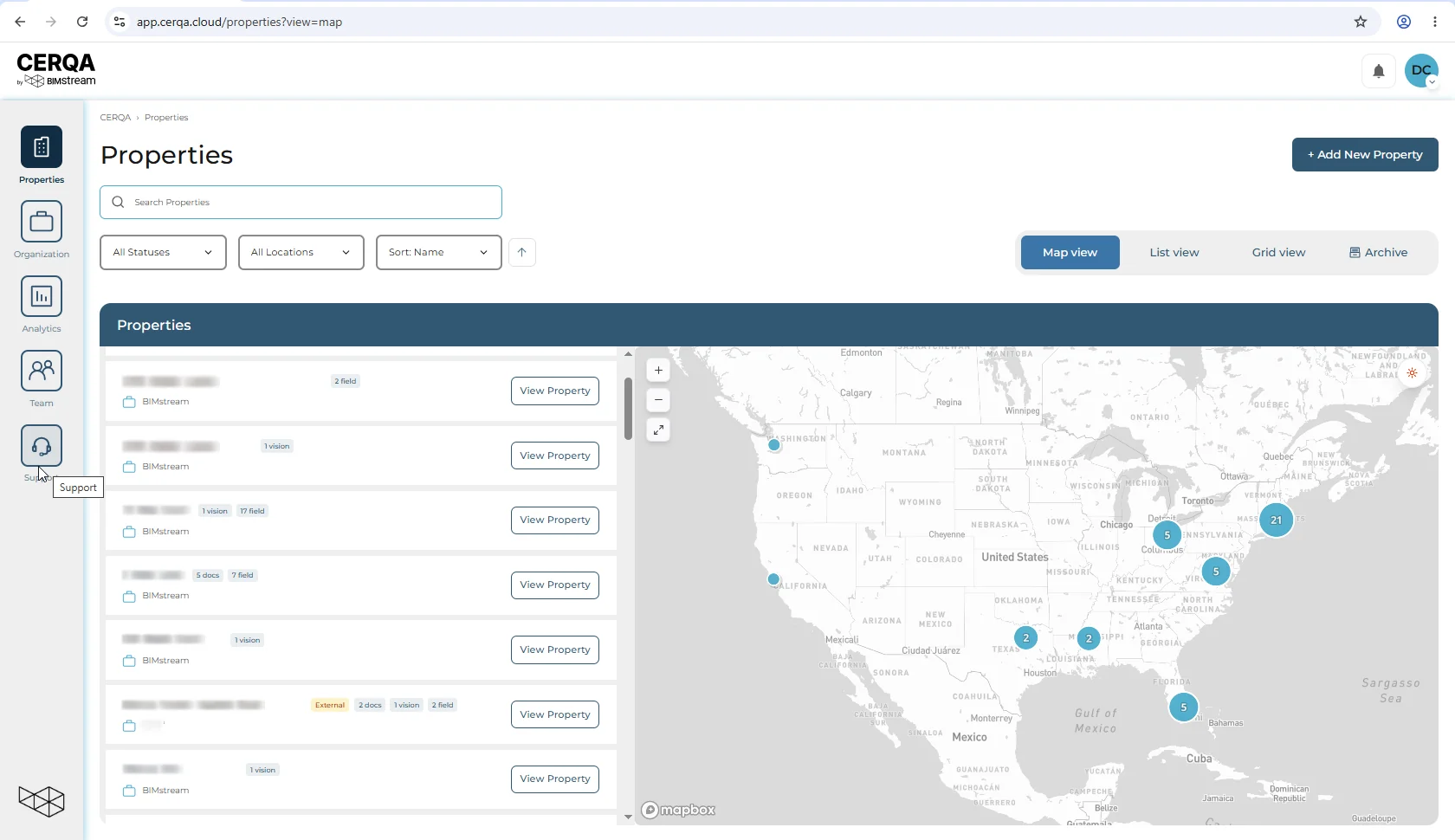
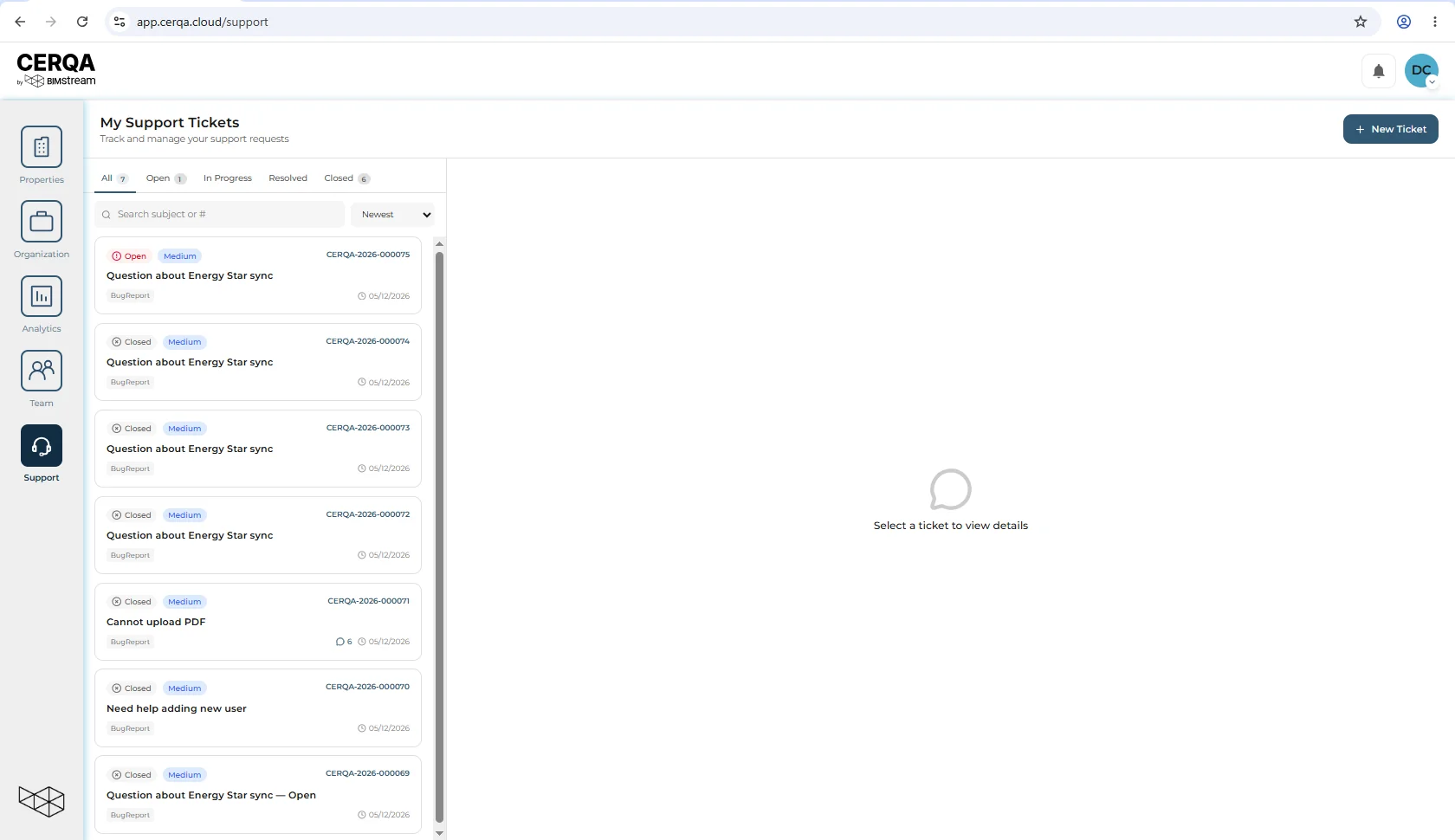
Clicking Support opens My Support Tickets - your personal view of every ticket you've created with CERQA. Tickets are organized by status across five tabs: All, Open, In Progress, Resolved, and Closed. The count next to each tab tells you how many tickets sit in that state.
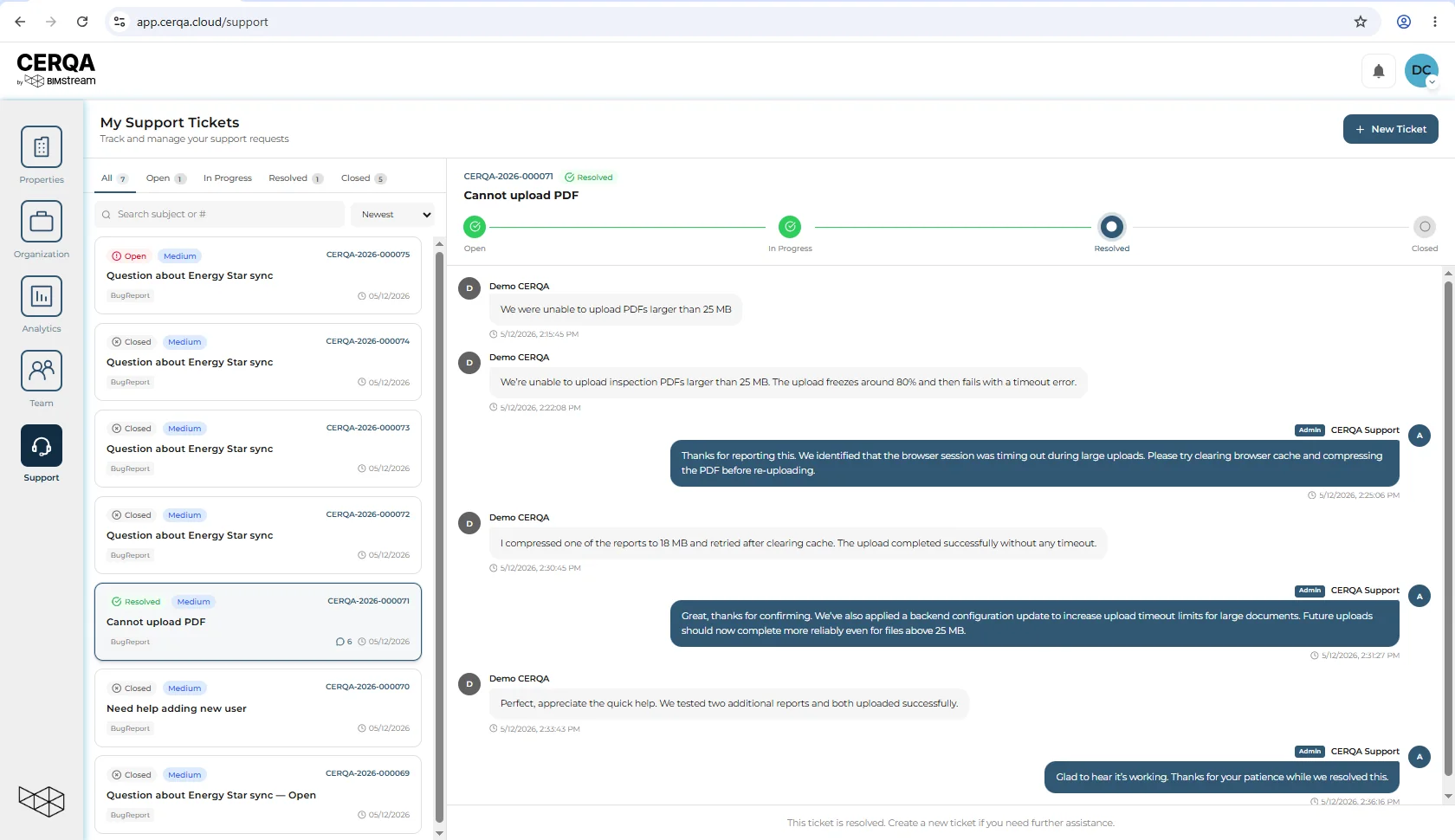
Click any ticket to expand the full conversation thread - the original report, every reply from support, status changes, and attachments.
To start a new ticket, click New Ticket in the top-right of the Support page.
Filing a quick report via Help & Feedback
If you're in the middle of something and hit a problem, you don't need to leave the page. The Help entry in the avatar menu (your avatar in the top-right corner) opens a dialog called Help & Feedback for filing a quick report.
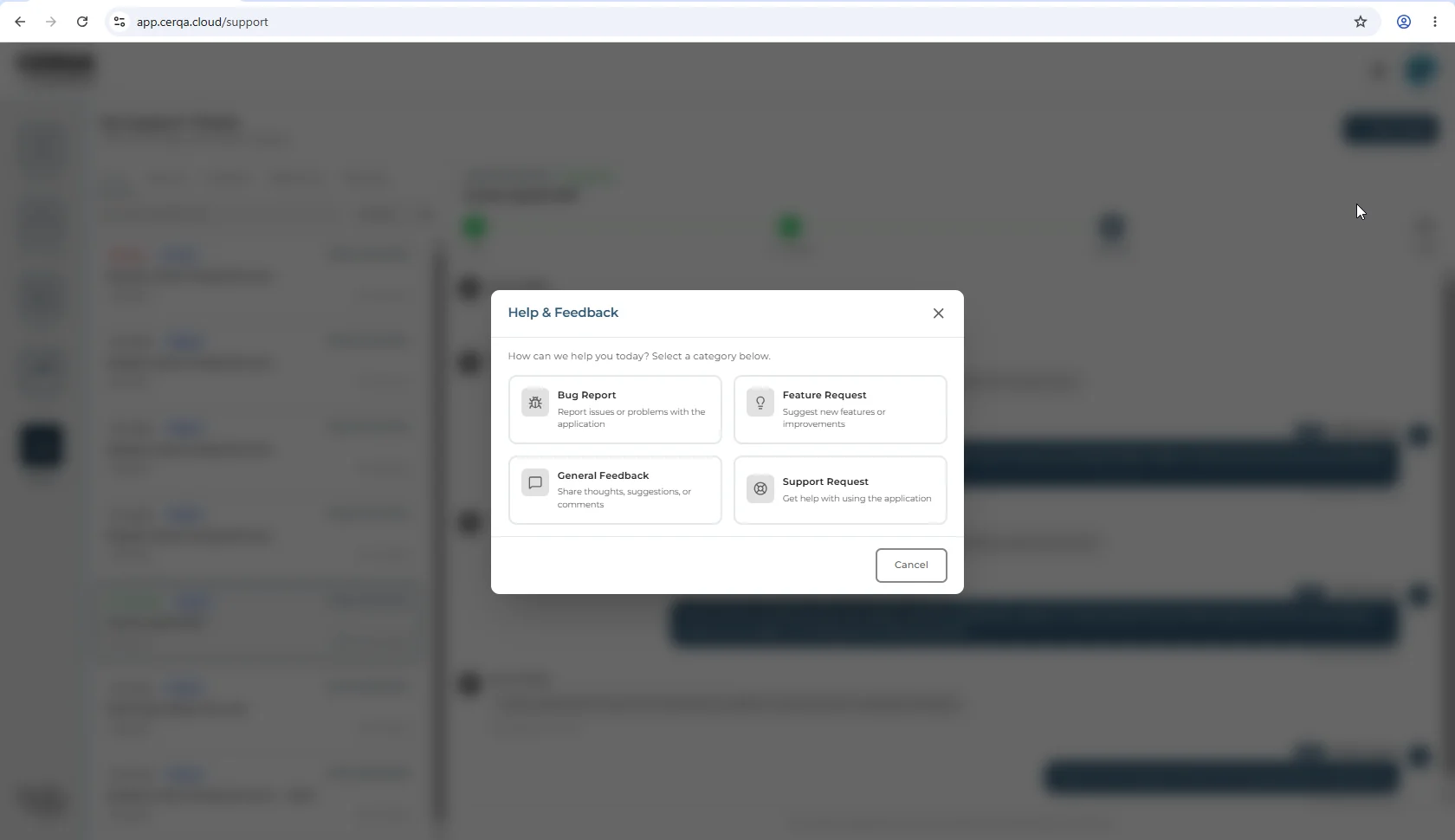
The dialog has four category options:
- 1Bug Report - Something is broken or behaving incorrectly.
- 2Feature Request - You want something new in CERQA.
- 3General Feedback - Thoughts, suggestions, or impressions.
- 4Support Request - You need help but it doesn't fit the other categories.
Pick the category that fits, fill in the details, and submit. The report becomes a ticket in your Support page just like any other.
When to call your CERQA Account Manager directly
Some requests are too big to fit in a support ticket - adding or removing modules, configuring SSO, transferring properties between companies, or any change that affects your contract. For those, reach out to your CERQA Account Manager directly. The full list of these “out of scope for tickets” items lives in CA-14 - When to call your CERQA Account Manager.