Company Admin
When to call your CERQA Account Manager
CERQA gives Company Admins a wide scope, but some workflows live above that scope. This piece is the boundary checklist: 8 concrete scenarios where a Company Admin (CA) escalates to their CERQA Account Manager rather than handling it themselves. Each item lists what is yours, what is CERQA's, and a cross-link to the piece that documents your side of the boundary.
What your CERQA Account Manager handles
Your CERQA Account Manager (often called your account manager) is your escalation path for anything that sits above the Company Admin tier. That includes module subscriptions, SSO setup, contract and billing changes, custom integrations, and a handful of platform-level features that exist in CERQA but are handled by BIMstream on your behalf.
The escalation list below is exhaustive for normal CA work. If a task does not appear here, it is almost certainly inside your CA scope. For the full role-by-role capability matrix, see F-04 - Roles and permissions.
The 8 escalation triggers
Quick reference. Each item is detailed in the section below.
- Module subscriptions - turning a module on or off for your company.
- SSO configuration - single sign-on protocols (SAML, SCIM) and identity-provider wiring.
- Member deletion edge cases - cross-company members, CA-or-above members, or recovering a deletion. Note: deleting a lower-role member in your own company is a normal CA capability, not an escalation.
- Support triage dashboard - the cross-company all-tickets view.
- Platform settings - billing, plan changes, feature availability, branded portals.
- Third-party and custom integrations - anything not already on the Connections tab.
- Member Groups - bulk member operations handled by BIMstream.
- Cross-Company partner sharing - a platform-level feature BIMstream handles.
1. Module subscriptions
Turning a module on or off for your company is set by your CERQA Account Manager. What you control as a CA is who within your company gets access to the modules your company already subscribes to. That is Layer 2 of the three-layer access model (see CA-01) via the Add Member flow (CA-04) and Member Details modal (CA-05). What is above you: changing the company's subscription itself.
For the full module reference, see CA-07 - Module gating reference.
2. SSO configuration
The single sign-on protocols (SAML and SCIM), identity provider (IDP) wiring, and SSO domain configuration are CERQA-side work. Once SSO is configured, your members sign in via your IDP and you manage them as usual through CA-04 and CA-05. The setup itself is not in your scope.
3. Member deletion edge cases
Deleting a lower-role member in your own company is NOT an escalation
As a Company Admin you can permanently delete a lower-role member in your own company. That is a normal CA capability, covered in CA-05 - Managing members. Calling your CERQA Account Manager is not required for the everyday case. This matches F-04: a Company Admin can permanently delete members below their own role, within their own company.
Three deletion scenarios do go beyond your scope and require escalation:
- Cross-company members. Deleting a member who belongs to a different company you share access with.
- CA-or-above members. Deleting another Company Admin or above. The role hierarchy blocks you at save.
- Recovering a deletion.There is no self-serve restore for a deleted member record.
For the everyday delete-or-deactivate decision (which is yours), see CA-05. For these three edge cases, escalate.
4. Support triage dashboard
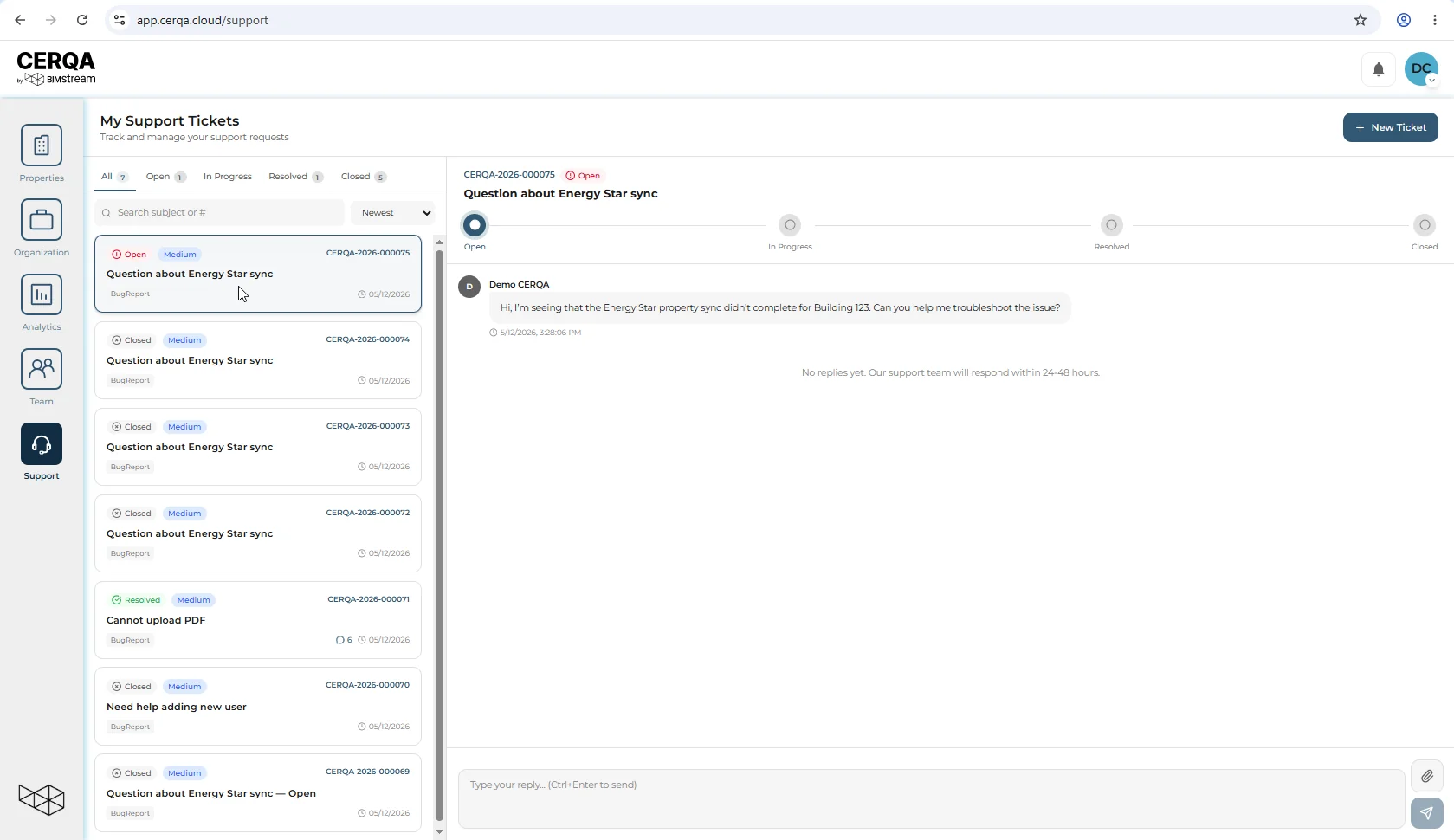
You file tickets via the Support page and see your own tickets and replies there. A portfolio-wide view across every company's tickets is not part of the Support page.
For where Support lives in the product and the Help & Feedback dialog, see F-05 - Getting Help.
5. Platform settings
Anything outside your company is CERQA-side: billing, plan changes, contract terms, turning platform features on or off for your company, custom-branded portals. These are account-management conversations rather than admin tasks.
6. Third-party and custom integrations
CERQA's Connections tab holds the integrations CERQA already supports. Today the supported list is LEED via Arc / USGBC and Energy Star via Portfolio Manager. See CA-11 - The Connections tab for the current set.
If you need an integration that is not already in Connections, or a custom integration built for your company specifically, that is a conversation with your CERQA Account Manager, not something you set up yourself.
7. Member Groups
Member Groups exist in CERQA as a complete feature: create, edit, add members, share access at the group level, archive. The Groups tab is a BIMstream platform surface; no customer role sees it, including Company Admin.
Use cases that escalate here:
- Bulk operations on many members at once.
- Group-level access grants across multiple properties.
- Archiving an entire team in a single action.
If you find yourself doing similar work one member at a time and wishing for a bulk path, that is the escalation. For where Member Groups sits on the role matrix, see F-04.
8. Cross-Company partner sharing
A platform-level feature: it exists in the product but is not visible or actionable from a standard customer Company Admin role.
Granting an outside-company member access to your company's properties. The Cross-Company Access tab on the Team page is a BIMstream platform surface; only your CERQA Account Manager can create a cross-company grant. Standard customer CAs do not see the tab; Project Managers (PMs) have no Team page at all and see membership only on a property's Property Members tab.
Two alternatives stay within your scope, neither requiring escalation:
- Add the partner as a Guest member via CA-04, then assign them per-property access via CA-05's Add Member dialog (Guest role, with an Access Duration preset picker for the expiry).
- Share specific files or folders via the time-limited share-link on the file itself (PM-allowed, see the Files module).
For a structured cross-company partner setup that goes beyond either of those, escalate. The boundary is also documented from the PM and CA-side workflow perspectives: PM-07 - Sharing with external partners and WR-07 - Sharing with external partners.
How to reach your CERQA Account Manager
Your account manager's email is your primary path. The shared queue at support@cerqa.cloud is the backup if you don't have a direct contact yet.
If you aren't sure who your account manager is, file a Support ticket from the Help & Feedback dialog (avatar menu, then Help) with the subject “Who is my account manager?” The team routes the ticket and confirms your contact. See F-05 - Getting Help for the Support page and the Help & Feedback dialog mechanics.
What to provide when you reach out
Four pieces of information speed up the response on almost any escalation:
- Company name. If you have multiple companies in CERQA, specify which one the request is about.
- The property or member in question. A specific property name or a member's email. “A property” or “a member” without identifying them slows the response.
- What you tried. The action you took in CERQA before deciding it was an escalation. This rules out the self-service path quickly.
- Screenshots of any error or unexpected UI. A screenshot of an error dialog, a blank page where you expected content, or a missing button beats a text description.