Foundations
Welcome to CERQA
Every building's data, in one place. CERQA holds the models, drawings, photos, walkthroughs, and live records for every property in your portfolio. Sign in once and reach every building you have access to, regardless of which team set it up.
This page covers what CERQA is at a glance, and how administration is layered across the platform, your company, and individual properties. It also introduces the six roles you can be assigned in CERQA and what your CERQA Account Manager handles versus what your team handles. Read this before anything else in the library.
What CERQA is
CERQA is one platform for every model, drawing, photo, and walkthrough across a portfolio of buildings. A typical project keeps its BIM model in one system, drawings in another, site photos in a third, and as-built data in spreadsheets. CERQA holds all of it in a single place per property and ties everything to the building it documents.
Modules group capabilities by job, each with an internal code paired to its display name: DOCUMENTS (Files & Models), FIELD (Field), VISION (Vision), AERIAL (Site), CONNECTIONS (Connections), ANALYTICS (Analytics), and EXPERIENCES (Experiences). Every company works with Files & Models, Field, and Vision; Site, Connections, Analytics, and Experiences appear for companies granted those modules.
Each module is granted to a company at the company level and appears as a Module Access checkbox in the Add Member dialog when your company has it (checkboxes are checked by default when present). Most modules gate a property tab. Analytics differs in what it gates: the company-wide Analytics sidebar page, not a property tab. Sustainability is not a module of its own; it is a section inside the Connections tab. Which modules your company has depends on your grants. For the full module-gating reference, see CA-07 - Module gating reference.
The three layers of administration
CERQA is administered in three layers. Each layer answers a different question: what does the platform support, who in your company can use it, and who works on which property.
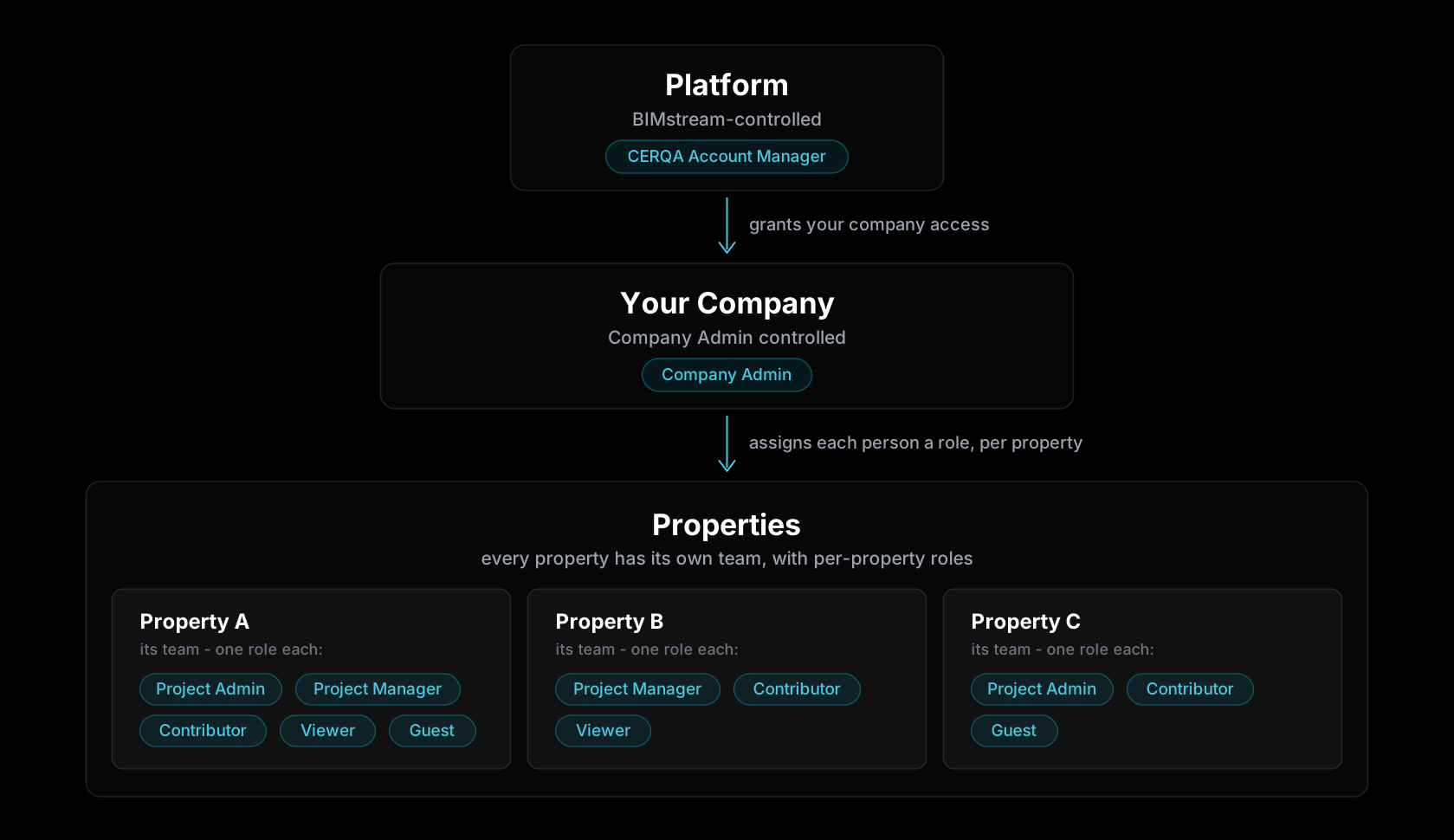
Platform is BIMstream territory. BIMstream controls which modules your company has access to, your single sign-on configuration, your contract, and any cross-company operations like transferring a property between two companies. Your CERQA Account Manager is your interface to this layer.
Your Company is administered by your team. One or more Company Admins manage the company-level setup: inviting and removing members, creating new properties, and assigning per-property roles. Company Admin is the highest level of access on your side of the platform.
Properties are where day-to-day work happens. Each property has its own assignments. A member might be a Project Manager on one property and a Viewer on another. Roles are set per property, not per member globally.
The six roles at a glance
Six roles are assigned to people on your team. Each one determines what they can see, what they can change, and which modules they can reach inside a given property.
- 1Company Admin (CA) - Controls company-wide setup. Invites and removes members, creates properties, assigns per-property roles, manages module subscriptions and billing.
- 2Project Admin (PA) - Full control on a project-by-project basis. Manages the team on assigned properties and has property-level Analytics access.
- 3Project Manager (PM) - Coordinates project operations on assigned properties without admin rights. Document management, progress tracking, and reporting. No team management or property-level Analytics.
- 4Contributor - Adds and edits content on assigned properties. Uploads documents, enters field data, and leaves comments.
- 5Viewer - Read-only access to assigned properties. Views documents, downloads permitted files, and reads comments.
- 6Guest - Limited, time-bound access for external partners. Sees only the specific folders or items granted on a single property.
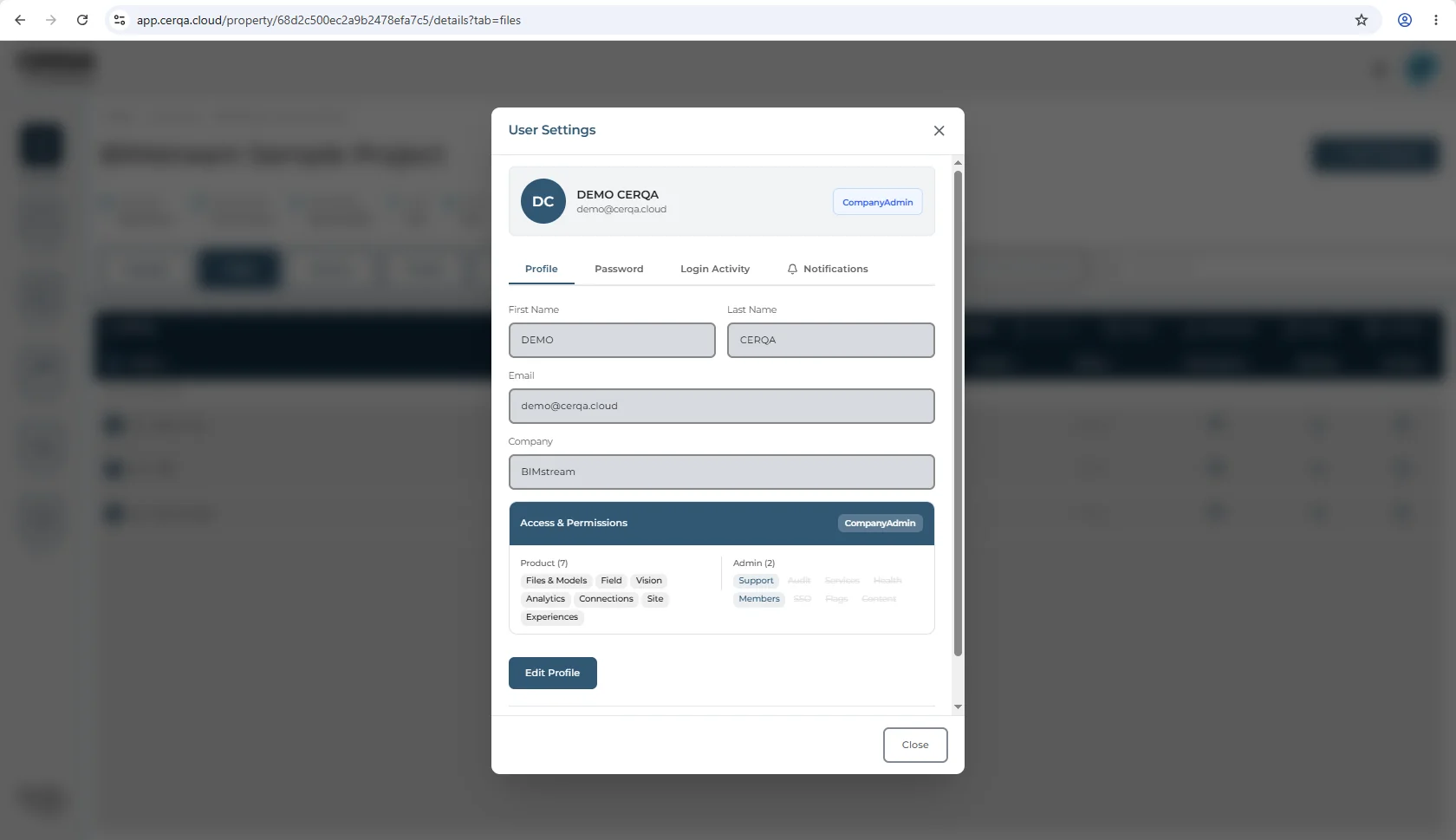
For the full role matrix - which exact actions each role can take across every module, at company-level and property-level - see F-04 - Roles and permissions.
What your CERQA Account Manager handles
Some things on the platform only your CERQA Account Manager can do. Adding or removing modules, configuring single sign-on, transferring properties between companies, and any change that affects your contract sit on BIMstream's side of the platform. Those requests go through your CERQA Account Manager.
Everything else - inviting members, creating properties, assigning roles, day-to-day project work - belongs to your team. The Company Admin layer is yours; you don't need to ask your CERQA Account Manager to add a member.
The full list of when to call your CERQA Account Manager lives in CA-14 - When to call your CERQA Account Manager.
Where to go next
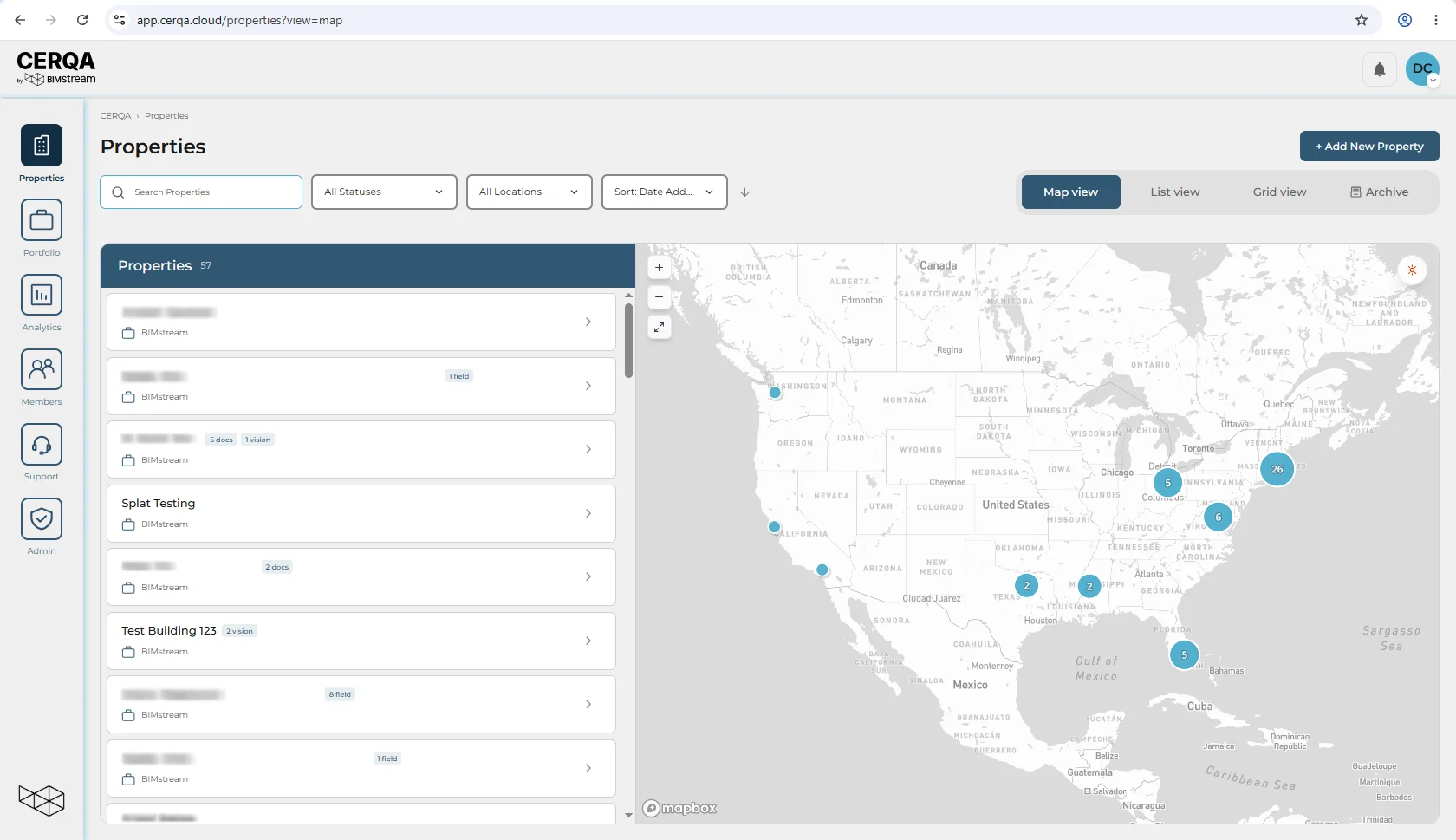
When you sign in, CERQA lands you on the Properties page in Map view. Every property in your portfolio shows as a marker. From there, the most useful next read depends on your role.
- F-02 - Logging in and your profile - universal entry point. Sign in, where you land, and the User Settings tabs.
- F-04 - Roles and permissions - the full role matrix at company-level and property-level. If you're a Contributor, Viewer, or Guest, this is your landing point.
- CA-01 - What you actually own as Company Admin - the CA track starts here.
- PM-01 - What a Project Manager does in CERQA - the PM track starts here.