Foundations
Logging in and your profile
Sign in, where you land, and the profile settings you can change. This page walks the universal entry path that every customer-facing role passes through, regardless of whether your company uses passwords or single sign-on.
If you haven't read F-01 - Welcome to CERQA yet, start there first for the platform-level orientation.
Sign in at app.cerqa.cloud
Open app.cerqa.cloud in any browser. The sign-in page shows two fields, Username or email and Password, a primary Sign In button, a Use my organization's SSO link, and a Forgot your password? link below the form. Enter your work email and the password you created during account registration. If the credentials are valid, CERQA takes you to the Properties page.
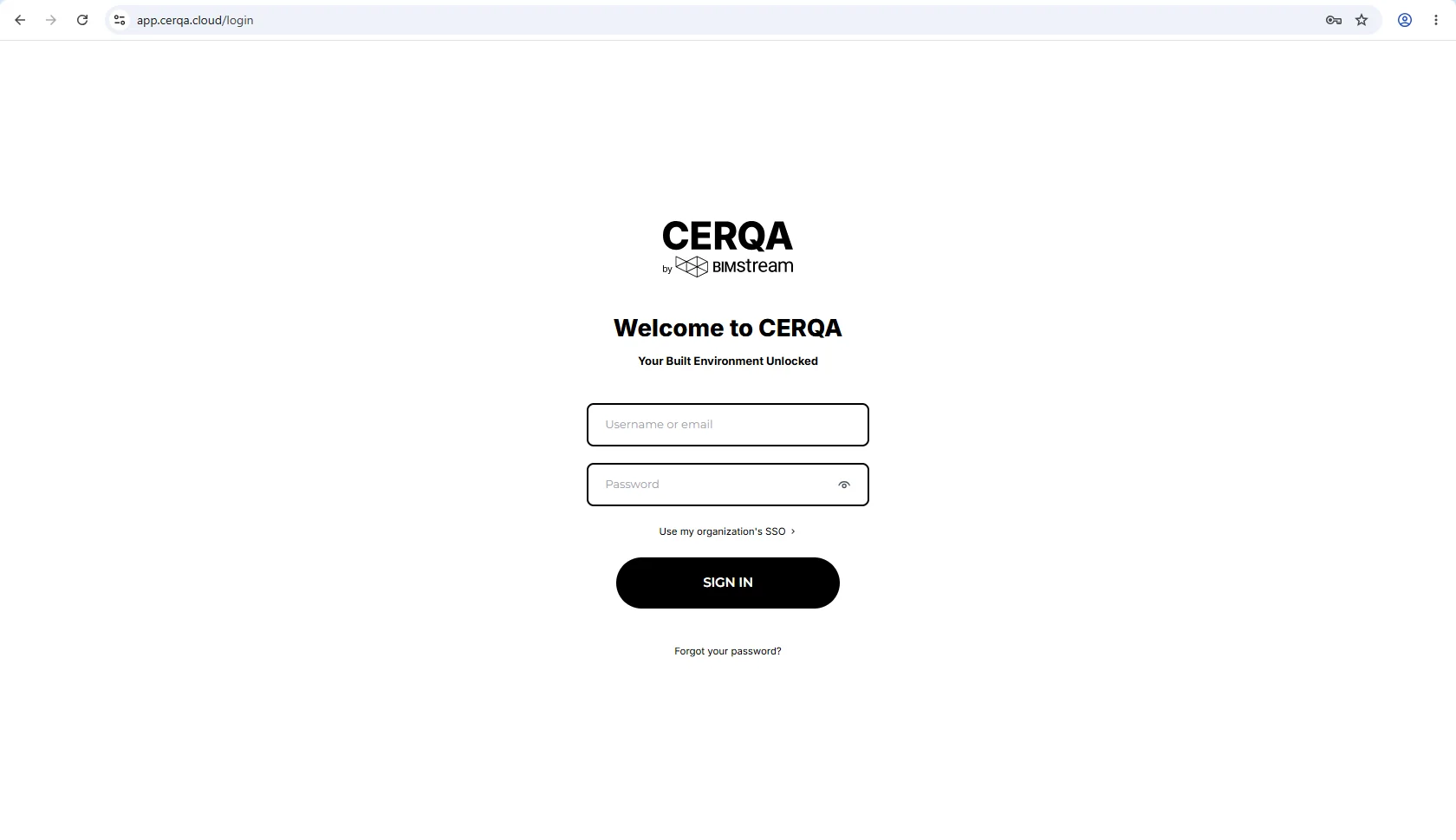
If you haven't received your account invitation yet, your Company Admin is the one who creates it. Reach out to them first rather than to CERQA support.
SSO sign-in
If your company uses single sign-on, you don't enter a password on CERQA. Click Use my organization's SSO on the sign-in page. A second page opens with a single Email address field. Enter your work email and click Continue with SSO. CERQA hands you off to your company's identity provider (your IDP) to sign in. Once your IDP confirms you, you're returned to CERQA already signed in.
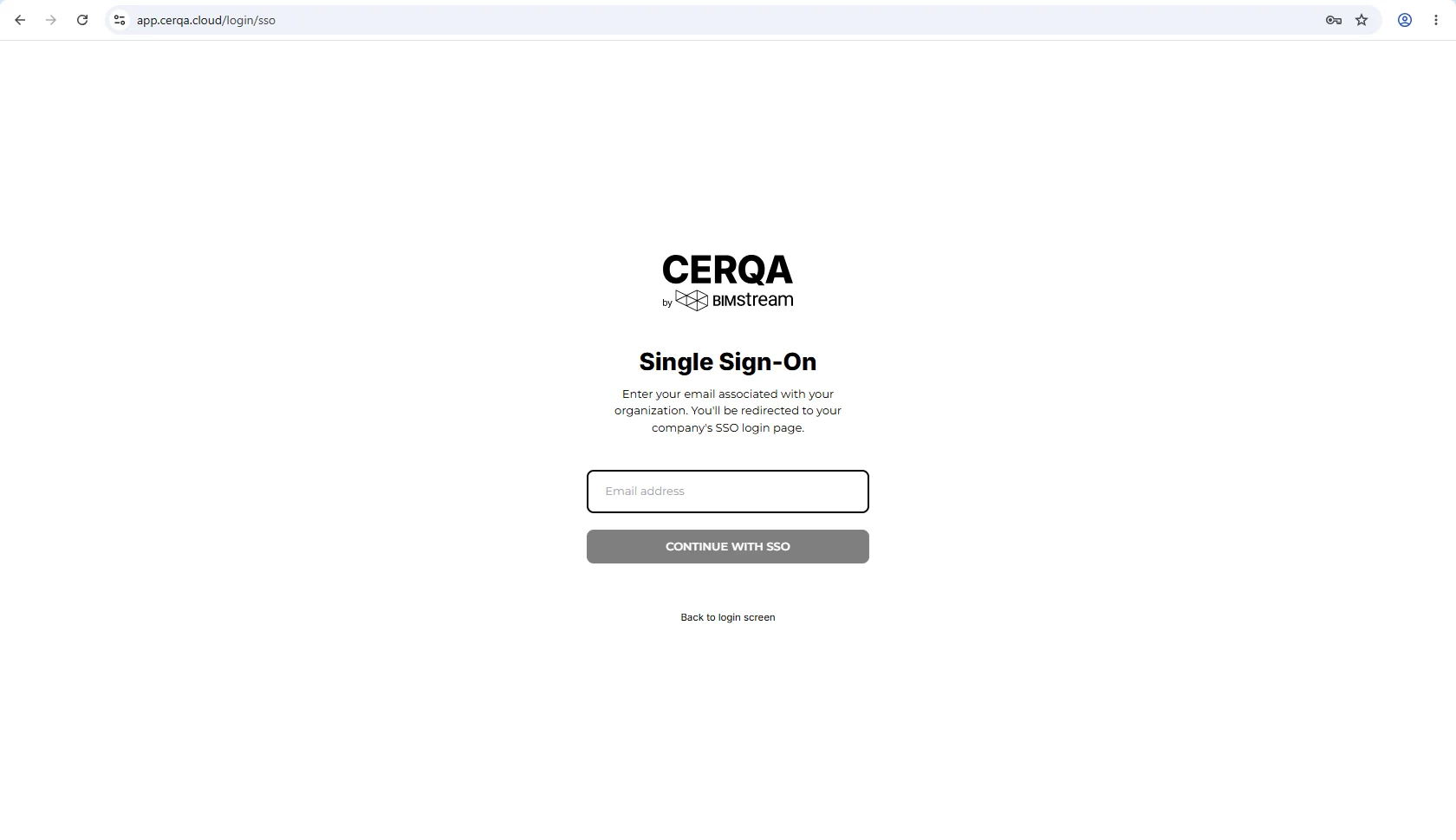
Whether SSO is available to your company is configured by BIMstream. You can't turn it on from inside the app.
Where you land
After a successful sign-in, CERQA lands you on the Properties page in Map view. The URL bar reads /properties?view=map. Every property in your portfolio that you have a role on shows as a marker on the map.
This is the default landing page for every role: Company Admin, Project Admin, Project Manager, Contributor, Viewer, and Guest.
From the Properties page, what you can do next depends on your role. For the role-by-role view of what each role can see and do, see F-04 - Roles and permissions.
Update your profile
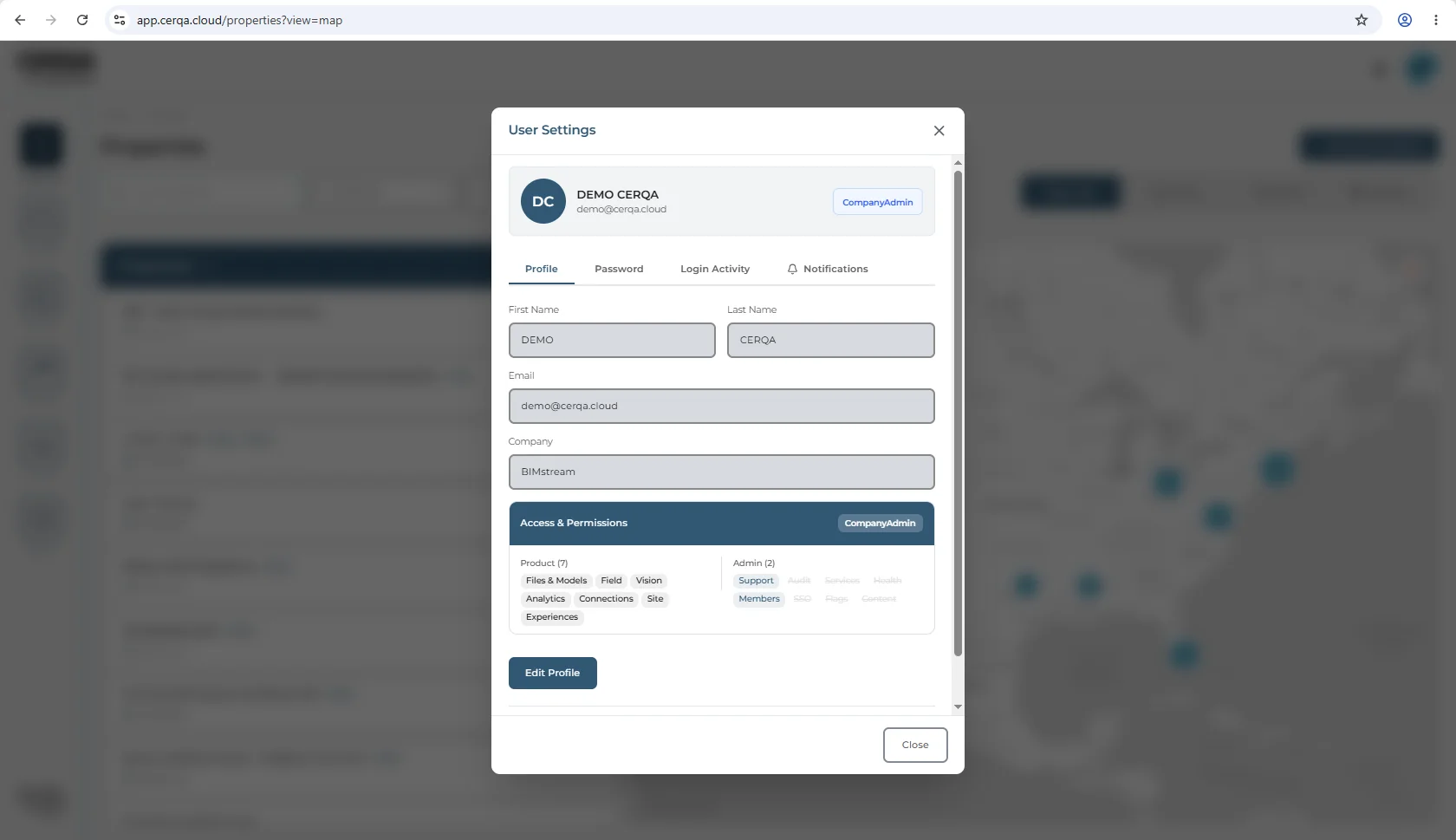
Click your avatar in the top-right corner of any page, then click Settings. User Settings opens on the Profile tab. The profile fields are First Name (editable), Last Name (editable), Email (read-only), and Company (read-only). There's no photo upload and no phone field.
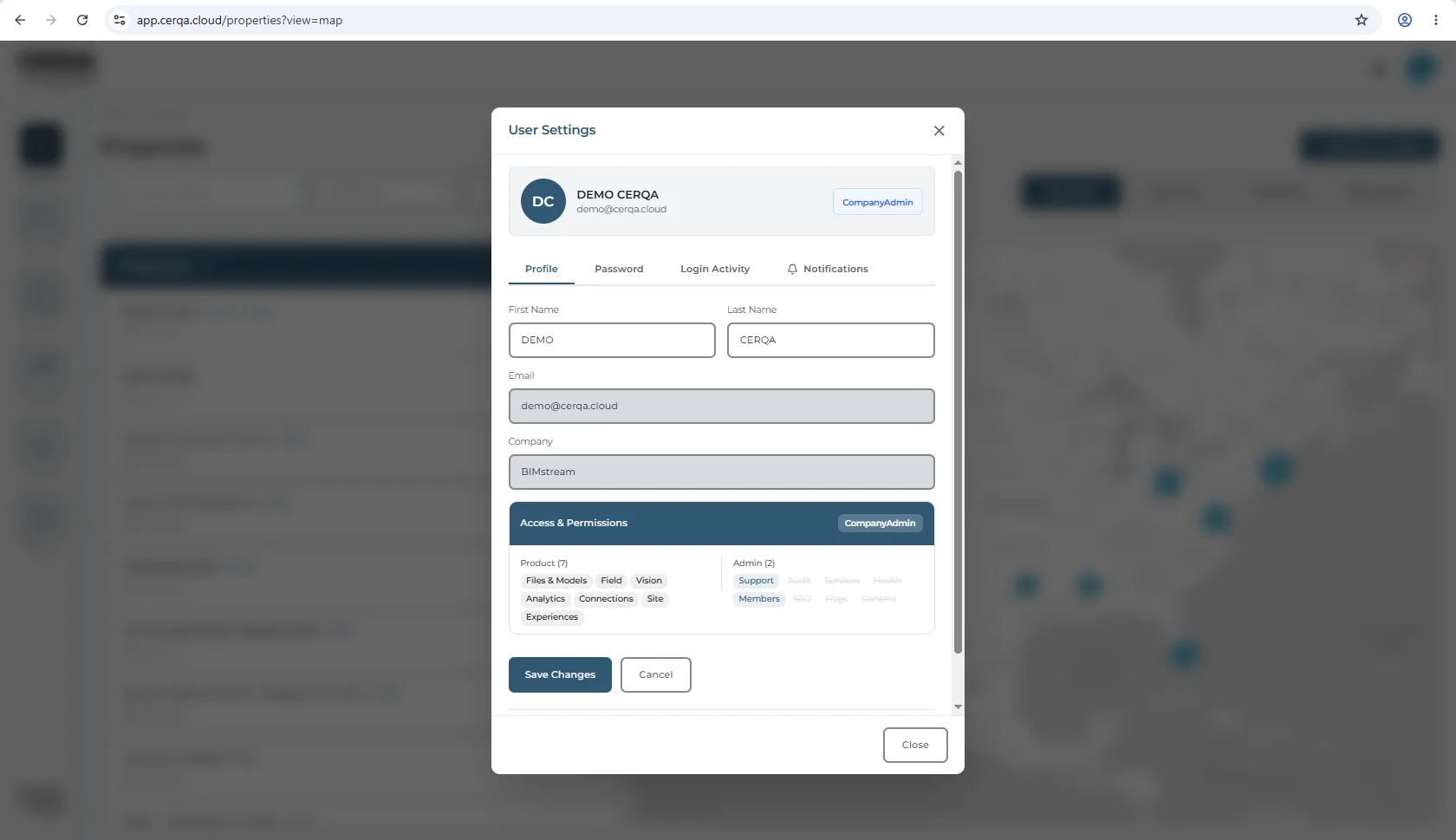
Edit First Name or Last Name and click Save. Email can't be changed from here. If your address has changed, ask your Company Admin to update it. Company is set at the platform level and only your CERQA Account Manager can change it.
The User Settings tabs
User Settings has four tabs across the top, each holding a different slice of your account.
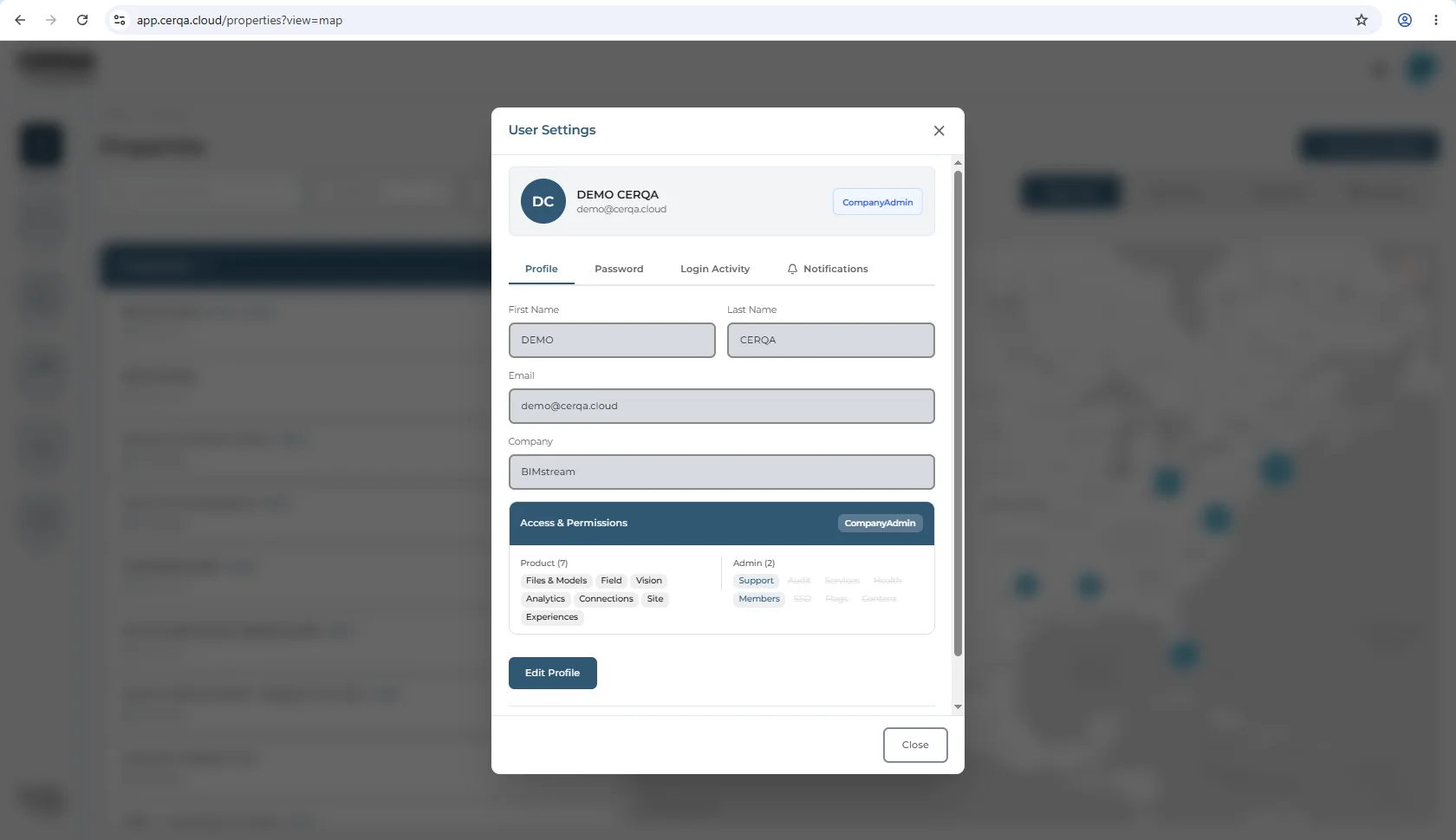
- 1Profile - First Name (editable), Last Name (editable), Email (read-only), Company (read-only). Covered above.
- 2Password - Change your CERQA password. You won't see this tab in a useful state if your company uses SSO; your IDP holds the password, not CERQA.
- 3Login Activity - History of sign-ins to your account: timestamp, device, and IP.
- 4Notifications - Opt into or out of email alerts.
At the bottom of the Profile tab, the Access and Permissions panel lists every Product module and Admin permission your Company Admin has granted you. The panel is read-only. Your CA controls what appears here.
The light and dark mode toggle lives in the avatar menu itself, not inside User Settings. For the full tour of the sidebar and the avatar menu, see CA-02 - Logging in and your sidebar.