Foundations
Roles & permissions
The complete “what each role does in CERQA” reference. Every cell in the capability matrix below reflects how CERQA actually behaves today. CERQA assigns a role at two scopes (company-level and property-level), and the two combine to determine what a person can actually do.
The two role scopes
CERQA assigns a role at two independent scopes. The company-level role is set when a member is added to your company via the Team page (Team page, then Add Member). It determines what they can do company-wide. The dropdown in that dialog is labeled “Platform role”. As a Company Admin you see six options in this dropdown.
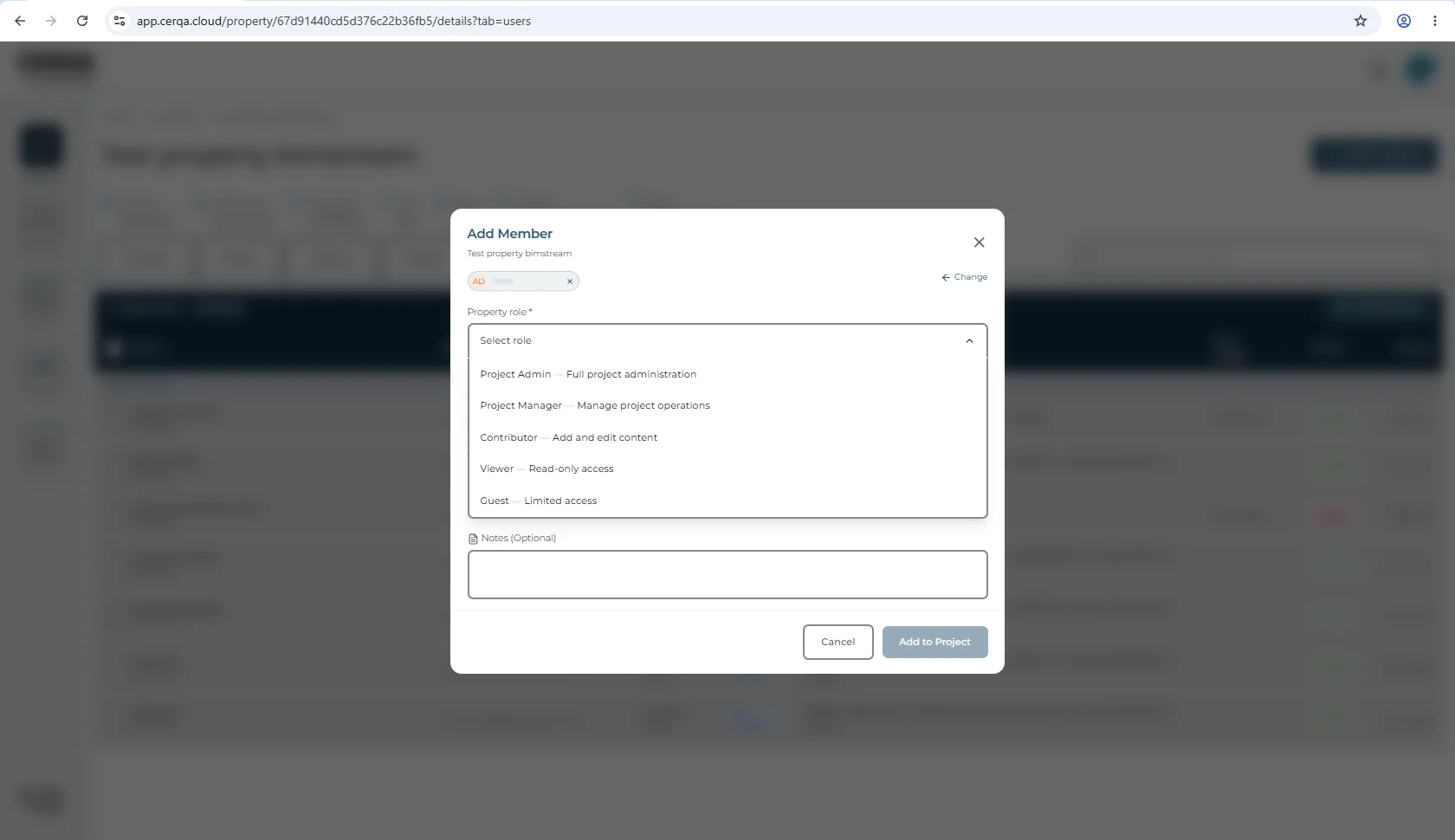
The property-level role is set when a member is added to a specific property's team via the property's Project Team tab, then Add Member. Five role labels are available there. Company Admin is not a property-level option, because a CA's authority is already company-wide.
The two scopes combine. A member who is a Contributor at the company level but is added as a Project Admin on one specific property has Project Admin capabilities on that property and Contributor capabilities everywhere else.
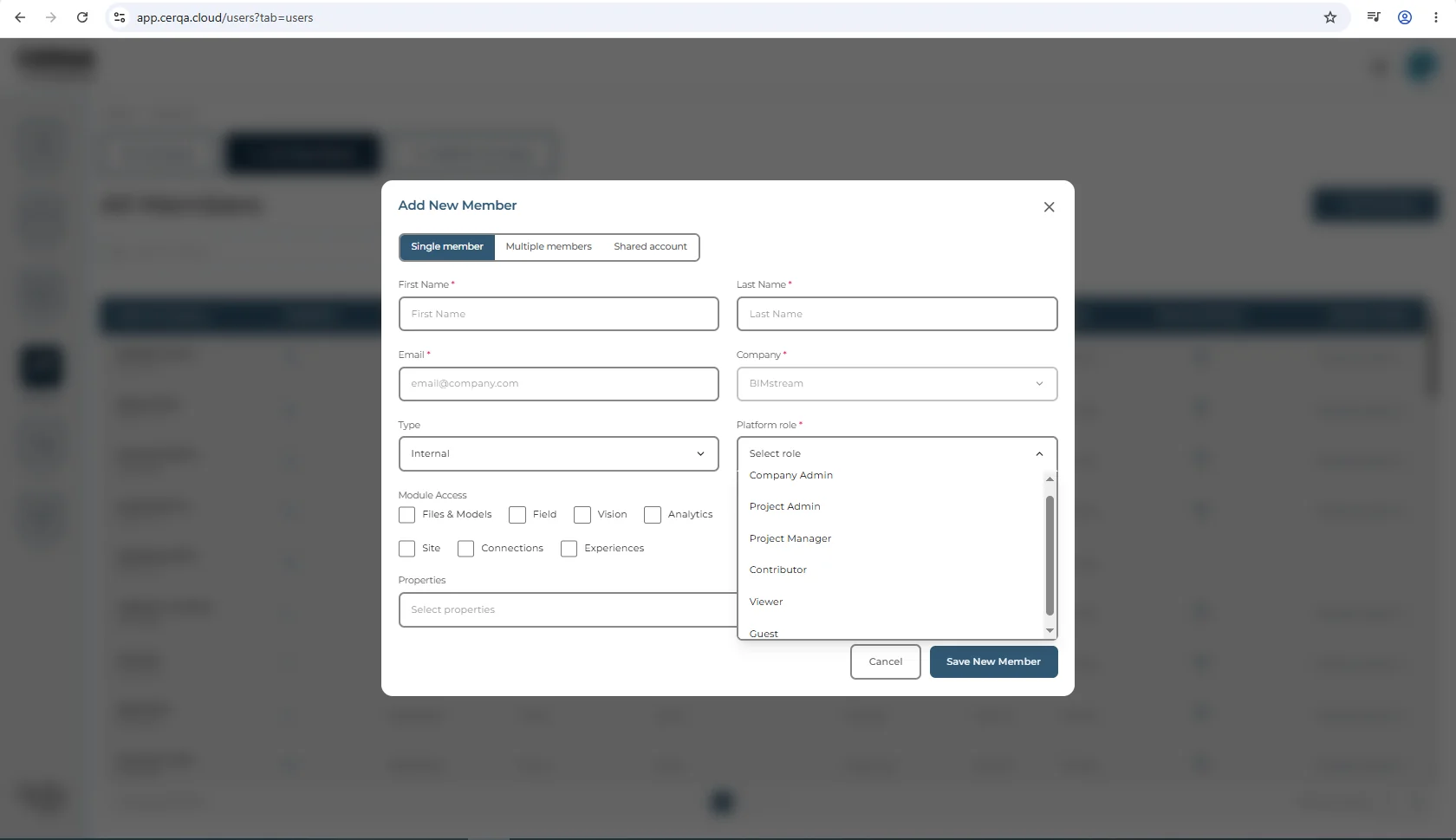
The six roles
All six roles, and where each one is assigned:
| Role | Where assignable | Notes |
|---|---|---|
| Company Admin | Company-level only | The customer's top role. Manages members, properties, integrations, and company-wide module access. |
| Project Admin | Company-level or property-level | Full administration of one or more properties. Can manage that property's team and create properties at the company level. |
| Project Manager | Company-level or property-level | Day-to-day operations on assigned properties. Cannot manage the property team. |
| Contributor | Company-level or property-level | Adds and edits content (files, pins, markup). Cannot manage the property team or sharing config. |
| Viewer | Company-level or property-level | Read-only access. Can open PDFs but cannot annotate; the markup toolbar is not exposed to Viewer. |
| Guest | Company-level or property-level | Limited access typically used for external partners. Cannot annotate. |
Project Admin vs Project Manager: the key distinction
These two roles are easy to confuse. Both manage one or more properties day-to-day, and both have identical module access on properties they are assigned to. The difference is team and property authority:
| Capability | Project Admin | Project Manager |
|---|---|---|
| Module access (Files & Models, Field, Vision, Analytics, Site, Connections, Experiences) | All assigned | All assigned |
| Property Team, view members | Yes | Yes (view only) |
| Property Team, Add Member button | Visible | Hidden |
| Property Team, edit member role or access | Yes | No |
| Property Team, remove members | Yes | No |
| Set member access expiry on a property | Yes | No |
| Add Property at the company level | Yes | No |
| Analytics sidebar page | Visible | Hidden |
In plain English: Project Admin runs the property end-to-end (team, content, property creation, and analytics oversight). Project Manager runs day-to-day content but cannot change who is on the team, cannot create properties, and does not see the Analytics sidebar page.
The five property-level role labels
The Add Member dialog (property Property Members tab, then Add Member) shows these five labels verbatim. The label text below is what appears in the dropdown:
- Project Admin: “Full project administration”
- Project Manager: “Manage project operations”
- Contributor: “Add and edit content”
- Viewer: “Read-only access”
- Guest: “Limited access”
The role hierarchy
The hierarchy rule applies to changing an existing member's role: a new role equal to or above your own level is rejected. The dropdown does not pre-filter, so the option stays visible; selecting it and saving returns an error.
Adding a new member is not restricted the same way. A Company Admin can create another Company Admin in the same company, and that save succeeds. So the rule to remember is not “you can never assign at or above your level” - it is that you cannot promote an existing member to your level or above.
Practical effect
If you see a role above your own in a dropdown, the dropdown is not lying - you can pick it. Whether the save succeeds depends on which screen you are on: adding a member goes through, changing an existing member's role does not.
The capability matrix
The complete capability reference for CERQA. Where a capability is not available in the product today, the row says so.
| Capability | Who can do it |
|---|---|
| Delete a member permanently | Company Admin (a Company Admin can permanently delete members below their own role, within their own company). |
| Deactivate a member (soft) | Company Admin (same scope as delete). The gentler alternative; retains audit history. |
| Save a property view | Any property member (Project Admin, Project Manager, Contributor, Viewer, or Guest). No role gate. |
| Share a saved view | Any property member who owns the view. |
| Share a file via external link | Contributor and above - the Share action follows the same edit permission as markup. What a given share can reach also depends on where the file sits and who the recipient is. |
| Add markup or annotation on a PDF | Contributor and above. Viewer is view-only (can open the PDF but cannot annotate); Guest has no PDF access. |
| Set member access expiry on a property | Project Admin or higher (PA, CA). Two UIs by context: the Add Member dialog uses an Access Duration preset picker (new member); the Member Details modal uses a plain date input (editing an existing member). |
| Property-level module assignment checkboxes (Add Member dialog) | Three checkboxes (Files & Models, Field, Vision) are shown only to a Company Admin. A PA sees the Add Member dialog but not the module section. |
| Create a 360 walkthrough or viewpoint | Any property member. No role gate. |
| Export Field pin data to PDF | Project Manager and above. Contributor, Viewer, and Guest cannot export. Single Export PDF with Pins control (download icon in the Field tab's left vertical toolbar); floor plan with pins overlaid. No CSV, no ZIP. |
| Create a new property (Add Property button) | Company Admin or Project Admin. Project Manager and below do not see the button. |
| Cross-company partner sharing and member groups | Handled by BIMstream on your behalf. If a workflow needs cross-company partner access or bulk member-group operations, escalate to your CERQA Account Manager (see the section below and CA-14). |
| Open the Integrations menu (avatar menu) | Company Admin only. |
| Open the Team page (sidebar) | Company Admin only. PM is excluded. |
| Open the Analytics sidebar page | Company Admin or Project Admin. |
Module gating
Features that require a module are gated independently of role. Each module has an internal code paired to its display name: DOCUMENTS (Files & Models), FIELD (Field), VISION (Vision), AERIAL (Site), CONNECTIONS (Connections), ANALYTICS (Analytics), and EXPERIENCES (Experiences). Every company works with Files & Models, Field, and Vision; Site, Connections, Analytics, and Experiences appear for companies granted those modules. Each module is granted to a company at the company level, and each appears as a Module Access checkbox in the Add Member dialog only when your company has been granted that module (checkboxes are checked by default when present).
Most modules gate a property tab. Analytics differs in what it gates: the company-wide Analytics sidebar page, not a property tab. Sustainability is not a module of its own; it is a section inside the Connections tab.
Two property tabs deserve specific callouts:
- The Connections tab on a property is module-gated by CONNECTIONS. It is not universal.
- The Property Members tab is the only purely role-gated property tab. The other tabs are either module-gated or open.
For the full module reference (per-module surfaces, label drift, and the company-vs-property grant model), see CA-07 - Module gating reference.
What is above your role
Two features are gated above the standard customer Company Admin role. The correct framing for both is “available, but not to your role”, not “doesn't exist.” If a workflow needs any of them, the path is escalation to your CERQA Account Manager.
Member Groups
Fully implemented. The Groups tab supports create, edit, add members, share access, and archive. The Groups tab is a BIMstream platform surface; no customer role sees it, including Company Admin. Use cases that escalate here: bulk operations on many members at once, group-level access grants across multiple properties, archiving an entire team in one action.
Cross-Company partner sharing
The Cross-Company Access tab on the Team page is a BIMstream platform surface; only your CERQA Account Manager can create a cross-company grant. Standard customer CAs do not see the tab; Project Managers have no Team page at all (see the row above: Company Admin only) and see membership only through a property's Property Members tab.
When to escalate
If a workflow needs Member Groups or Cross-Company access grants, escalate to your CERQA Account Manager. The escalation checklist in CA-14 - When to call your CERQA Account Manager covers each of these.
The cross-company partner-sharing boundary is also documented from both the Company Admin and Project Manager perspectives:
- WR-07 - Sharing with external partners (the CA-side boundary doc).
- PM-07 - Sharing with external partners (the PM-side framing of the same boundary).
For the property-level Add Member flow (including Access Expiry on a per-property assignment), see CA-05 - Managing members. For the company-level Add Member flow that exercises this matrix, see CA-04 - Adding members.