Company Admin
Logging in and your sidebar
This is the navigation tour for Company Admins. Where you land after sign-in, the sidebar you see (up to five items, role and module gated), the seven-entry avatar menu in the top-right, and the theme toggle inside it.
If you haven't read CA-01 - What you actually own as Company Admin yet, start there. CA-01 maps what you control; this piece maps where to find it. The universal sign-in flow lives in F-02 - Logging in and your profile.
Where you land as a Company Admin
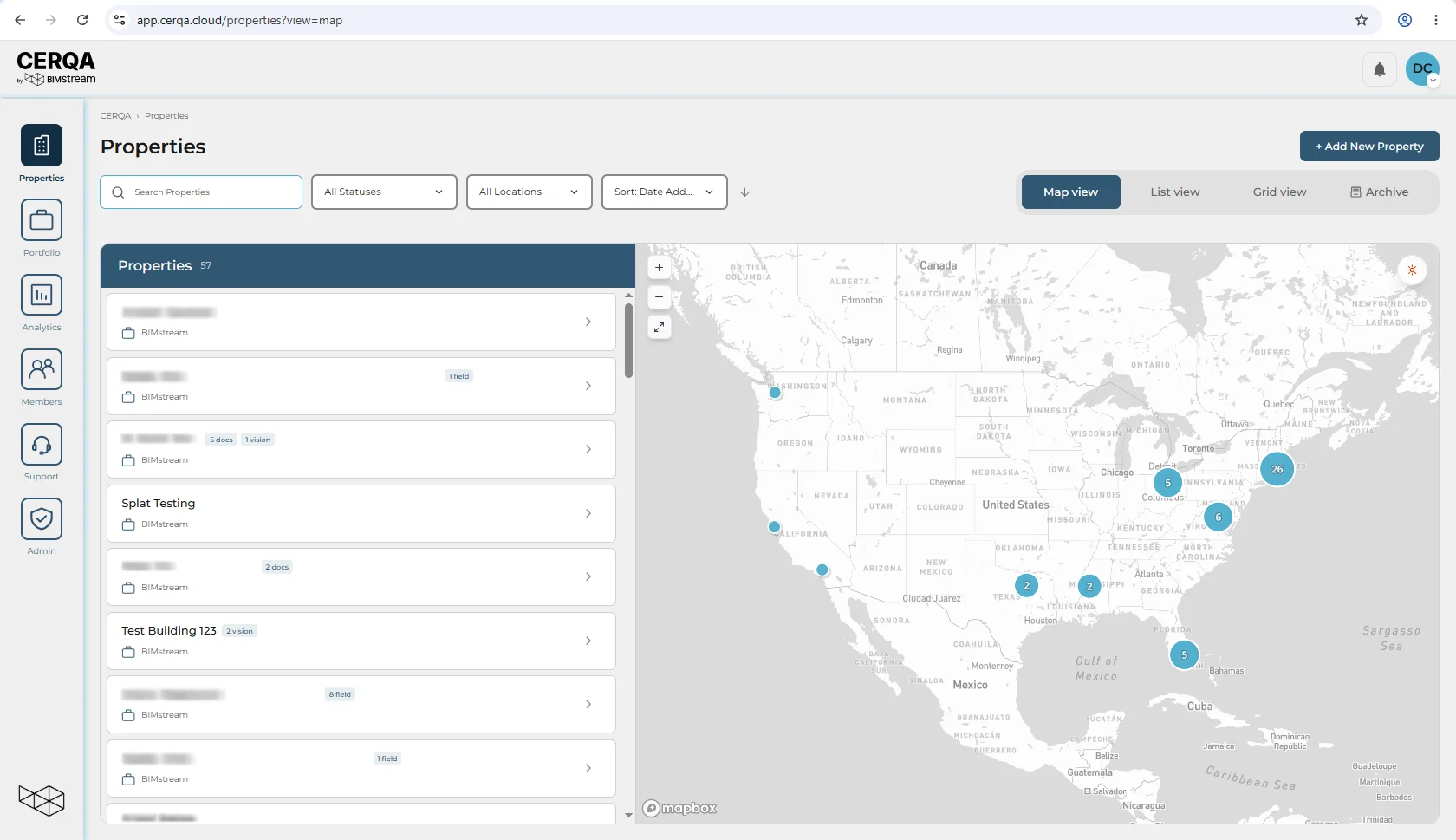
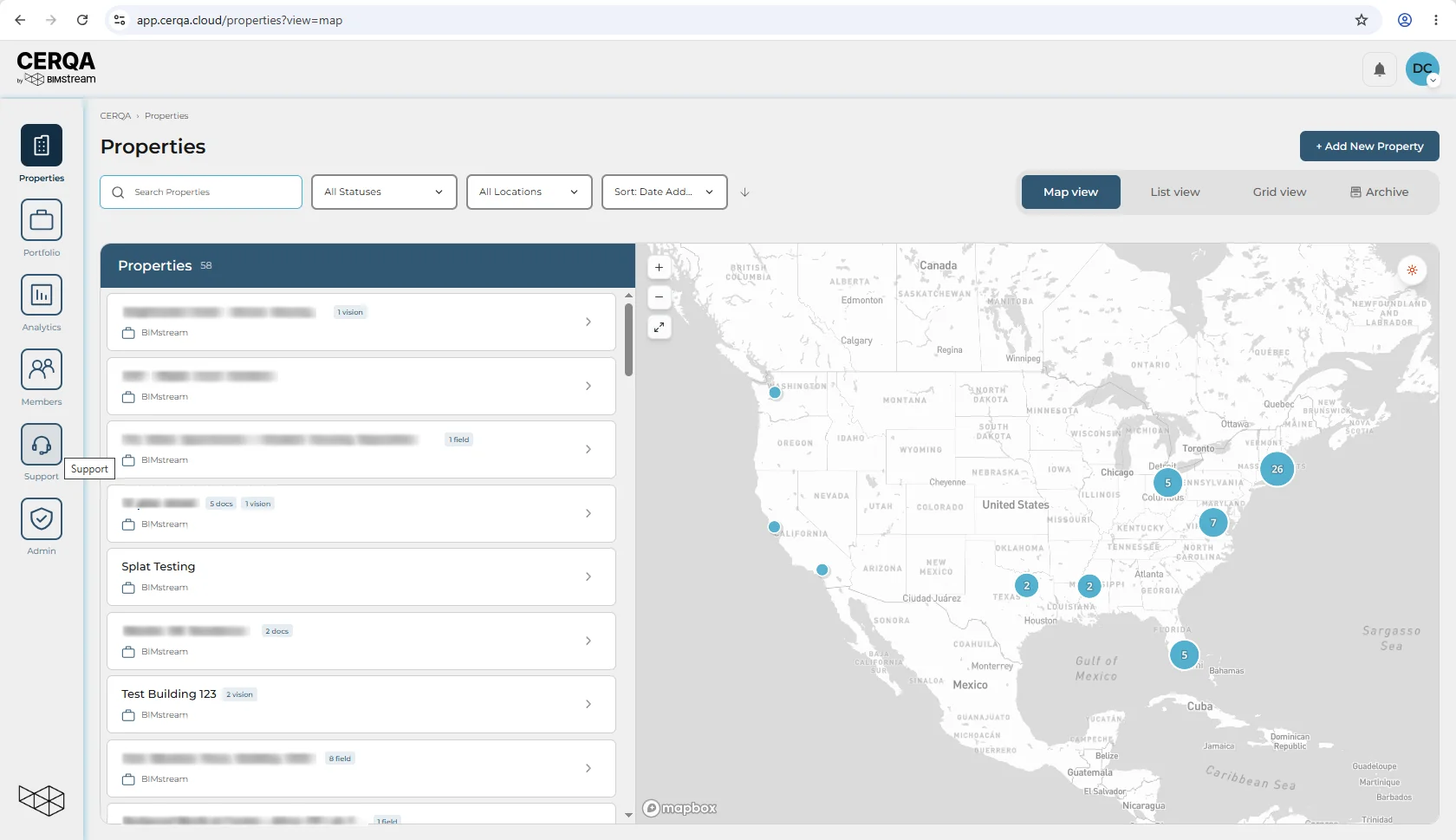
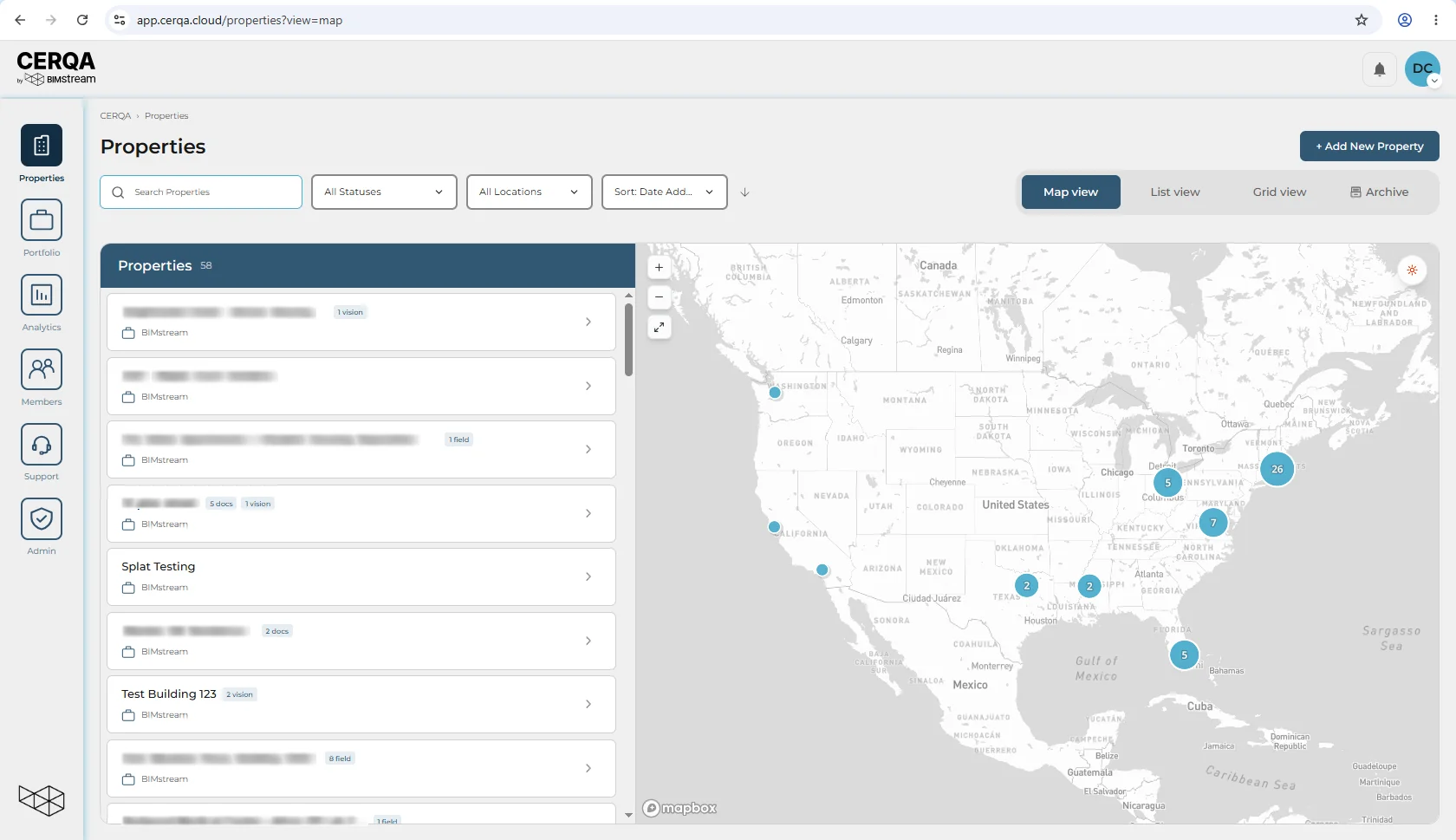
After you sign in, CERQA drops you on the Properties page in Map view, same as every customer-facing role. The URL bar reads /properties?view=map. What's different about being a Company Admin is the sidebar on the left and the avatar menu in your top-right. Both surface entry points other roles don't see.
The Company Admin sidebar
The sidebar sits on the left edge of every screen in the app and stays put as you navigate. It shows up to five items: Properties, Organization, Analytics, Team, and Support. Each item is gated independently by role or by module subscription, so different roles see different subsets. As a Company Admin with the relevant modules granted, you see all five. The next section explains which gates apply to each.
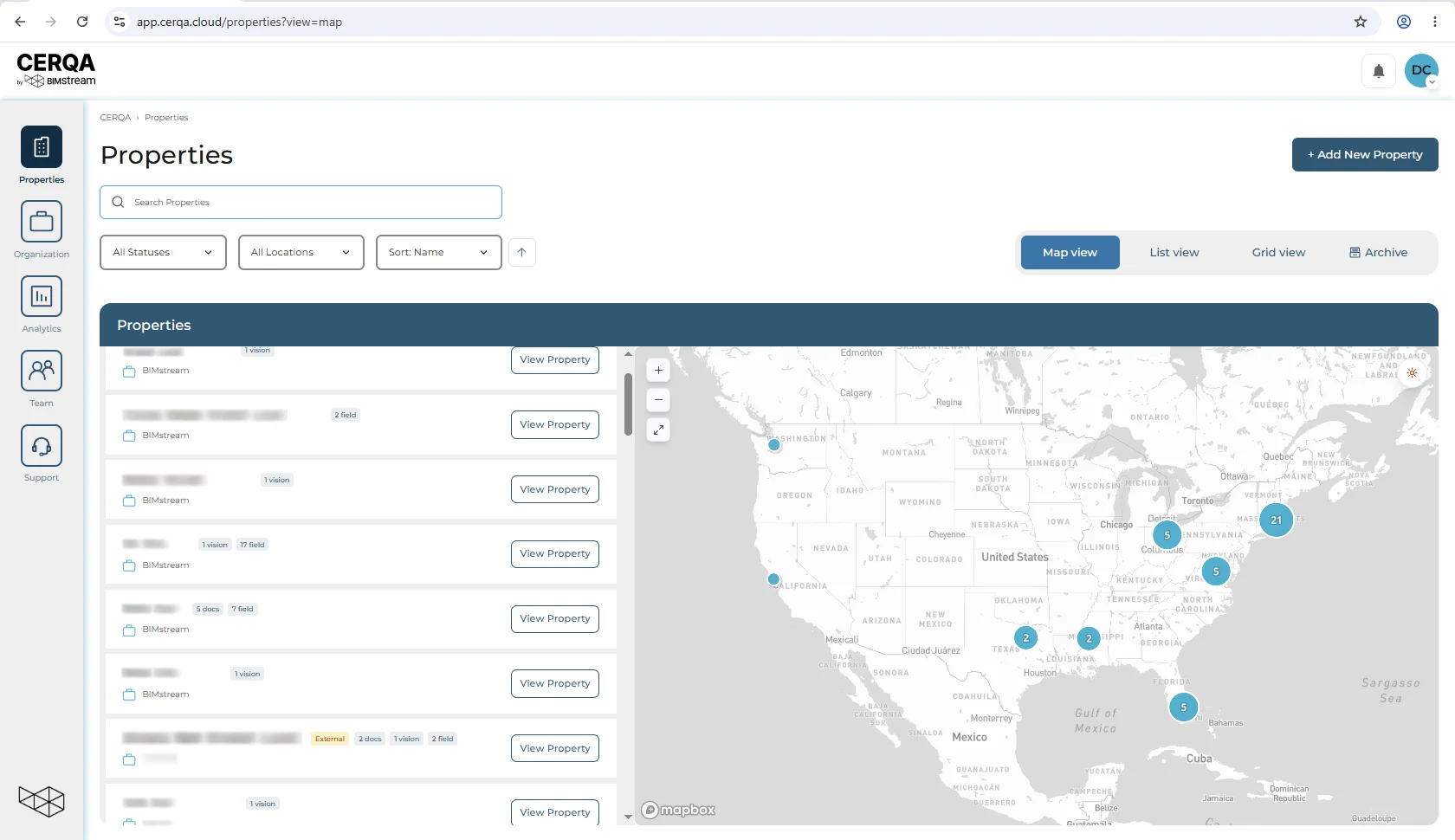
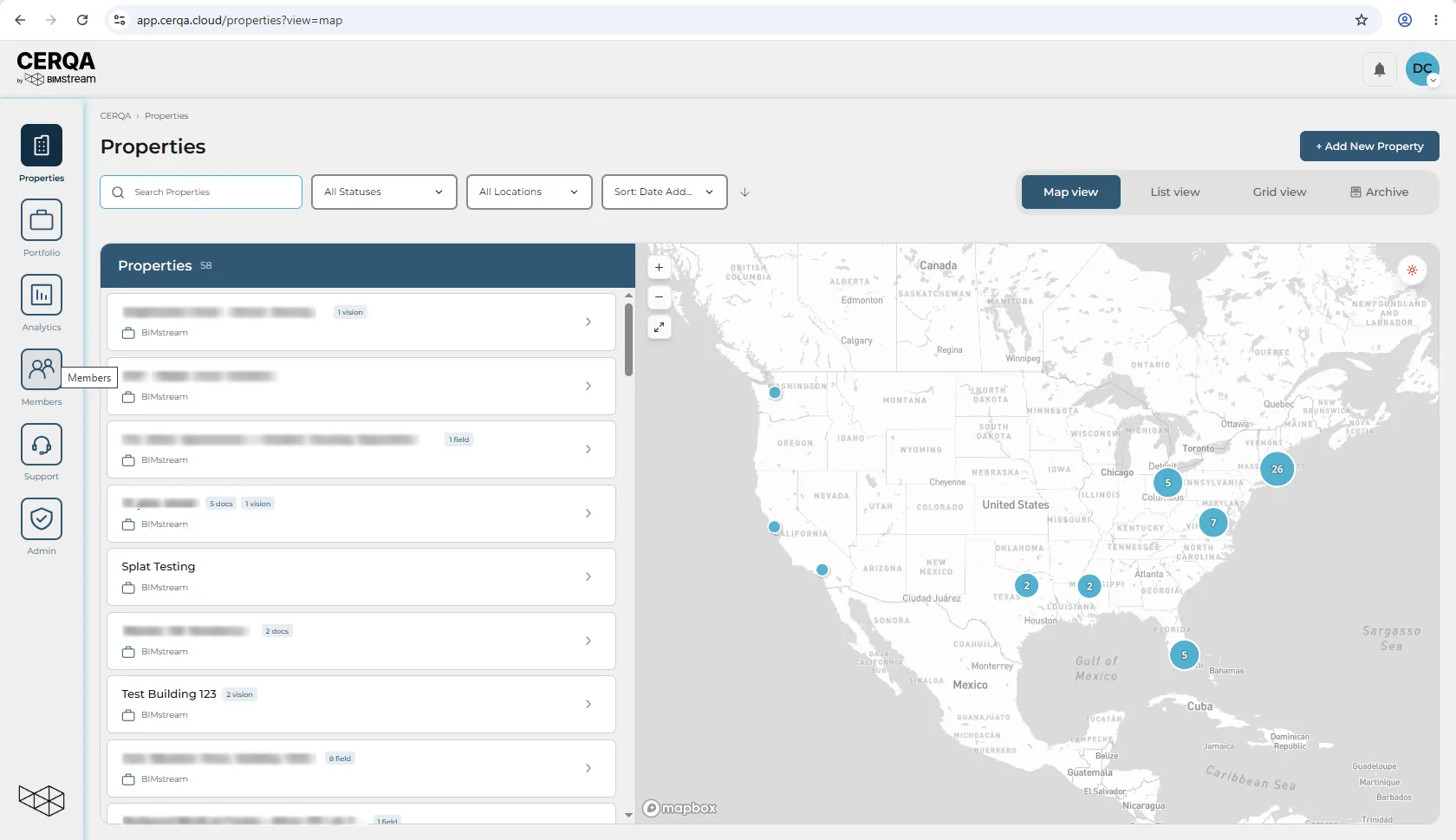
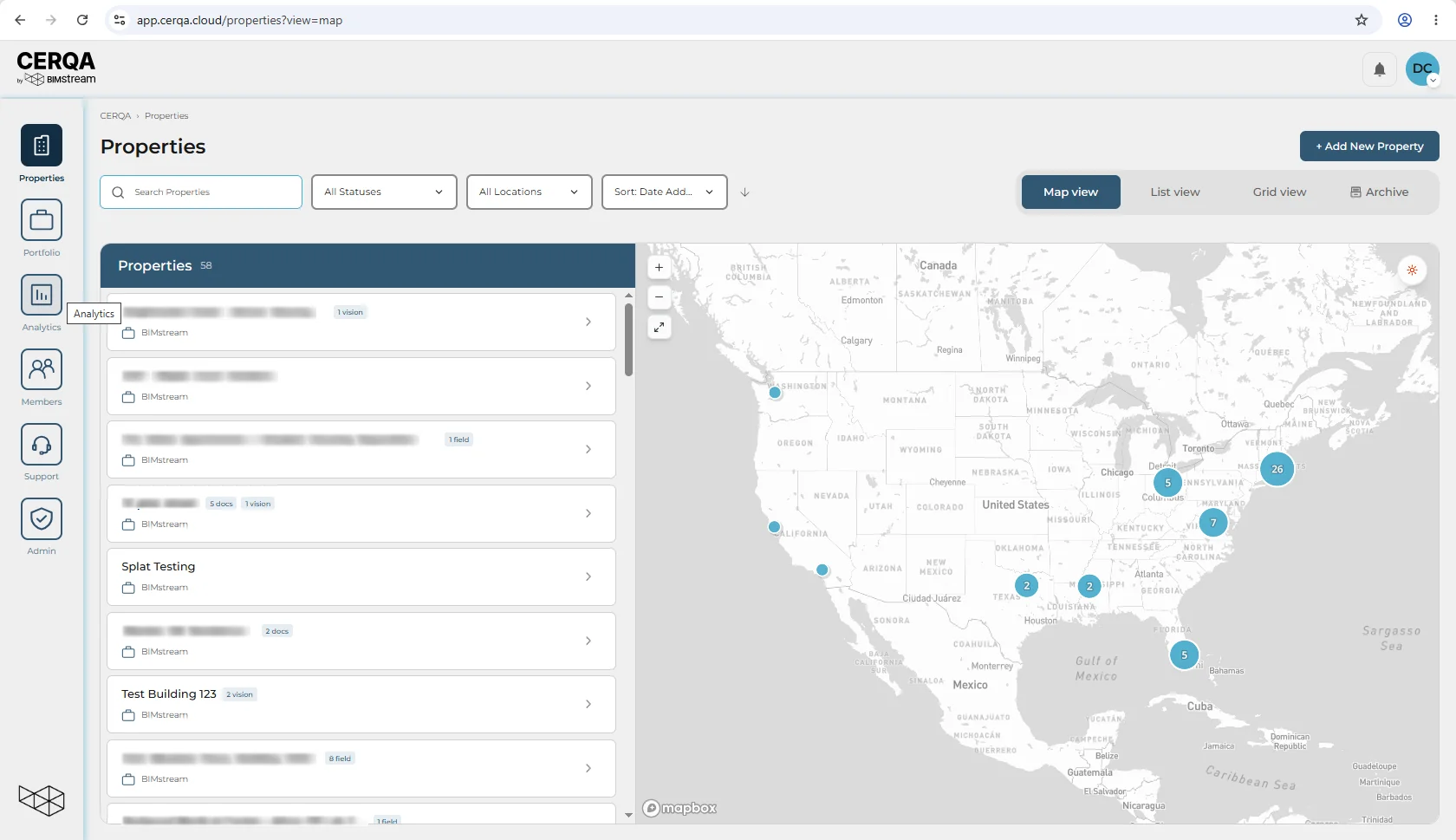
Hover any icon to reveal its label. Click to navigate. The next section walks through what each item opens and which gating decides whether you see it.
What each sidebar item does
- 1Properties (always visible) - Opens the property portfolio in Map view. Visible to every signed-in role. This is the primary navigation for daily work. Every property in your portfolio shows as a marker; click any marker to enter that property.
- 2Organization (everyone except Guest) - The second sidebar item, positioned directly under Properties. Visible to every signed-in role except Guest.
- 3Analytics (module + role gated) - Opens cross-portfolio dashboards: occupancy, sustainability scores, document completeness, and module-specific summaries across all your properties. Visible when your company has the Analytics module on and your role is Company Admin or Project Admin (matches F-04 - Roles and permissions). Project Manager and below do not see this entry. Deep dive in CA-12 - Analytics - what you can see.
- 4Team (CA-only) - Opens the company member list. Add new members, change roles, and deactivate members when they leave. Visible to Company Admin only; Project Admin and below do not see this entry. Deep dive in CA-04 - Adding members to your company.
- 5Support (module gated) - Opens the help and support portal: your ticket history, the New Ticket form, and the Help & Feedback dialog entry. Always visible to every signed-in member. Deep dive in F-05 - Getting Help.
The avatar menu
Your avatar lives in the top-right corner of every page. Click it to open a dropdown menu with seven entries plus a version footer at the bottom.
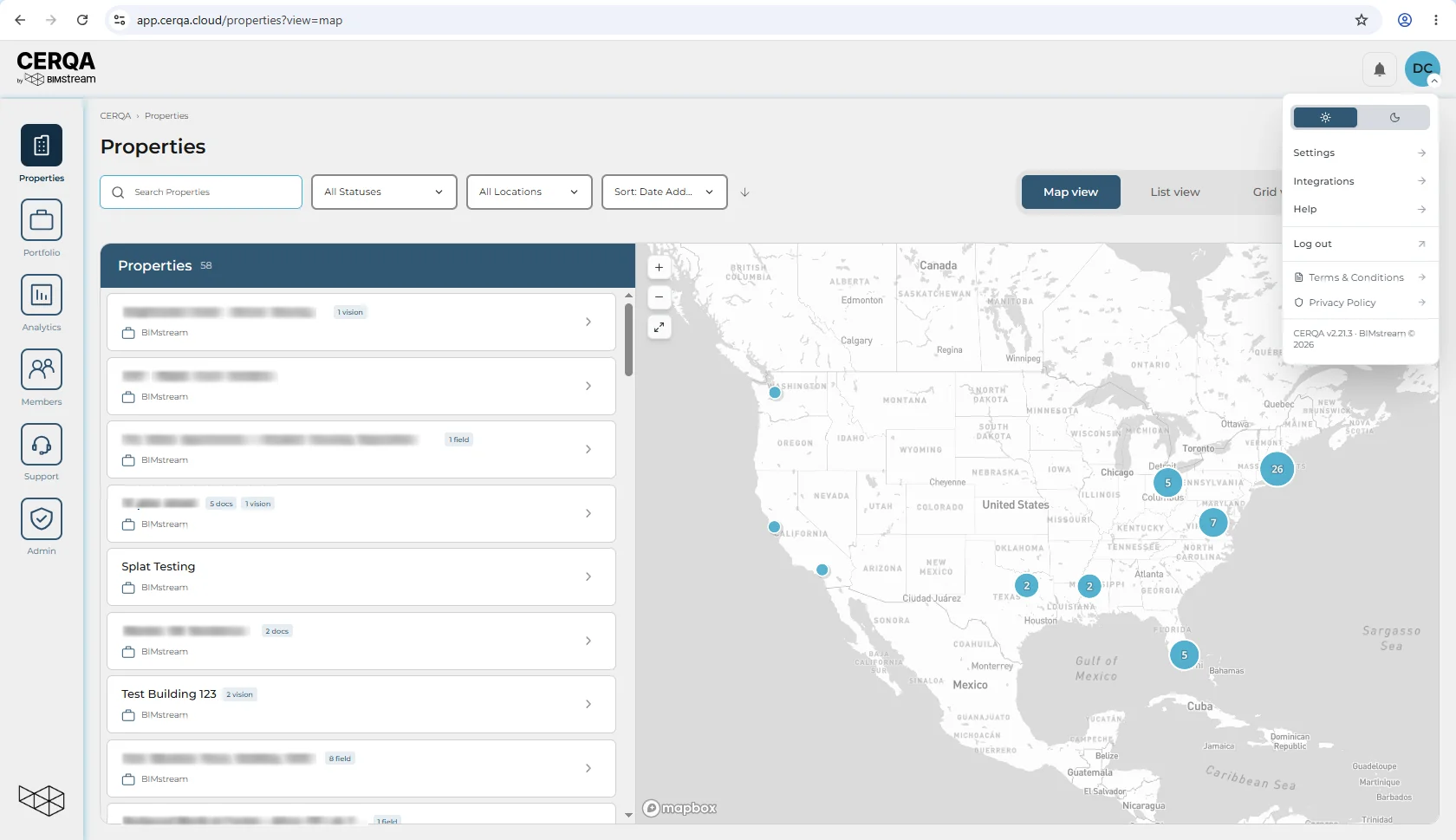
- 1Settings - Opens User Settings on the Profile tab. First Name, Last Name, Email, Company, plus four tabs: Profile, Password, Login Activity, and Notifications. Walkthrough in F-02 - Logging in and your profile.
- 2Integrations - Company-wide integration management. Connect Energy Star Portfolio Manager and Arc / LEED so your sustainability data flows in automatically. Visible to Company Admin only; lower roles (Project Admin, Project Manager, Contributor, Viewer, Guest) do not see this entry (matches F-04). Deep dives in CA-08 and CA-09.
- 3Help - Opens the Help & Feedback dialog with four category options: Bug Report, Feature Request, General Feedback, Support Request. Submit the form and the report becomes a ticket on your Support page. Full walkthrough in F-05 - Getting Help.
- 4Terms - Opens BIMstream's Terms of Service in a new tab.
- 5Privacy - Opens BIMstream's Privacy Policy in a new tab.
- 6Theme toggle - A light/dark switch. Click to flip the app between light and dark modes. The next section covers the behavior.
- 7Sign Out - Ends your session and returns you to the sign-in page.
At the bottom of the menu sits the current app version. Useful to include when you file a bug report.
Switching between light and dark mode
The light and dark mode toggle lives inside the avatar menu, not in User Settings. Open your avatar menu, then click the sun/moon icon. The change applies immediately across the app and persists across sessions.
The toggle only affects the main CERQA application at app.cerqa.cloud. The learning library keeps its own dark theme regardless of the in-app setting.