Company Admin
The Connections tab
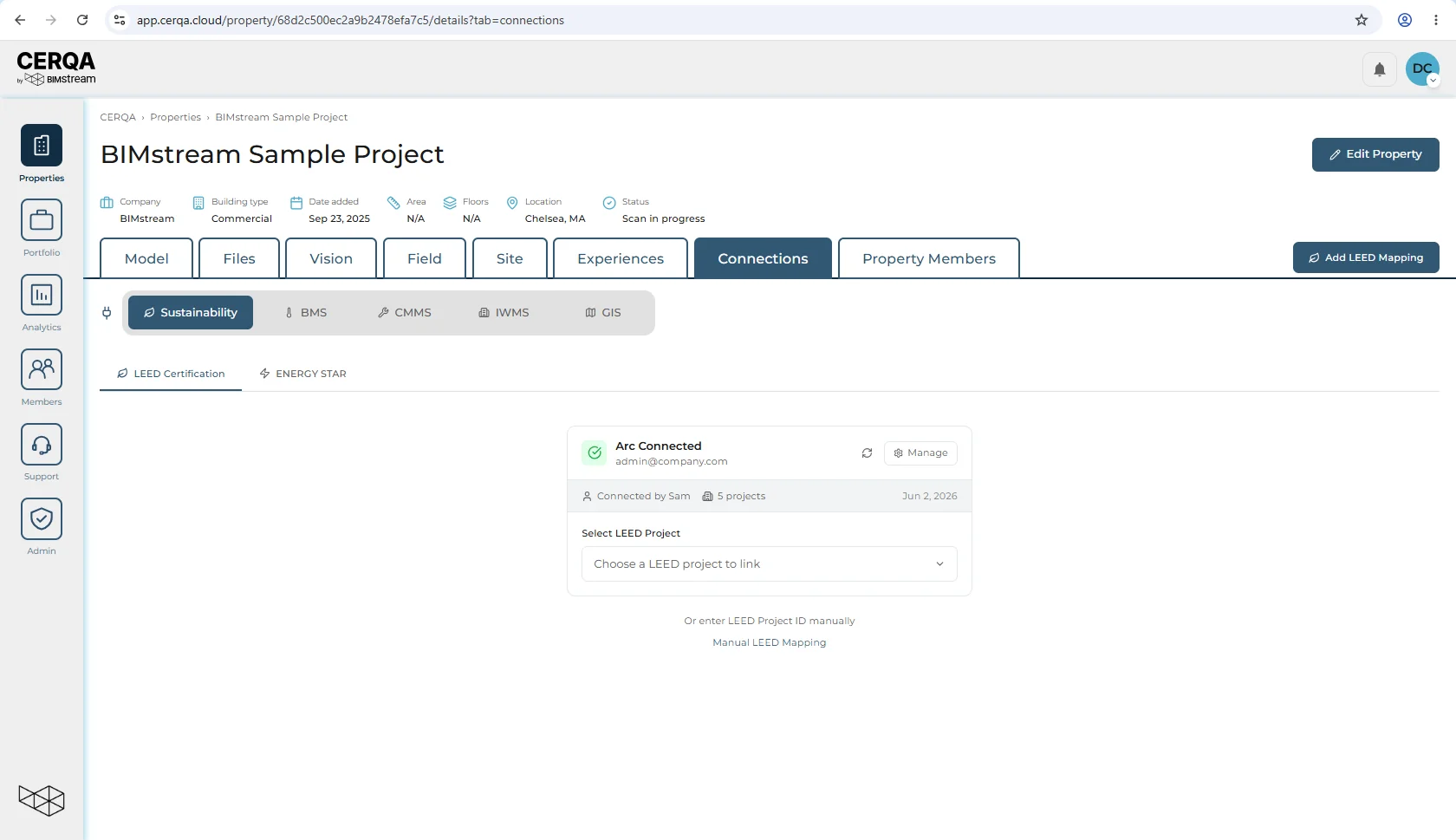
The Connections tab is the property-level home for third-party data integrations in CERQA. Today that is the Sustainability sub-tab, with the LEED Certification and ENERGY STAR inner tabs.
What Connections is
Connections is where any data flowing in from a third-party integration appears on a property. Sustainability scores from USGBC's Arc and Energy Star benchmarking data surface here today.
Whether a given sub-tab actually shows data depends on two things: first, whether your company has the relevant integration connected at the company level (handled in CA-09); second, whether the integration has been mapped to this specific property.
Where Connections lives
The Connections tab appears on properties at companies granted the Connections module, alongside the tabs every property has (Model, Files, Vision, Field, Property Members). If a property has no Connections tab, that's why: the company doesn't have the Connections module, so the tab does not appear. See CA-07 - Module gating reference for the full module-to-tab map. The Sustainability section inside Connections is where the Energy Star and Arc/LEED integrations live.
The Sustainability sub-tab today
Open Sustainability and you land on two live inner tabs. LEED Certification follows the per-property mapping pattern covered in the next section. ENERGY STAR is where Portfolio Manager benchmarking data lands once the company-level connection is made (see CA-08 - Connecting Energy Star Portfolio Manager). The sections below cover LEED in depth.
LEED Certification inner tab
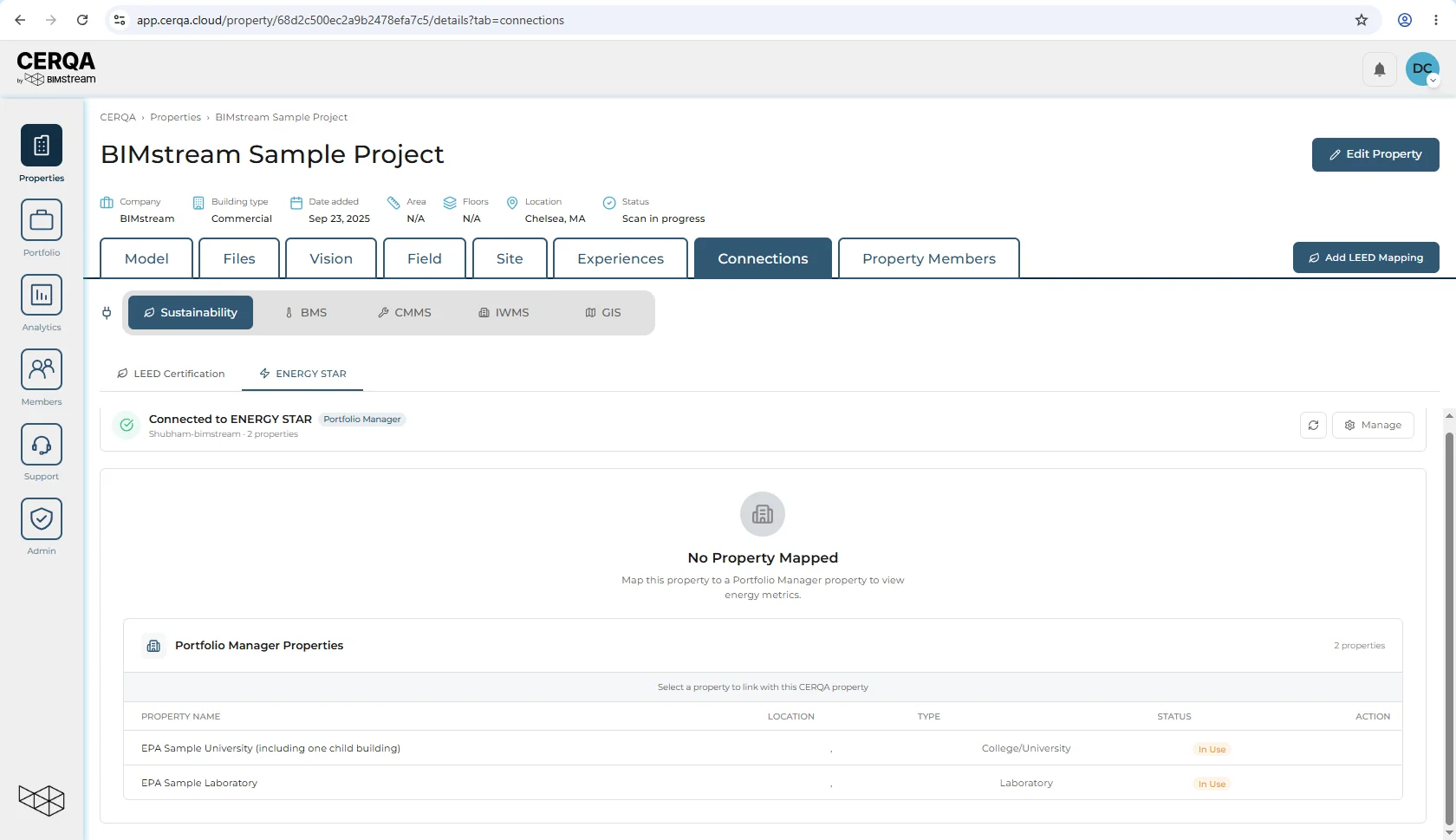
When Arc / LEED (USGBC) is connected at the company level and a specific LEED project is mapped to this property, the LEED Certification inner tab surfaces:
- 1Arc Connected indicator - Shows the connecting member's USGBC account email and the count of linked projects (e.g. "Connected by Sam, 12 projects").
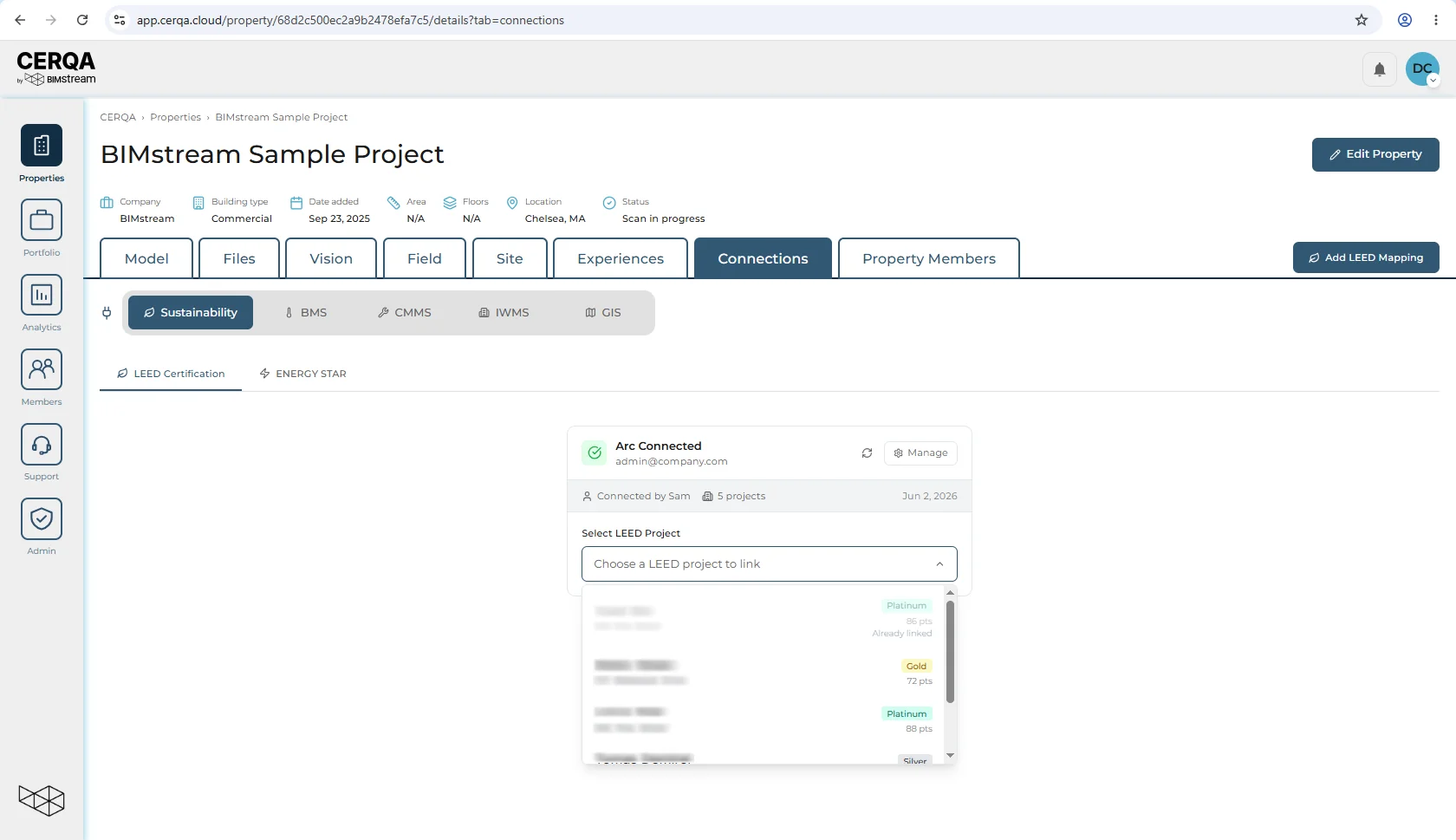
- 2Select LEED Project dropdown - Choose which LEED project from your USGBC account's list maps to this specific property.
- 3Manual LEED Mapping - Alternative path when a project isn't auto-discovered: enter the LEED Project ID manually.
- 4No Property Mapped empty state - When this CERQA property hasn't been mapped to a LEED project yet, shows mapping instructions instead of data.
Per-property mapping
The LEED Certification inner tab requires a per-property mapping step before data appears for a specific property. Company-level connection is necessary but not sufficient; each property in the portfolio must be mapped to a specific USGBC project.
Two-step pattern: company connect, then property map
Use the dropdown when the LEED project is auto-discovered in the connected account's list. Use Manual Mapping if the project ID isn't showing up in the dropdown.
The Add LEED Mapping shortcut
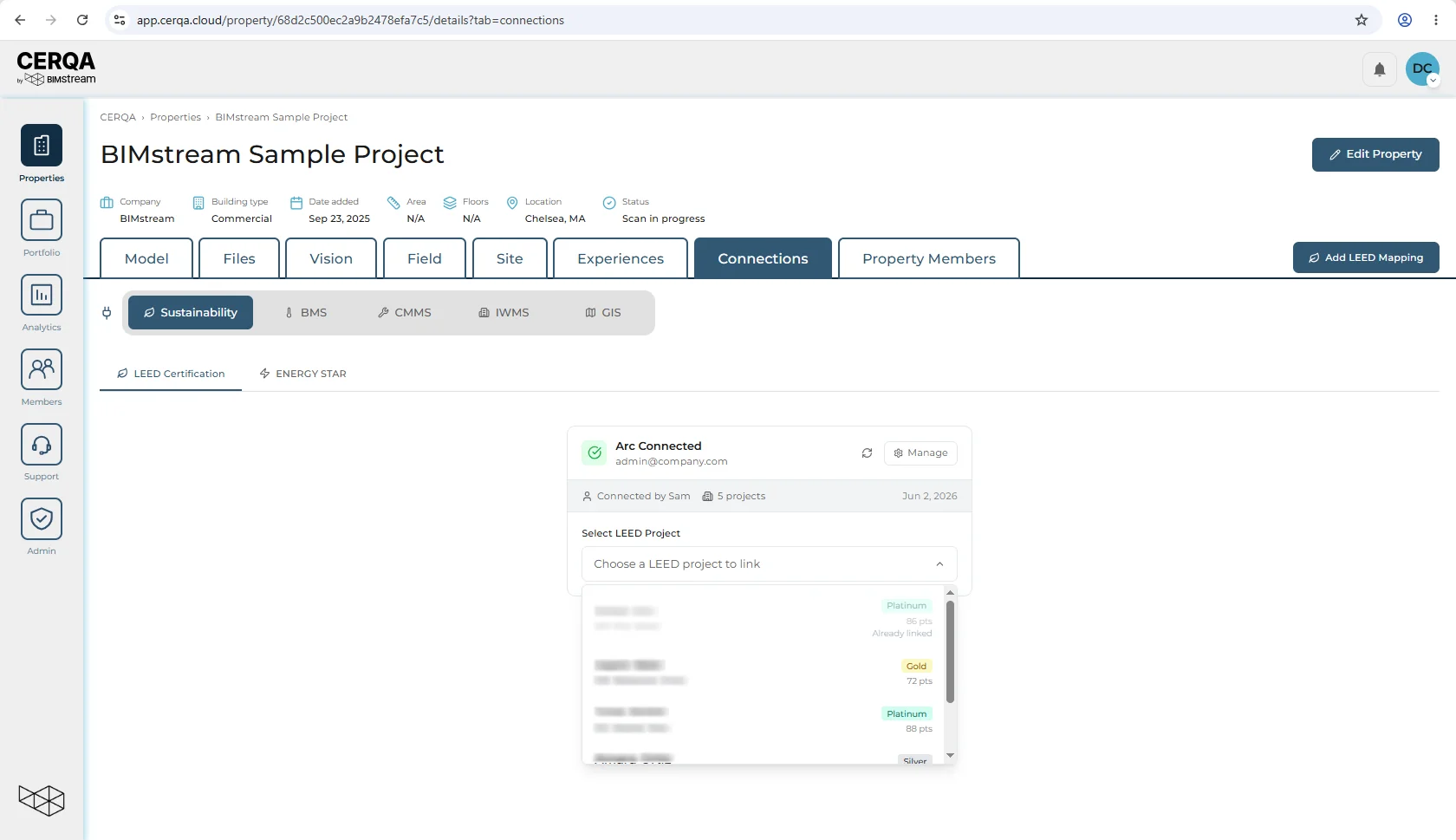
At the property-page header level, near the property tabs and the Add New Property button, an Add LEED Mapping shortcut button is available. This button takes you straight into the LEED Certification inner tab's mapping flow without navigating Connections → Sustainability → LEED Certification manually. Use it when adding LEED mappings across several properties in a row.
Operational notes
When data doesn't appear on the Sustainability sub-tab, check three things in order: the integration status at company level (CA-09), the per-property mapping (above), and the sync timing.
Data on the Connections tab is read-only. Corrections happen at the source (Arc, Portfolio Manager), not inside CERQA.
Related pieces
- CA-09 - Connecting Arc / LEED (USGBC) - the company-level connection for the LEED Certification inner tab.
- CA-07 - Module gating reference - which module unlocks which property tab.