Company Admin
Module gating reference
This piece is a reference, not a tutorial. It maps each CERQA module to the surfaces where it gates content, and helps you recognize when a missing UI element is a subscription gap rather than a role gap. Skim the tables; read the prose only when you need the context.
What module gating is
Module gating decides whether a tab or surface even exists for your company. Each of CERQA's modules is granted to your company by your CERQA Account Manager at the company layer; your company sees only the modules it has been granted. A role then determines what each member can do inside those modules. The two are separate: module grants control whether a surface appears at all; roles control whether the buttons inside that surface appear for a given member.
This piece covers Layer 1 of the three-layer access model from CA-01 - What you actually own as Company Admin. CA-01 explains how Layer 1 sits above your scope; this piece names what each Layer 1 module grant controls.
The module codes
Each module has an internal code paired to its user-facing display name: DOCUMENTS (Files & Models), FIELD (Field), VISION (Vision), AERIAL (Site), CONNECTIONS (Connections), ANALYTICS (Analytics), and EXPERIENCES (Experiences). Every company works with Files & Models, Field, and Vision; Site, Connections, Analytics, and Experiences appear for companies granted those modules. Each module is granted at the company level, and each appears as a Module Access checkbox in the Add Member dialog only if your company has been granted that module.
The Add Member dialog shows one checkbox per granted module; every company sees Files & Models, Field, and Vision, and companies with more modules see more. Each checkbox is per-member, checked by default when present, and unchecking it removes that member's access to that module. The screenshot in the next section shows a company with every module, so every checkbox appears.
Most modules gate a property tab. Analytics differs in what it gates: the company-wide Analytics sidebar page, not a property tab. See CA-12 for that surface; the matrix below carries the role-visibility line (Company Admin / Project Admin) for Analytics. One further checkbox appears in the Add Member dialog: Sustainability. It is not a module of its own; it controls the Sustainability section inside the Connections tab, and it has its own row in the table below.
The table below maps each module to its company-level and property-level surfaces.
| Module | Company-level surface | Property-level surface | Notes |
|---|---|---|---|
| Files & Models | Add Member dialog Module Access checkbox labeled “Files & Models”. | Files tab on each property. Per-property granted via the Add Member dialog (Property Members tab), checkbox labeled “Files & Models”. | The Files & Models subscription also provides the Model tab; there is no separate Model module subscription. |
| Field | Add Member dialog Module Access checkbox labeled “Field”. | Field tab on each property. Per-property granted via the Add Member dialog. | None. |
| Vision | Add Member dialog Module Access checkbox labeled “Vision”. | Vision tab on each property. Per-property granted via the Add Member dialog. | None. |
| Site | Add Member dialog Module Access checkbox labeled “Site”. | Site tab on each property. Per-property access is governed at the company level only (not on the Add Member checkbox list). | Site is the tab name; the underlying code is AERIAL. The Site tab hosts the Upload Aerial Model flow. See CA-10 - Uploading aerial models. |
| Connections | Connections module subscription itself (not surfaced as an Add Member checkbox). | Gates the property's Connections tab. The tab itself does not appear on properties at a company without the Connections subscription. | Module-gated, not universal. See CA-11 - The Connections tab. |
| Sustainability (a section, not a module) | None. There is no Sustainability checkbox in the Add Member dialog; granting Connections covers it. | The Sustainability section inside the Connections tab on each property (with LEED and ENERGY STAR sub-tabs beneath it). Not a module of its own. | Not on the Add Member checkbox list. Per-property access is managed on the Connections tab. See CA-11 - The Connections tab. |
| Analytics | Add Member dialog Module Access checkbox labeled “Analytics” when your company has been granted this module. | Not a property tab. Gates the company-wide sidebar Analytics page only. | Visibility is governed by role: Company Admin and Project Admin see the Analytics sidebar entry; Project Manager and below do not. See F-04 - Roles and permissions for the matrix and CA-12 - Analytics - what you can see for the surface itself. |
| Experiences | Add Member dialog Module Access checkbox labeled “Experiences” when your company has been granted this module. | Experiences tab on each property. | The newest module. It carries design-visualisation deliverables: walkthroughs, 360 panoramas, video and renders. |
A property's tab bar always shows Model, Files, Vision, Field, and Property Members; companies with the Site, Connections, or Experiences module see those tabs as well. Of these, only Property Members is purely role-gated; every other tab is module-gated. Model and Files share the DOCUMENTS module (Files & Models). Connections is module-gated by CONNECTIONS; it is not a universal tab.
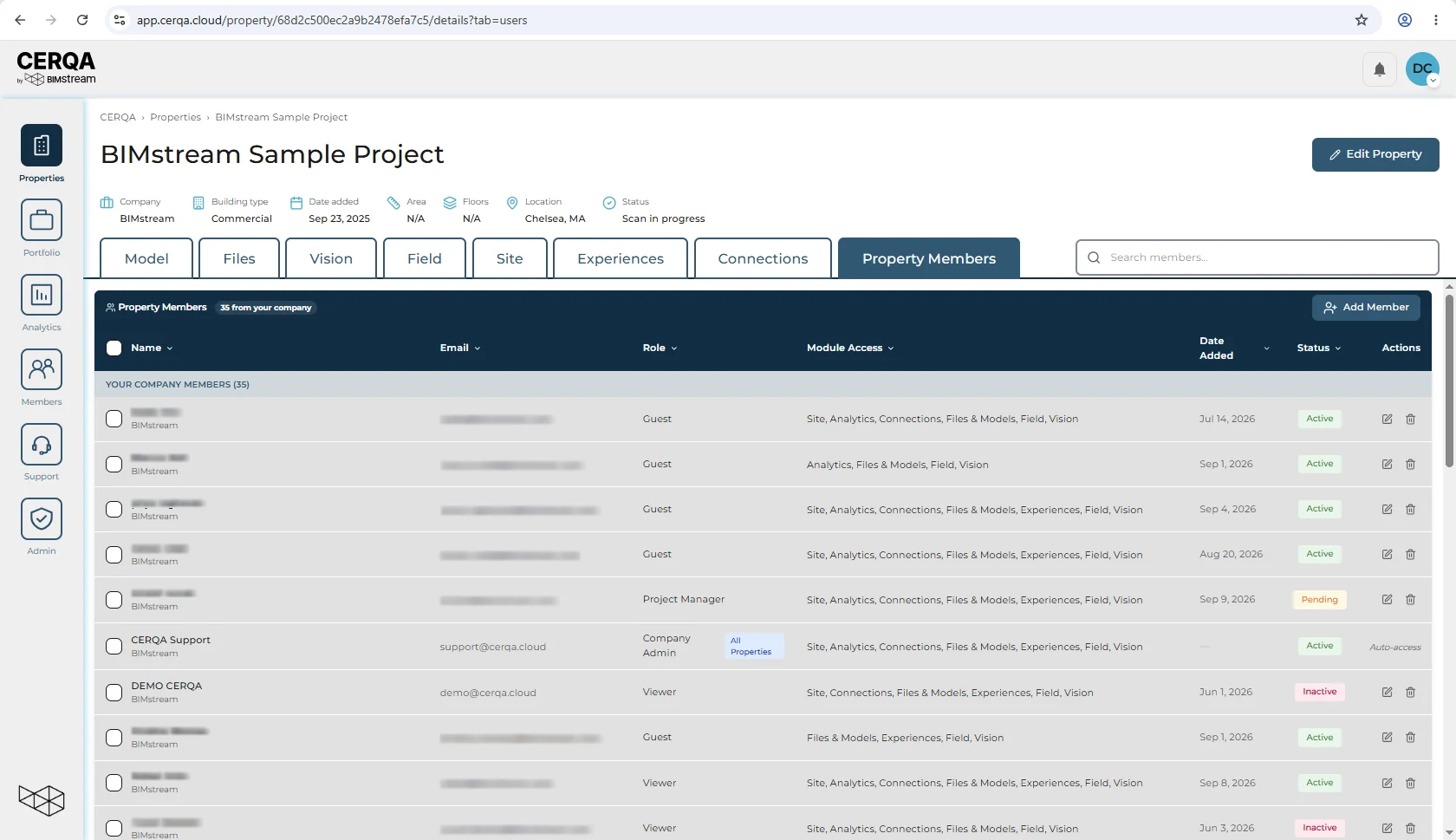
There is no Mobile module. Mobile is the companion app (the BIMstream Field App), not a module subscription; it cannot be subscribed to or unsubscribed from at the company level.
Company Admins and Global Admins see every module tab, whatever the company was granted
The table above describes what a module grant makes visible for everyone else. If you are a Company Admin or a Global Admin, your property tab bar shows every module tab regardless of what your company holds, so you cannot read your own tab bar as a list of what the company has. Opening a tab for a module your company was not granted shows no content behind it. The grant still governs access; it just does not govern your tab strip.
Site and Aerial Models are not the same thing
Site and Aerial Models are not two names for one thing. Site is the tab name (code AERIAL); Aerial Models is a feature that lives inside the Site tab. The two refer to different things.
Recognizing missing tabs vs missing buttons
A tab missing entirely on every property in your portfolio means your company does not subscribe to that module. The subscription itself is the gate; no role assignment will reveal a tab the company has not subscribed to.
A button missing on a tab you can see is a role gap, not a subscription gap. For example, the Add Member button on a property's Property Members tab appears for Project Admins but not for Project Managers. The tab is present; the button is gated by role.
Subscription gaps escalate to your CERQA Account Manager (see CA-14 - When to call your CERQA Account Manager). Role gaps resolve on the Team page; see CA-05 - Managing members. The full role-by-role view of who can do what lives in F-04 - Roles and permissions.
What you can change
Almost nothing about the company's subscription itself. Module subscriptions sit above your Company Admin layer. If a module your team needs is not on the subscription list, the only path is escalation to your CERQA Account Manager. See CA-14 - When to call your CERQA Account Manager.
Within the modules your company already subscribes to, you control who gets access. Company-wide module access is granted in the Add Member dialog when you invite a member (see CA-04 - Adding members to your company). Per-member changes happen in Member Details, and per-property module access happens in the Add Member dialog on a property's Property Members tab (both in CA-05 - Managing members).
Where to learn what each module does
Each module has its own deep-dive piece in the module library, separate from this Company Admin track. Those pieces cover features and workflows in depth; this piece only covers gating.
- Files & Models. See D-01 - Files & Models module overview.
- Model Viewer. See M-01 - 3D Model Viewer overview.
- Field. See FL-01 - Field overview.
- Vision. See VS-01 - Vision & 360 walkthroughs overview.
- Site / Aerial Models. For the upload workflow see CA-10 - Uploading aerial models.
- Connections. See CA-11 - The Connections tab for the supported list of integrations CERQA already supports (LEED via Arc / USGBC and Energy Star via Portfolio Manager today).
- Sustainability. The entry point is CA-11 - The Connections tab. Integration setup for the Sustainability flows lives in CA-08 - Connecting Energy Star Portfolio Manager and CA-09 - Connecting Arc / LEED (USGBC).
- Analytics. The entry point is CA-12 - Analytics - what you can see.