Company Admin
Connecting Arc / LEED (USGBC)
CERQA can connect to Arc / LEED (USGBC) at the company level to bring LEED certification data from USGBC's Arc platform into your properties' Connections tab. This page walks through connecting your USGBC account, what you see once the connection is active, and how to link a LEED project to a property.
This is the USGBC platform specifically, not a generic Arc or LEED system
The integration card in CERQA's Integrations page is labeled exactly “Arc / LEED (USGBC)”. It connects to USGBC's Arc platform, which is the performance platform USGBC uses for LEED-certified projects. If your team uses a different LEED data system, or an Arc-named system from another vendor, this integration is not the right one - your team would manage that data outside CERQA.
What Arc / LEED (USGBC) connects to
USGBC's Arc is the performance platform behind LEED-certified projects. It tracks energy, water, waste, transportation, and human-experience scores against a project, and produces a certification score over time. The CERQA integration pulls that data into CERQA so the scores surface alongside the rest of a property's information without forcing you to flip between two platforms.
The connection happens at two levels in CERQA:
- 1Company level - the USGBC account connection itself - Once per company, a CERQA Company Admin signs in to USGBC's Arc and authorizes CERQA to read LEED data on the company's behalf. This page covers that step.
- 2Property level - linking a specific LEED project - Once the company-level connection is active, each property that should show LEED data needs to be linked to a specific LEED project from your USGBC account. Covered later on this page; the mapping itself lives on the property's Connections tab.
Why connect
When the integration is active and a property is linked to a LEED project, the property's Connections tab surfaces a Sustainability sub-tab with a LEED Certification inner tab. That inner tab shows the connection status, the member who connected the integration, the linked project count, and the LEED scores for the project mapped to this property.
For the full Connections tab reference (the five sub-tab structure, the Sustainability sub-tab's LEED and ENERGY STAR inner tabs, and where each integration's data lands), see CA-11 - The Connections tab. The sibling integration for Energy Star Portfolio Manager lives in CA-08 - Connecting Energy Star Portfolio Manager.
Starting the connection from the Integrations page
The connection is set up from the company-level Integrations page, reachable through the avatar menu. Company Admins see the Integrations entry; lower roles do not.
- 1Open the avatar menu - Click your avatar in the top-right of CERQA. The menu opens with the Integrations entry available to Company Admins. For the full avatar-menu reference, see CA-02 - Logging in and your sidebar.
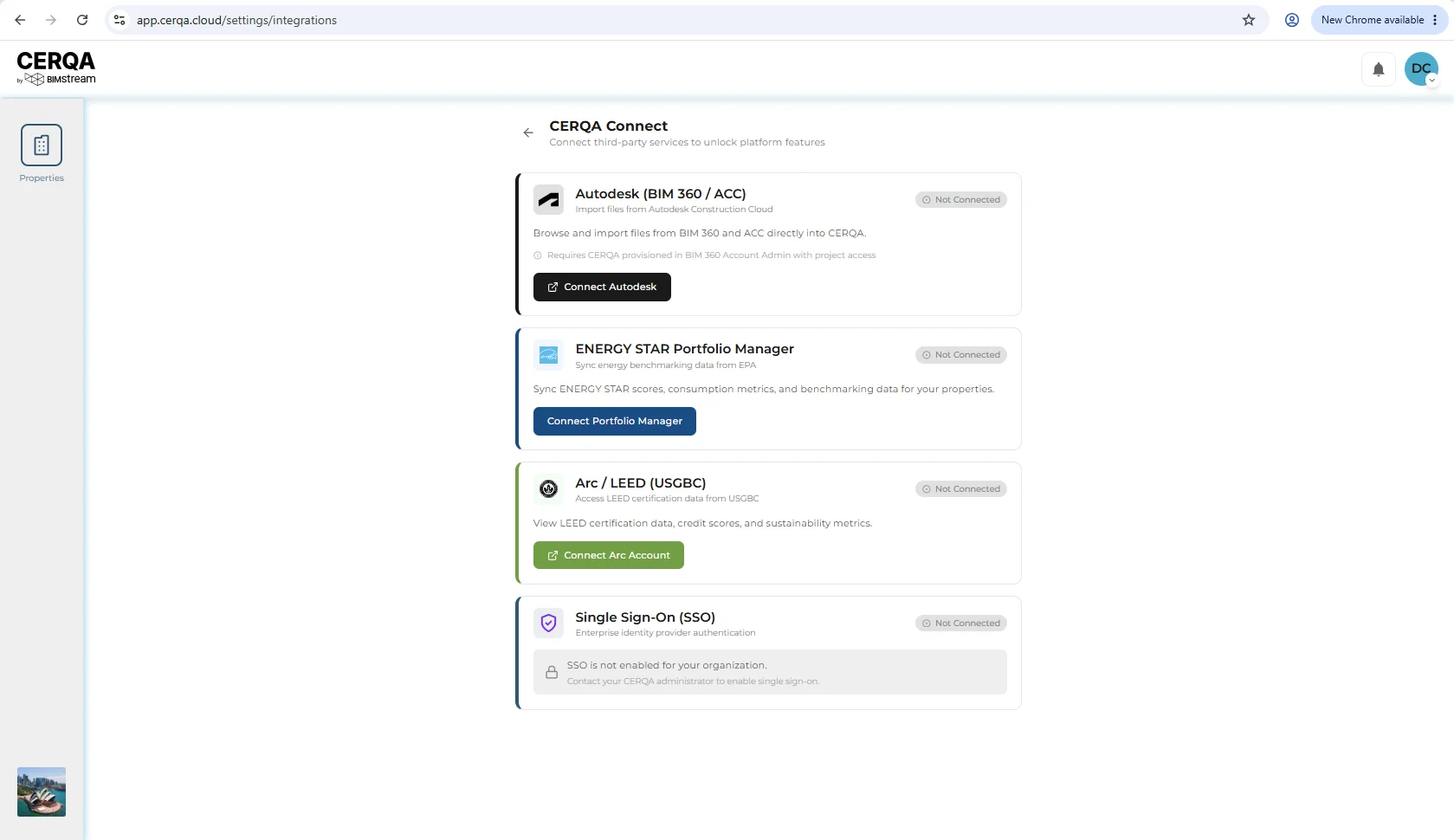
- 2Pick Integrations - The Integrations page opens with a grid of integration cards. Each card shows its connection status (Not Connected / Connected) and the actions available on it.
- 3Find the Arc / LEED (USGBC) card - Locate the card labeled exactly 'Arc / LEED (USGBC)'. When not yet connected, it shows a Connect button.
The USGBC sign-in handoff and back
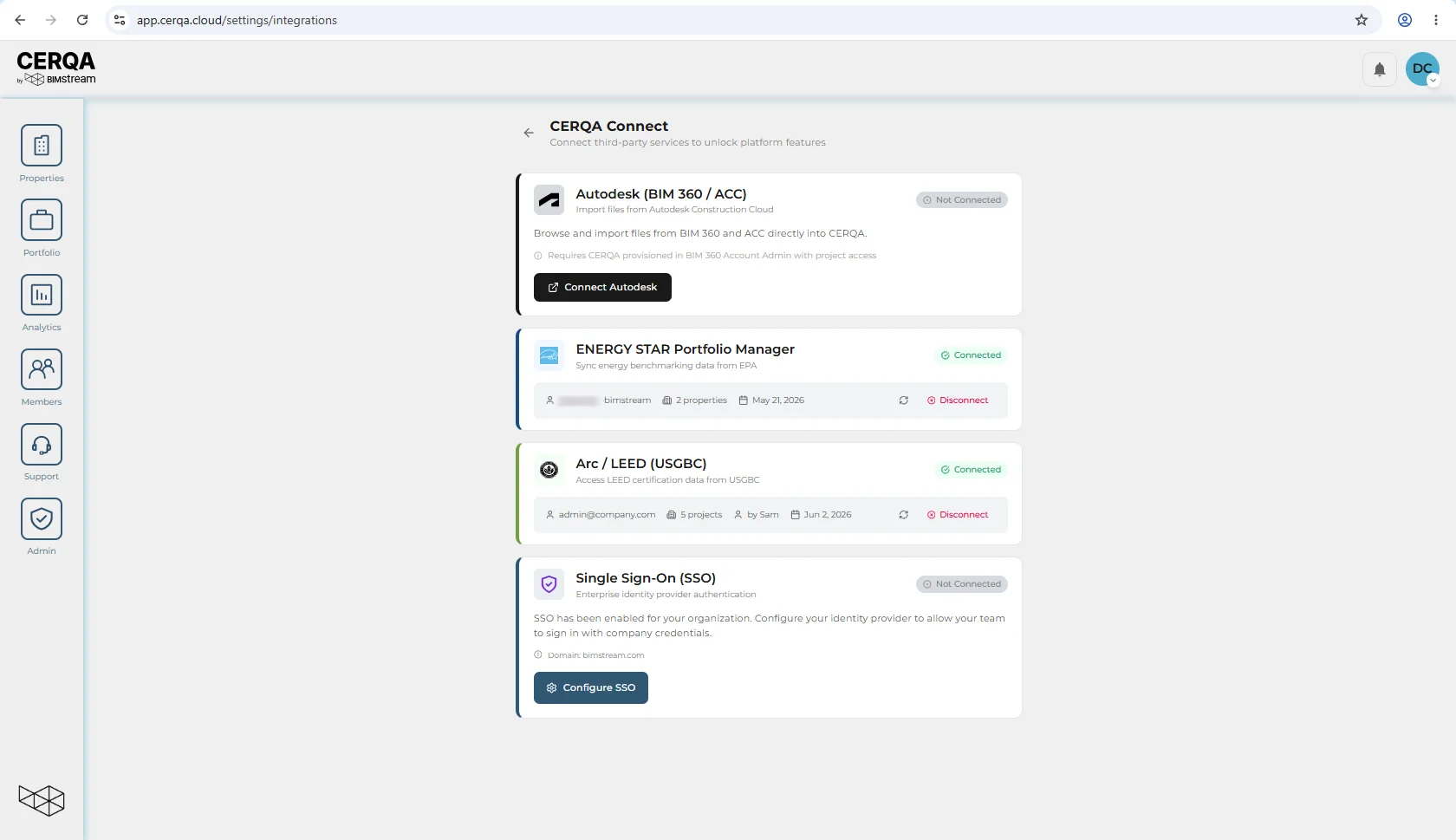
Clicking Connect on the Arc / LEED (USGBC) card hands off to USGBC's own sign-in surface. You sign in with your USGBC account and approve CERQA's read access on their side. When approved, USGBC redirects you back to CERQA's Integrations page with the card now in the Connected state.
The USGBC sign-in is USGBC's UI, not CERQA's
USGBC's sign-in screens are USGBC's own UI and change on USGBC's schedule, so they are not reproduced here. What matters from CERQA's side is the click moment (the Connect button on the Arc / LEED card) and the return moment (you land back in CERQA with the card showing Connected). For USGBC-side help on signing in or approving the connection, refer to USGBC's own documentation.
Linking a specific LEED project to a property
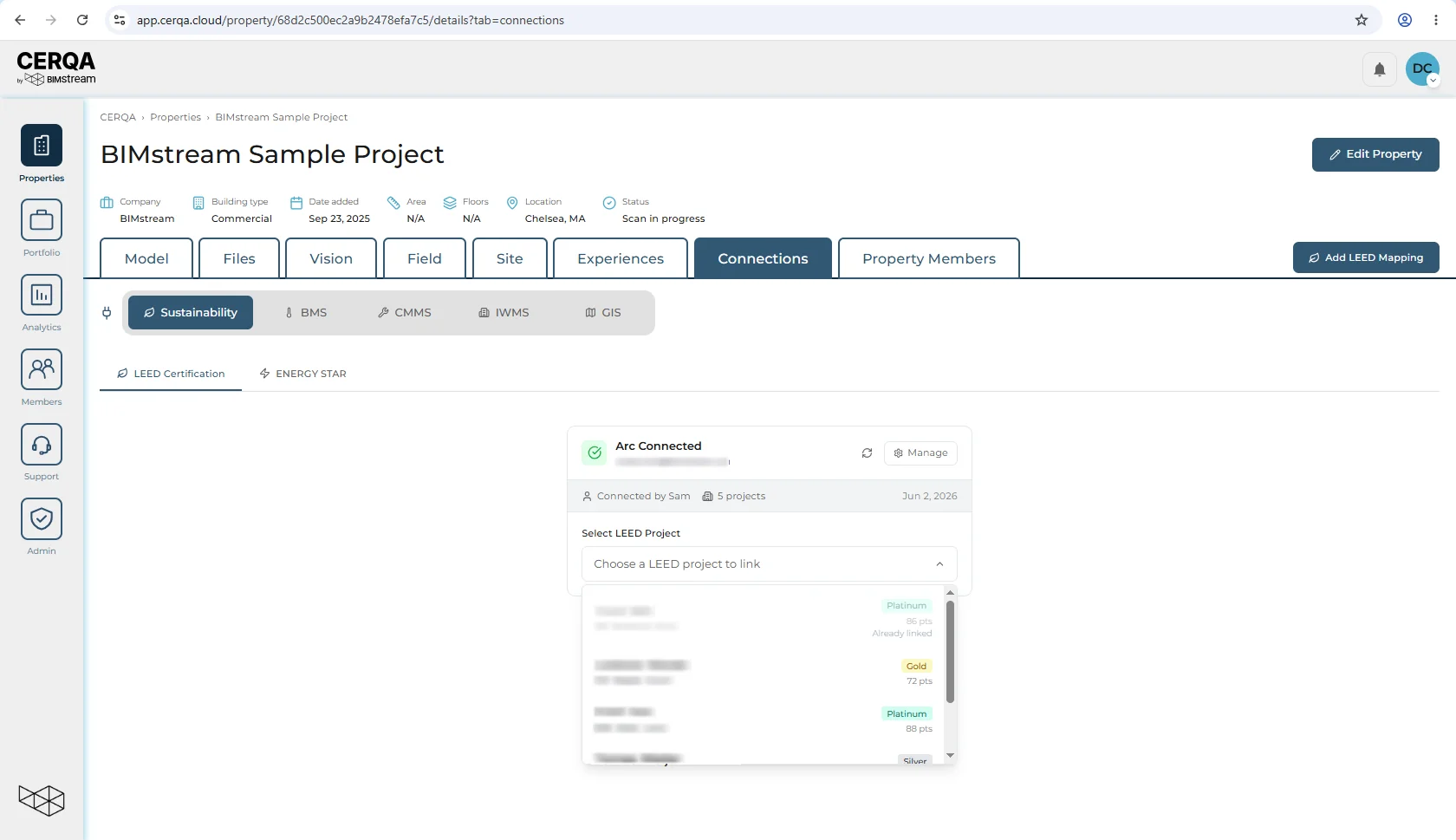
Connecting at the company level is step one. Step two is telling CERQA which LEED project from your USGBC account corresponds to which property. This happens per-property, on the property's Connections tab inside the Sustainability sub-tab's LEED Certification inner tab. Two paths are available:
- 1Select LEED Project (dropdown) - The LEED Certification inner tab shows a Select LEED Project dropdown listing every LEED project linked to your connected USGBC account. Pick the project that matches the current property. CERQA stores the mapping and starts pulling that project's data into the property's Sustainability view.
- 2Manual LEED Mapping (project ID entry) - If a project should appear in the dropdown but does not (a brand-new project not yet synced; a project under a sub-account; an unusual case), use Manual LEED Mapping to enter the LEED Project ID directly. CERQA links the property to that project once USGBC recognizes the ID.
For the full Sustainability sub-tab walkthrough (LEED Certification and ENERGY STAR inner tabs, plus the per-property mapping options), see CA-11 - The Connections tab.
Managing the connection - refresh, disconnect
Once the Arc / LEED (USGBC) connection is active, the card on the Integrations page exposes a Manage button. From there:
- 1Refresh - Refreshes the LEED project list from USGBC. Use this when a new LEED project should appear in the Select LEED Project dropdown but does not, or when project data on USGBC's side has changed and you want CERQA to pick up the change.
- 2Disconnect - Revokes CERQA's access to USGBC's Arc. The integration card returns to Not Connected. Property mappings remain in CERQA but lose their data source; data populated before disconnect stays in CERQA as a snapshot. Reconnect to restore live data.
If the connection fails (USGBC sign-in returns an error, you are not returned to CERQA, or the integration card stays in a broken Connected state), the escalation path is your CERQA Account Manager via CA-14 - When to call your CERQA Account Manager. Sign-in issues with third-party platforms often need coordination across both sides, and your CERQA Account Manager can help restore the connection.
Related pieces
- CA-11 - The Connections tab - the full Connections tab reference. The Sustainability sub-tab is where Arc / LEED data surfaces once a property is mapped.
- CA-08 - Connecting Energy Star Portfolio Manager - the sibling integration for EPA's Energy Star Portfolio Manager. Lives on the same Integrations page; same connect-once-then-map-per-property pattern.
- CA-02 - Logging in and your sidebar - the avatar menu is the entry point for Integrations. CA-02 covers the full sidebar and avatar-menu surfaces.
- CA-14 - When to call your CERQA Account Manager - the escalation path for USGBC sign-in failures or any cross-platform connection issues.
- F-04 - Roles and permissions - the complete role matrix. Integrations entry in the avatar menu is gated to Company Admin.