Modules
Reports & exports
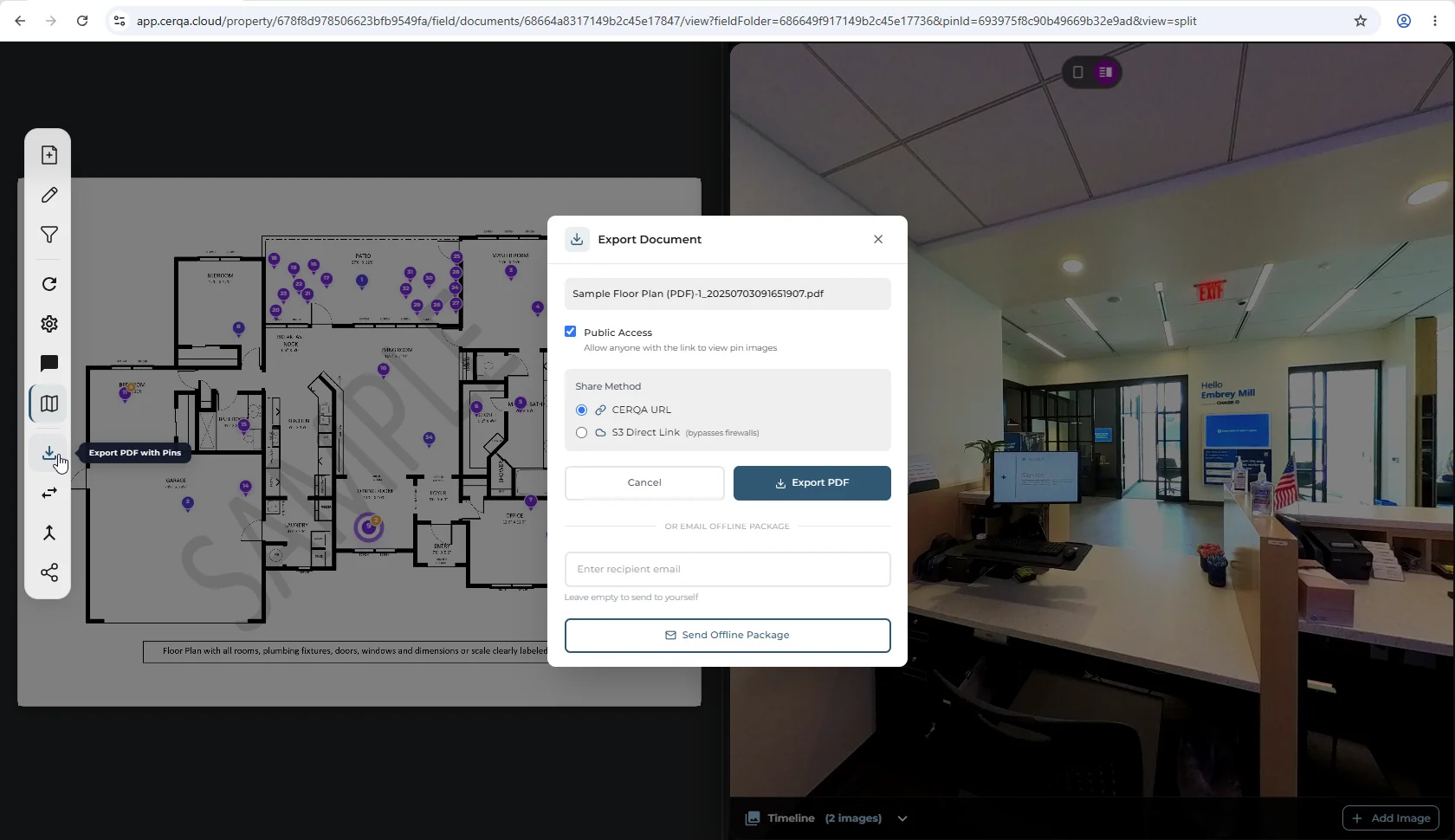
The Field tab produces one deliverable from a property's pin set: a PDF export of the current floor plan with all visible Field pins overlaid. The control is a download icon in the Field tab's left vertical toolbar; its tooltip reads Export PDF with Pins. Apply the date filter first if you want to scope the export to a period; the PDF follows the active filter.
Why export the pin set
Exports turn a property's Field pins into something you can hand off outside CERQA. Common cases:
- Audit trail - a dated snapshot of all observations on the property for the records.
- Partner deliverable - a PDF that goes to a contractor, an owner, or another stakeholder who doesn't have a CERQA login.
- Periodic summary - a weekly or monthly view of what was captured, paired with FL-01's date filter to scope the export to the period of interest.
For the Field tab itself (the floor plan with pins, click-to-360, split view, and the Filter Pins by Date control that scopes the export), see FL-01 - Field overview.
Generating an Export PDF
Export PDF generation is a short flow from the Field tab: click the Export control and confirm in the Export Document dialog. The PDF shows the current floor plan with all visible Field pins overlaid on it (or the filtered subset, if a date filter is active).
- 1Open the Field tab on the property - If you want to scope the export to a specific period, apply the Filter Pins by Date control first (the PDF follows the active filter). See FL-01 for the filter details.
- 2Click the Export icon in the left vertical toolbar - The Export control is a download icon in the Field tab's left vertical toolbar. Hovering it shows the tooltip Export PDF with Pins. Clicking it opens the Export Document dialog: a Public Access checkbox (allow anyone with the link to view pin images), a Share Method choice (CERQA URL or S3 Direct Link), and an Export PDF button. The exported PDF uses the current view state (floor plan, active filter, visible pins).
- 3The PDF downloads - Click Export PDF in the dialog. CERQA generates the PDF and the browser downloads it. The file is the floor plan with the Field pins overlaid on it - one PDF per export, not stored on the property.
Generating the Export PDF requires Project Manager or above; Contributor, Viewer, and Guest cannot export.
Exporting a filtered subset
The Export PDF respects the active date filter on the Field tab. To scope an export to a specific period:
- 1Open the Field tab - On the property; the Field tab open with the floor plan and pins visible.
- 2Apply Filter Pins by Date - Pick a preset chip (Today / Yesterday / Last 7 / Last 30) or pick a custom range. The floor plan re-scopes to the filtered pin set; the “Showing X of Y pins” count confirms the filter is active. Full details in FL-01's Filter Pins by Date section.
- 3Click the Export icon - Click the download icon in the left vertical toolbar. The PDF covers only the filtered subset - the pins visible on the floor plan at export time.
Date filter is the only filter that scopes exports
Field has no status filter, no assignee filter, and no saved-views menu (per FL-01). The date filter is the one that scopes the Export PDF. If you need a more granular slice, the workflow today is: scope by date, export, and post-process the PDF outside CERQA.
What is and is not in scope today
A few things readers often ask that are worth setting expectations on:
- No CSV export, no ZIP bundle - the Export PDF is the only export today. Machine-readable / tabular data extraction is not a feature; raise it with your CERQA Account Manager if you need it (see CA-14).
- Scheduled / recurring exports - not in scope today. CERQA does not auto-generate the PDF on a schedule. Manual export only.
- PDF customization - the Export PDF uses the current view state (floor plan + active date filter + visible pins). The Export Document dialog covers delivery only (Public Access, Share Method); there are no field-selection toggles, branding switches, or photo-inclusion settings. Deeper customization is not a feature today.
- Multi-property roll-ups - the export is scoped to one property's Field tab. There is no cross-property or portfolio-wide export.
For escalations (scheduled-export requests, CSV or ZIP bundles for data pipelines, custom-layout deliverables, multi-property roll-ups), the path is your CERQA Account Manager via CA-14 - When to call your CERQA Account Manager.
Related pieces
- FL-01 - Field overview - the Field tab itself: floor plan with pins, click-to-360, split view, and the Filter Pins by Date control that scopes the Export PDF.
- F-04 - Roles and permissions - the complete role matrix. The Export PDF is available to Project Manager and above.
- CA-14 - When to call your CERQA Account Manager - the escalation path for scheduled exports, CSV or ZIP data bundles, custom deliverables, and multi-property roll-ups (none in scope today).