Modules
Field overview - desktop experience
The Field tab on a property is the desktop surface for location-tagged observations: pins dropped on the floor plan that record something noticed during a site walk. This page tours the desktop experience: the plan-plus-pins layout, clicking a pin to open its 360 panorama, toggling into a split view (plan on the left, panorama on the right), the pin list in the side panel, and the Filter Pins by Date control. Field is its own surface, distinct from Vision (360 walkthroughs); for the Vision pin model, see VS-01 - Vision & 360 walkthroughs overview.
What Field is
Field captures observations as pins on a floor plan. A team member walks the property, notices something worth recording, and drops a pin at that location with a type, an optional tag, a date, and any attached media. The desktop Field tab is where those pins are reviewed, filtered, and exported.
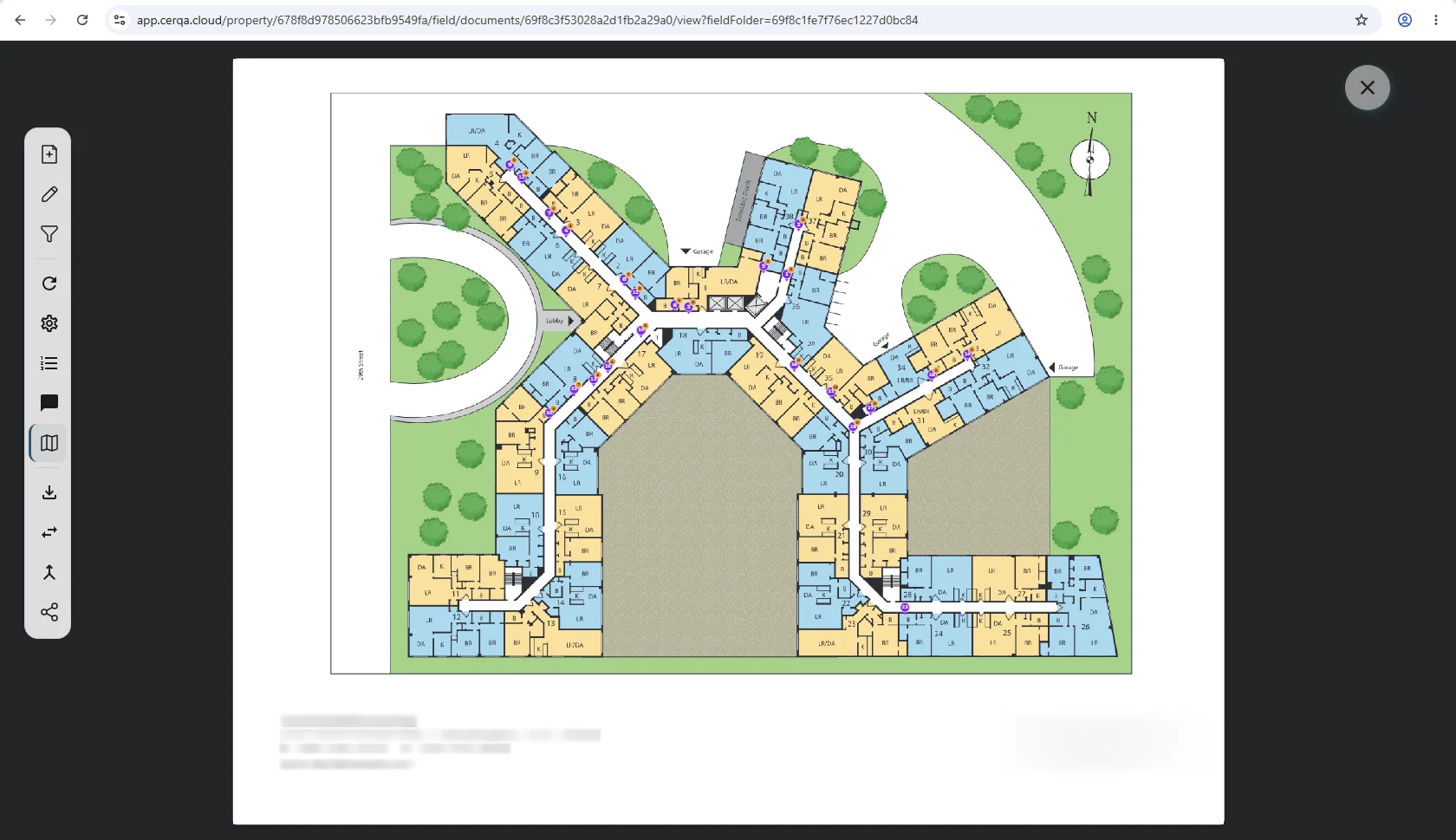
Field on desktop is the review and management surface; the mobile app (creating pins on a phone or tablet during the walk) is where most pins are first dropped.
The floor plan view
The floor plan view shows every pin at the location it was dropped. Zoom into the plan to read pin density; zoom out for a property-wide view. Each pin is individually selectable at any zoom level.
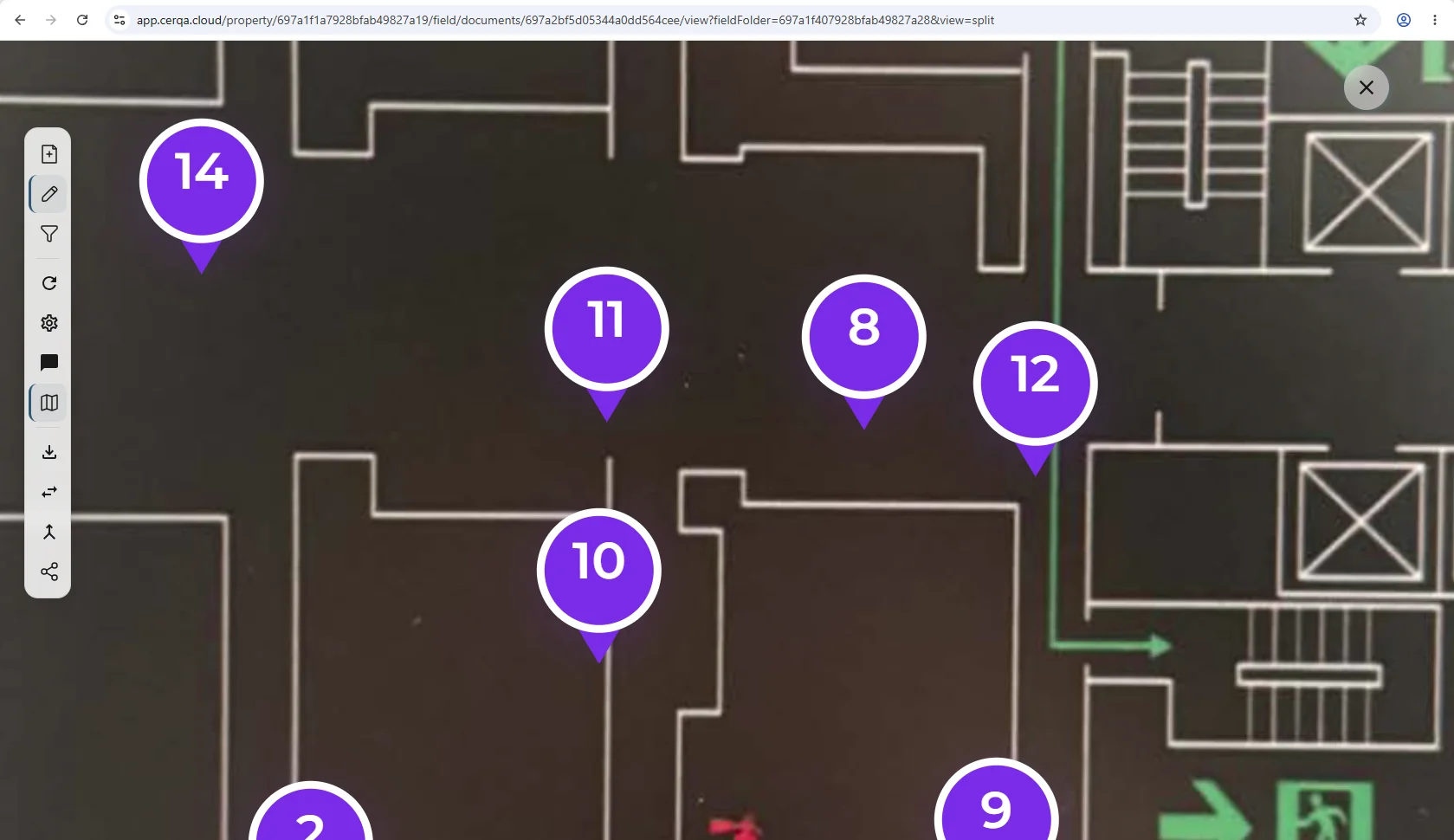
Clicking a pin opens its 360 view (covered in the next section). For multi-floor properties, the floor selector in the Field sidebar switches between floors; each floor carries its own plan and its own pin set.
Opening a pin - hover preview and the 360 view
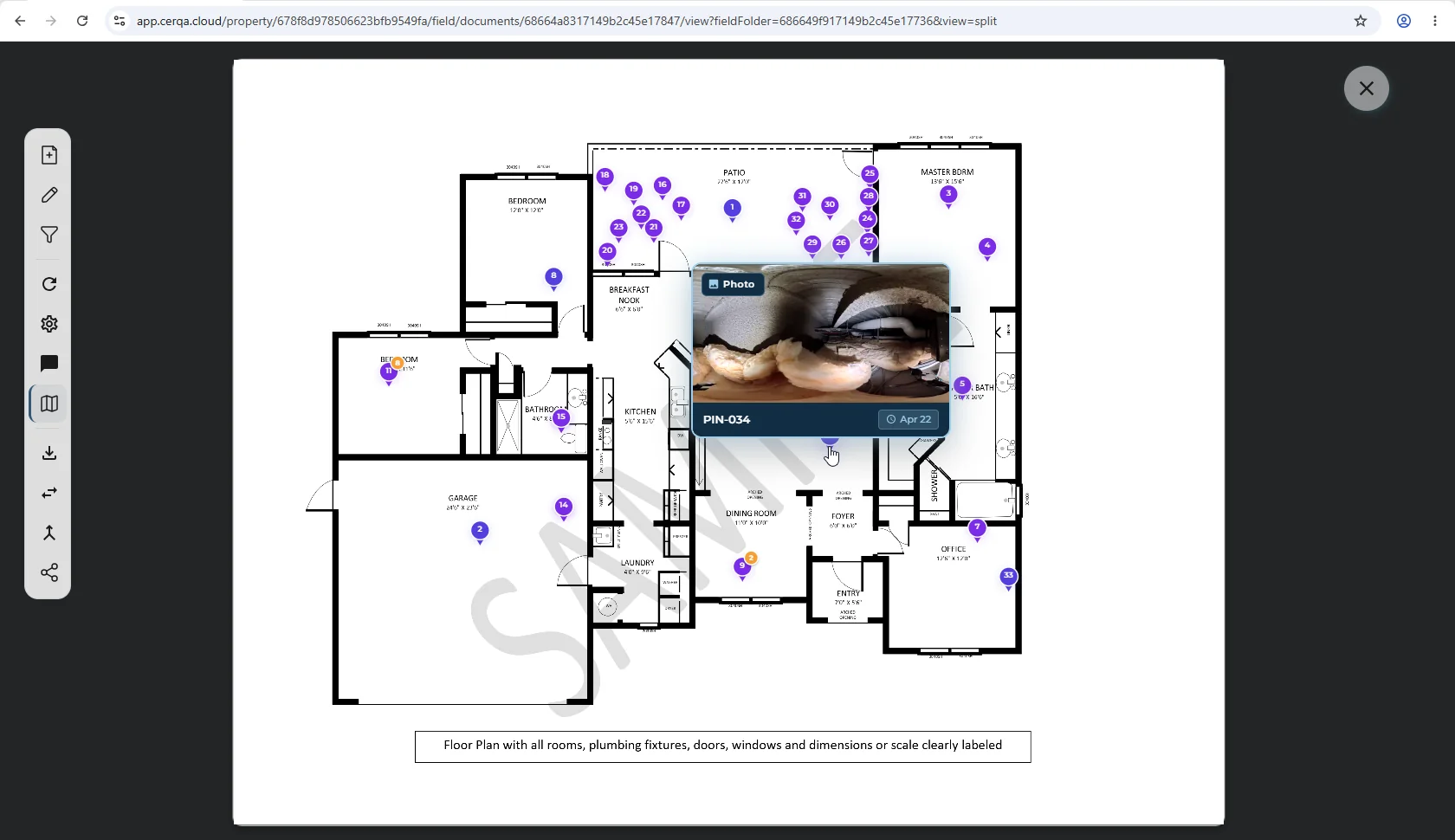
Pin interaction on the floor plan has two levels. Hover a pin to see a small preview popup with the pin's metadata; click the pin to open the full 360 panorama as an overlay. The preview lets you identify a pin without leaving the plan; the overlay is the full view.
Hover a pin on the floor plan and a preview popup appears next to it. The popup shows a thumbnail of the pin's 360 panorama, a Photo badge (the pin type), the pin ID (for example PIN-034), and the capture date (for example Apr 22). It is a quick identify-a-pin affordance, no click required.
Click the pin and its 360 panorama opens as a full-page overlay. The panorama fills the work area; drag inside it to look around. The overlay itself does not display the pin metadata (ID, date, photo type) that the hover popup showed; the overlay is the panorama view.
At the top of the overlay sits a small toggle pill with two icons: a single-pane icon (the default, you're in the 360 overlay) and a split-pane icon (switches you into the split view described in the next section). The pill is how you move between the overlay and the split view without leaving the pin. Use the overlay's close control to return to the floor plan; your last position in the plan is preserved.
Split view - plan and panorama
Split view is useful when you want to keep the spatial context of the plan visible while inspecting a specific pin's 360.
From inside the 360 overlay, click the split-pane icon on the toggle pill to switch into split view. The work area splits: the floor plan with pins sits on the left, and the selected pin's 360 panorama sits on the right. The left plan stays interactive, click a different pin on the left and the right pane updates to that pin's panorama.
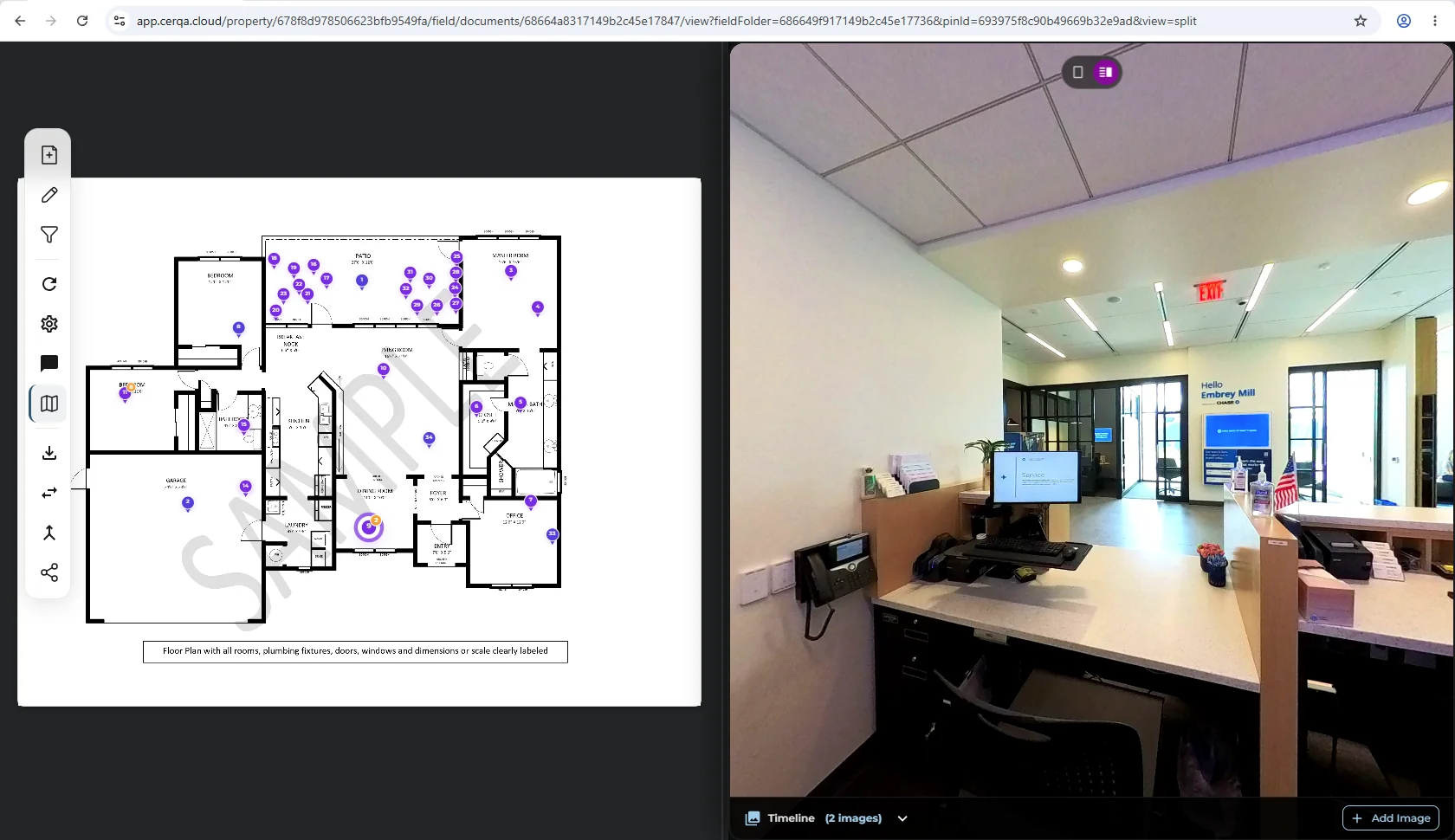
Toggle back to the full 360 overlay by clicking the single-pane icon on the same pill.
The pin list
Alongside the plan, Field can list every pin on the property in a side panel. Open it from the Pin List icon in the left sidebar; the icon toggles, and its tooltip reads “Hide Pin List” while the panel is open. The panel opens on the right, titled Pins with the total pin count beside it.
The panel gives you three ways to narrow what it shows:
- A search box labeled “Search pin number or tag”.
- Type filters across the top: All, Photo, 360, and Walk. Each one carries its own count, so you can see how many pins of each type the property holds before you filter.
- Pins grouped by page (Page 1, Page 2, and so on), each group showing its own count.
All three narrow what the list shows. They do not change the floor plan, and they do not change what an Export PDF contains: the export is scoped by the date filter on the plan (see FL-03 - Reports & exports), never by the pin list's type tabs.
Every row shows the pin number, a pin icon, the pin label (Pin 12, for example), its type tag such as 360, and the date it was added. A count sits in the footer and reflects what the filters currently show - “Showing 343 of 343” on an unfiltered property with 343 pins.
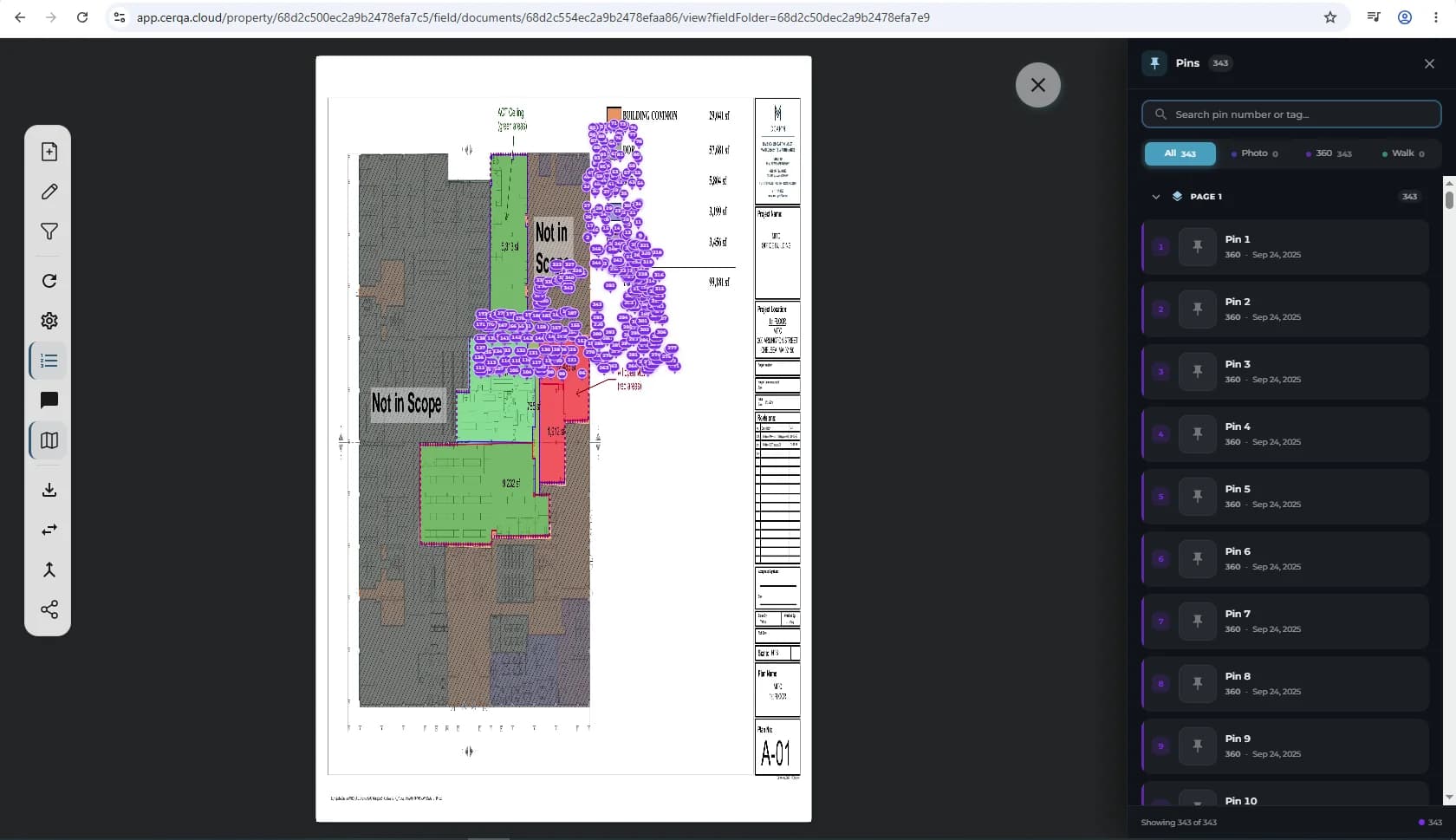
Clicking a row opens the pin's image, it does not jump to the pin on the plan
Selecting a row in the pin list opens that pin's image directly. It does not highlight the pin on the floor plan or move the plan to it. To work with a pin in its spatial context, click the pin on the plan instead (see “Opening a pin” above).
Filter pins by date
The plan itself carries one filter: Filter Pins by Date. It scopes the floor plan view to pins added inside a chosen date range. (The pin list has its own search and type filters, covered above.)
The control offers four preset chips plus a custom range picker:
- 1Today - Pins added today. Useful first thing in the morning to see what came in overnight from the mobile team.
- 2Yesterday - Pins added the previous calendar day.
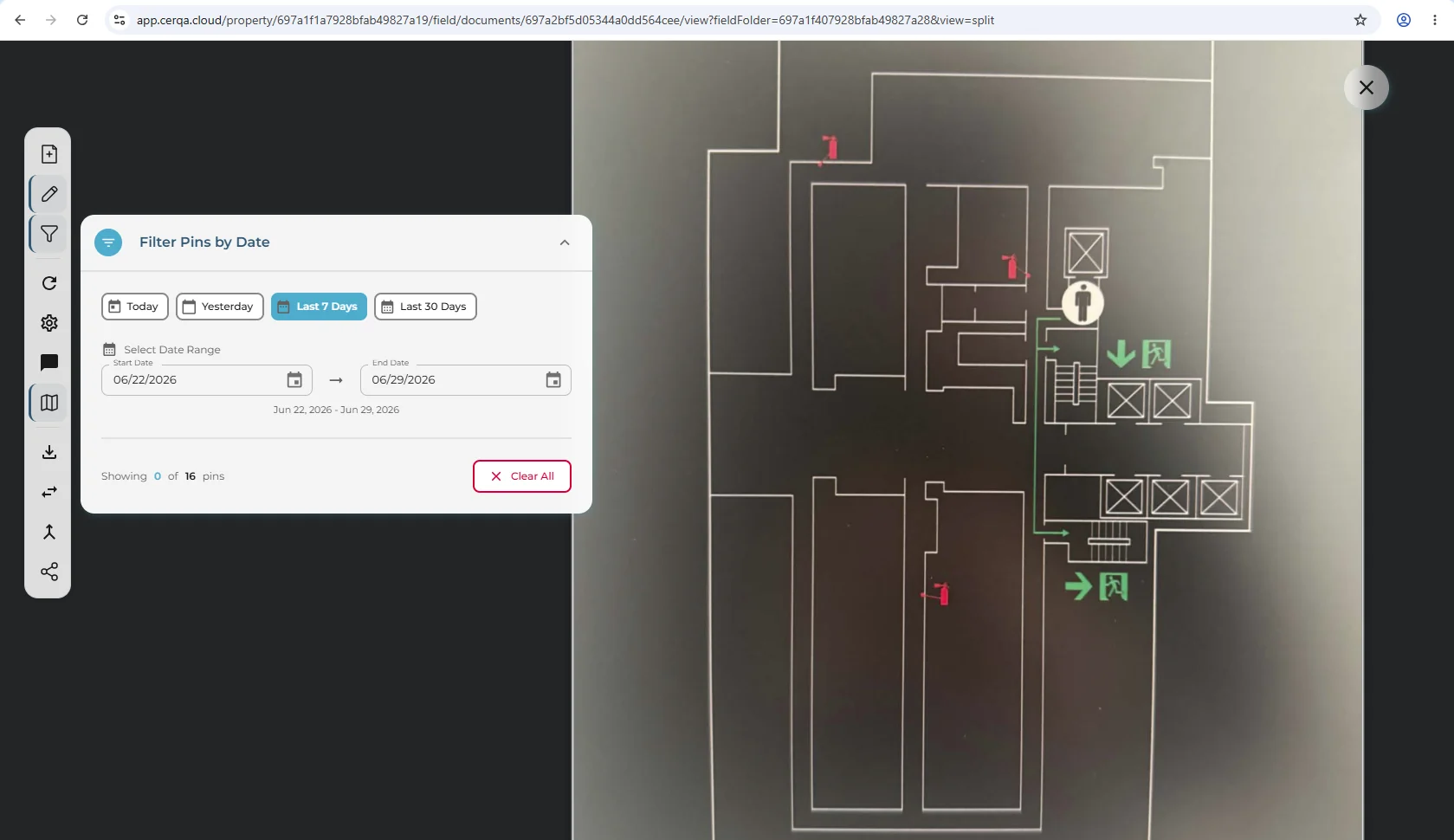
- 3Last 7 days - Pins added in the trailing 7 days, including today. The default scope for a weekly review.
- 4Last 30 days - Pins added in the trailing 30 days, including today. Useful for monthly review or shorter reporting windows.
- 5Custom range - Pick any start and end date. Use this for specific reporting windows that do not match the preset chips.
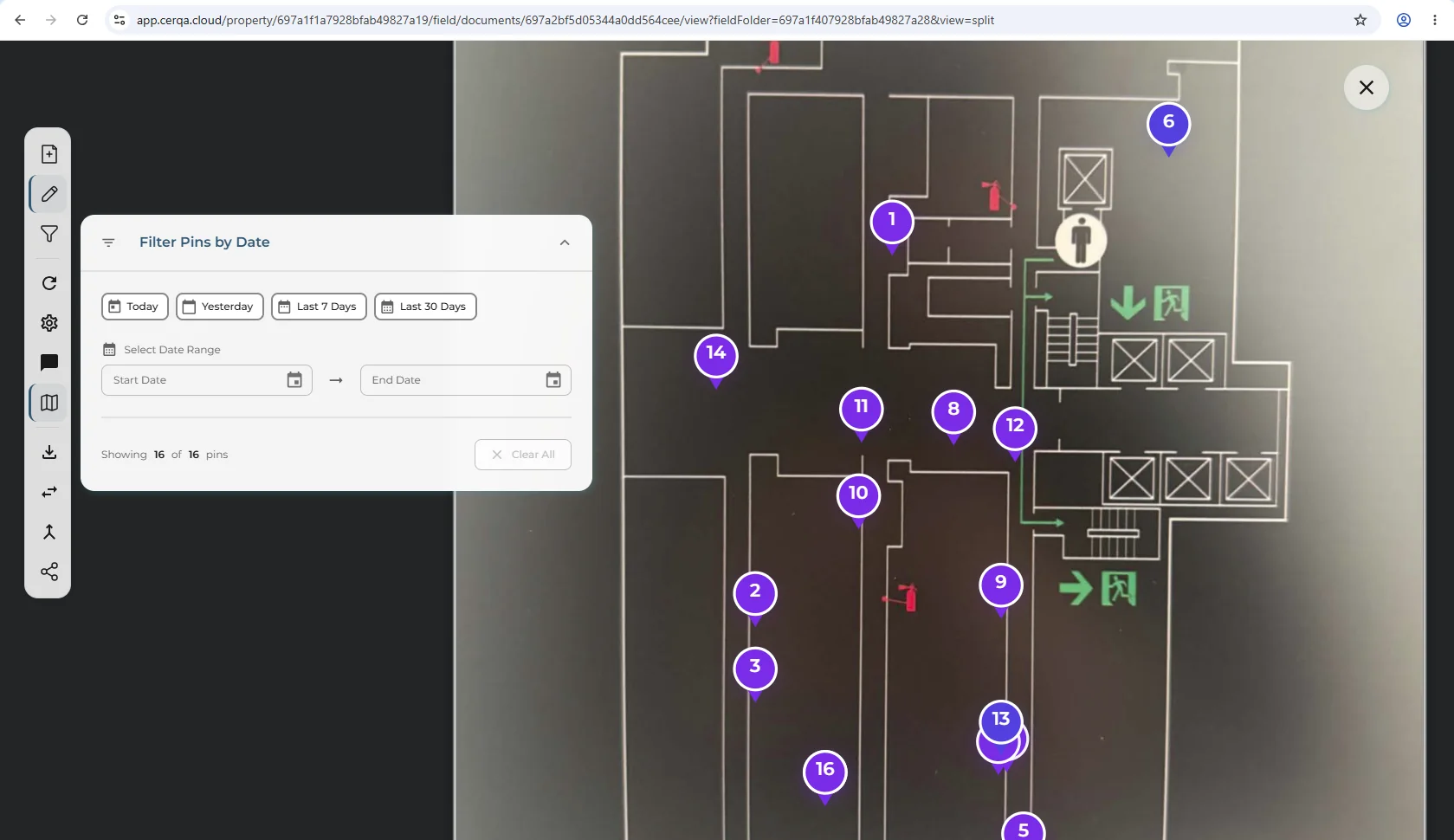
When a filter is active, a count appears below the control reading “Showing X of Y pins”: X is the count after the date filter, Y is the total across the property. The count confirms the filter is active and shows how much of the full set is currently visible.
What Field does not filter on
There is no status filter, no assignee filter, and no floor filter, because the pin record carries no status field and no assignee field. There is also no saved-views menu: you can filter the plan by date and the pin list by type, but neither filter set can be saved and recalled. If a teammate asks where “the saved views menu” or “the status filter” is in Field, the answer is that those don't exist today.
What you might expect that is not in Field
If you have come from another field-management tool, a few things are worth knowing about what CERQA Field does and does not do today:
- No list-to-plan navigation - the pin list (see “The pin list” above) opens a pin's image when you click its row; it does not highlight the pin on the plan or move the plan to it. To work spatially, click the pin on the plan.
- No status field on pins - the pin record carries no “Open / In Progress / Resolved” column. Status tracking, if your team needs it, sits in your wider tooling or in the pin's tag / type fields.
- No assignee field on pins - pins are not assigned to specific teammates inside Field. Coordination on a pin happens in the pin's detail view or in your wider project management tooling. Note the two surfaces differ: the desktop detail view carries a comment thread, while the mobile pin carries a photo timeline and a single tag or comment field.
- No saved-views menu - you can filter the plan by date and the pin list by type, but there is no save-this-filter-set affordance for either.
- No status counts - the pin list's type filters do carry counts (how many Photo, 360, or Walk pins the property holds), but because pins have no status there is no “3 open / 5 in progress” counter anywhere.
For generating an Export PDF of the floor plan with pins overlaid, see FL-03 - Reports & exports. Field's floor plans are PDF sheets, separate from the plan Vision generates; for both systems, see FL-04 - Floor plans in Vision and in Field.
Related pieces
- FL-03 - Reports & exports - generating an Export PDF (floor plan with pins overlaid) of the pin set. Single PDF export today; no CSV, no ZIP.
- FL-04 - Floor plans in Vision and in Field - the two independent floor-plan systems: Vision generates its plan from a point cloud, while Field's plans are PDF sheets you upload and replace.
- VS-01 - Vision & 360 walkthroughs overview - Vision pins (360 capture locations) are a different surface from Field pins (observations). VS-01 covers the Vision side; this piece covers the Field side.
- WR-05 - Drone survey to 3D model workflow - one of the workflows that puts Field pins on a property. Drone-survey output via DroneDeploy can land floor plans plus panoramas in Field.
- F-04 - Roles and permissions - the complete role matrix. The Field tab itself is open to all roles on a property; exporting the pin set is Project Manager and above (see FL-03).