Modules
PDF annotations & markup
Marking up a PDF in CERQA is a cloud workflow. You open a PDF in the inline viewer, drop comment pins, draw shapes, type notes, and start threaded discussions, all without leaving the browser. Markups save as a layer on top of the file, so the underlying PDF file never changes and your annotations are visible to anyone with read access. This page is the reference for the markup tools themselves.
Who can mark up: Contributor and above
Markup is available to Contributor and above. Viewer can open a PDF read-only but cannot annotate; the markup toolbar is not exposed to Viewer. Guest has no PDF access. For the role-by-role matrix, see F-04 - Roles and permissions.
Opening a PDF for markup
Markup starts from the Files tab on a property.
- 1Open the property and switch to the Files tab - Pick the property from your sidebar, then click the Files tab in the property tab bar. The single-pane file list opens with a breadcrumb at the top (root: All Files).
- 2Find the PDF in the file list - Click a folder row to drill into it (the breadcrumb tracks where you are; click a segment to go back up), or use the search bar to locate the file by name.
- 3Open the PDF in the inline viewer - Open the PDF row to load it in CERQA's inline viewer, with the markup toolbar across the top.
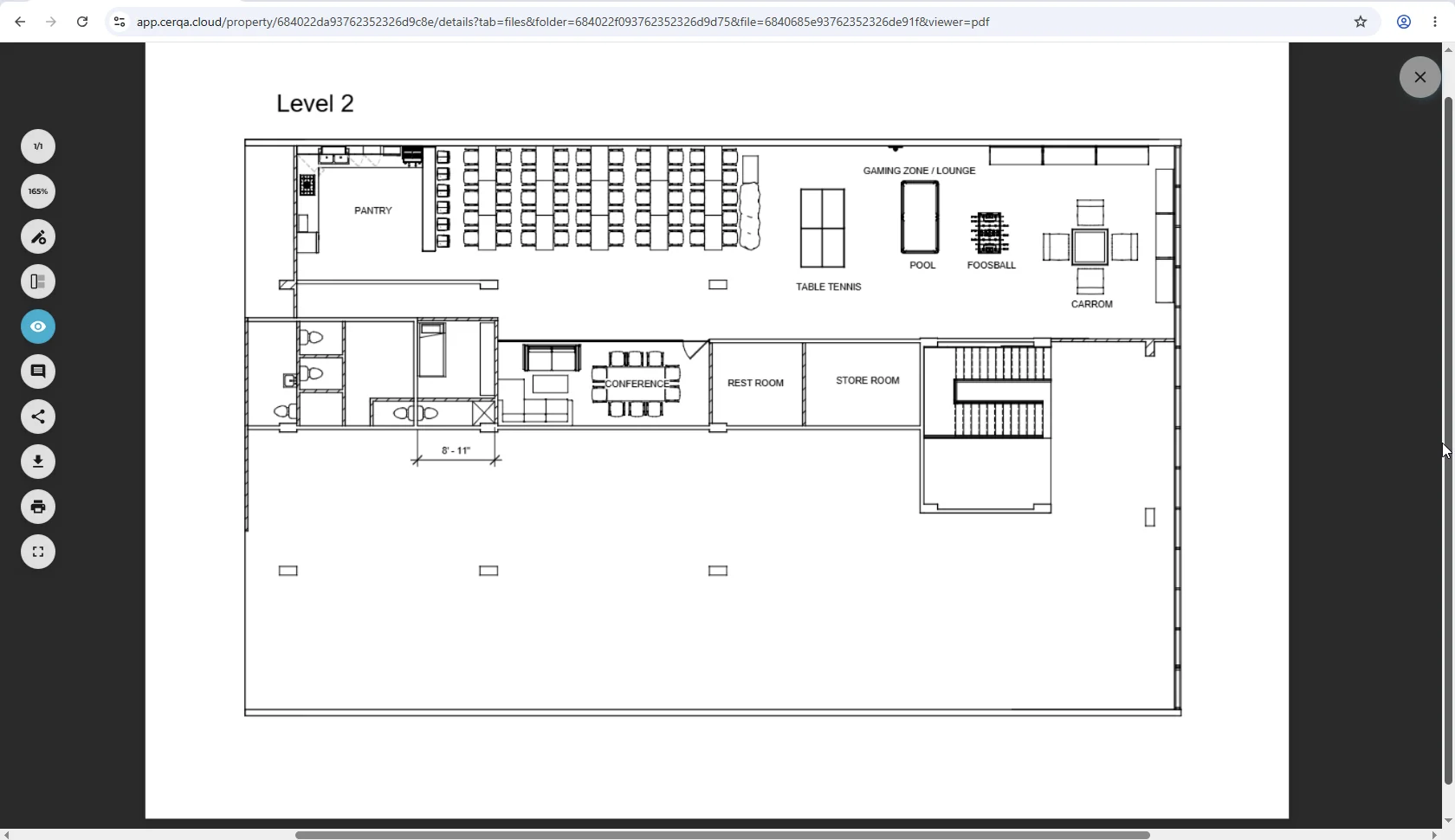
For the broader overview of the Files tab (where Files lives, the single-pane layout with breadcrumb navigation, accepted file types), see D-01 - Files & Models module overview.
The markup toolbar
The toolbar across the top of the viewer holds the markup tools. The set is the same for every role that can mark up (Contributor and above):
- 1Comment pin - Drop a numbered pin on a specific spot on the page. The pin opens a thread for typed comments and replies.
- 2Shapes - Draw a rectangle or an ellipse around an area of concern. Useful for circling drawing details.
- 3Text annotation - Place a text label directly on the page. Position, font size, and color are adjustable.
- 4Freehand - Draw freehand strokes over the page. Use this for arrows, scribbled notes, or sketching corrections.
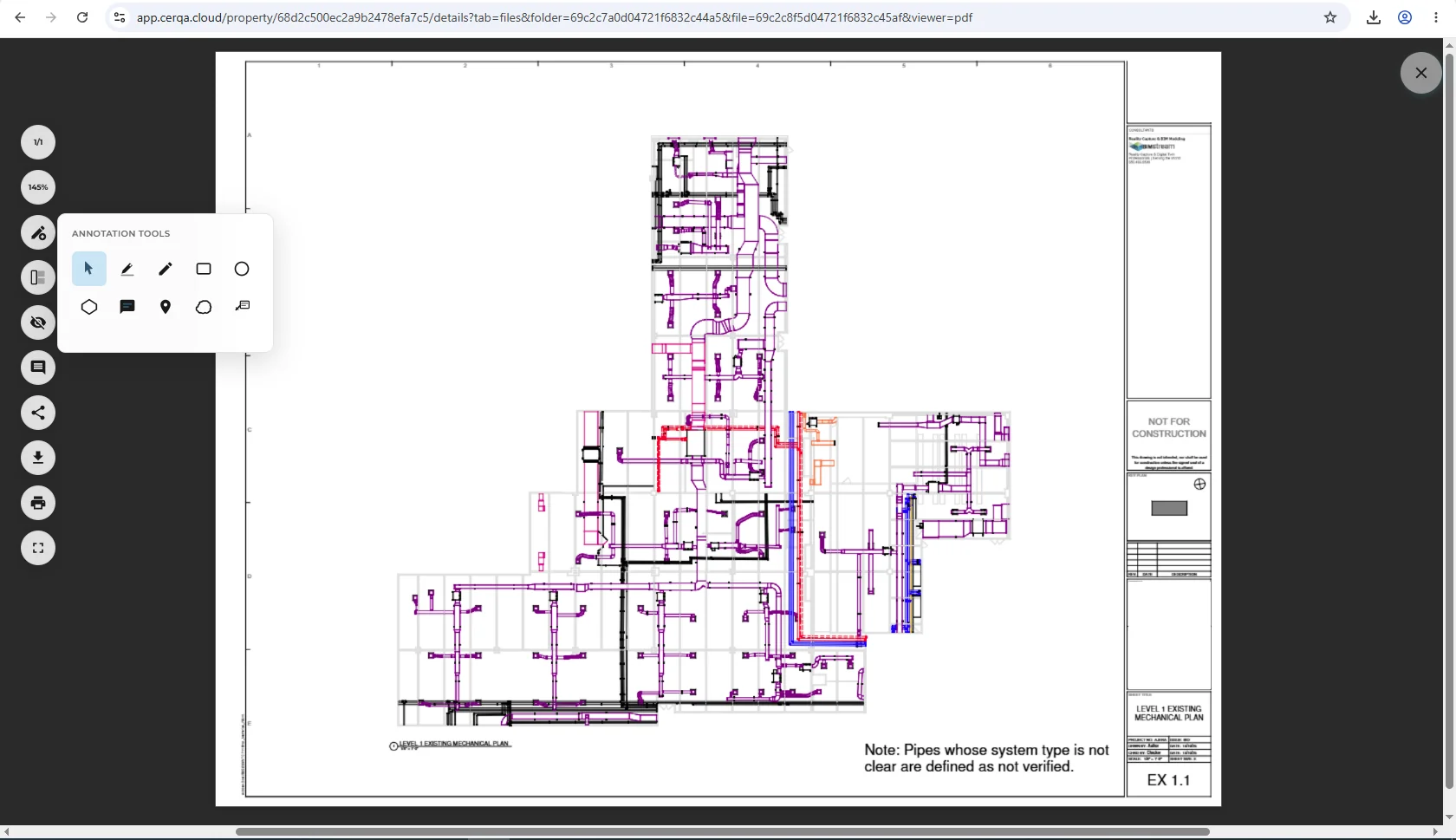
Pick a tool from the toolbar, then click or drag on the page to place the markup. To switch tools mid-flow, just click the next tool; the previous markup stays where you placed it.
Comment pins and threaded discussion
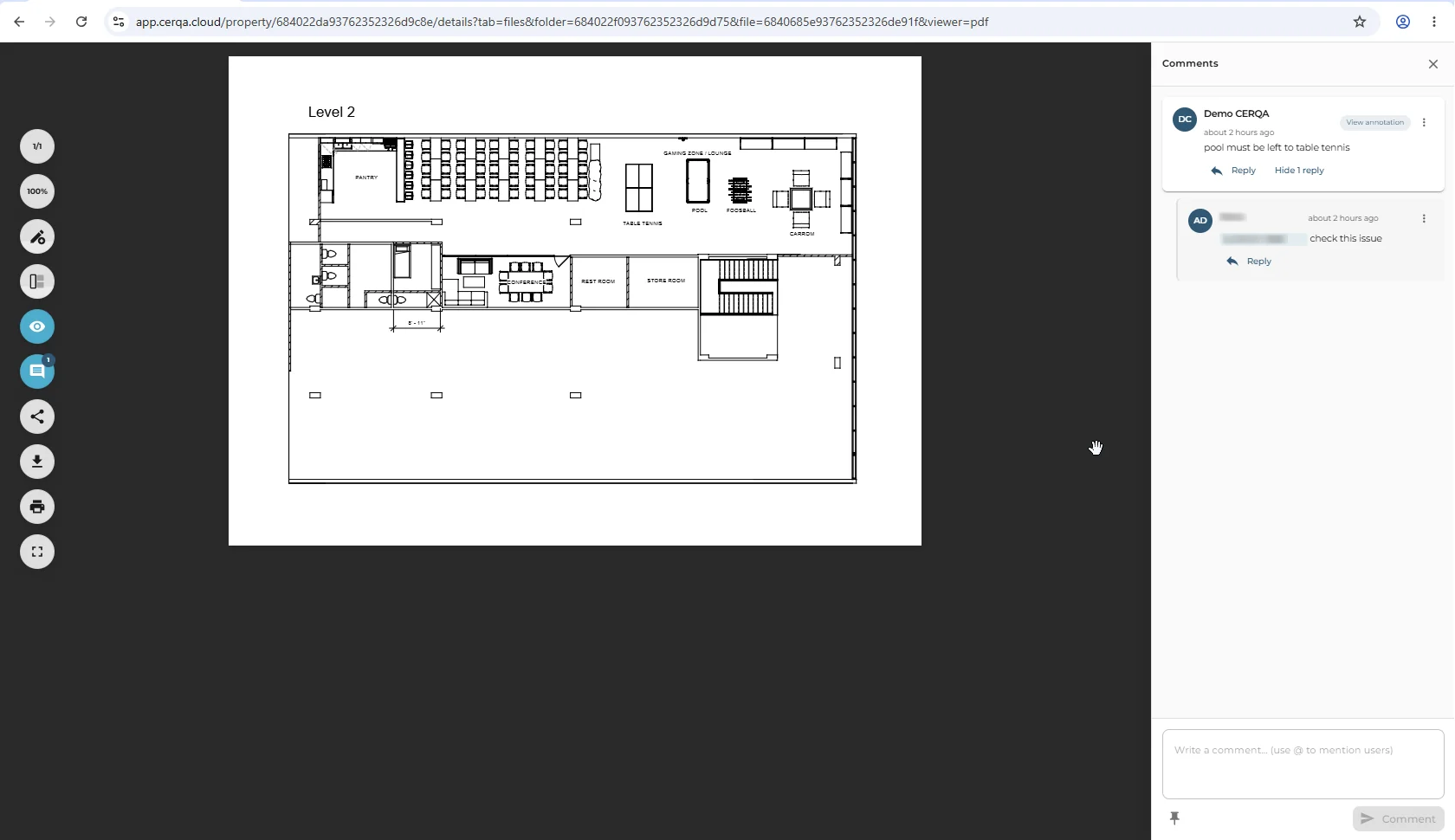
The comment pin is the most-used tool. It anchors a typed comment to a specific location on the page and opens a thread for replies.
- 1Place a pin - Pick the comment pin tool and click the spot on the page where the comment belongs. A numbered pin lands at that point.
- 2Type the comment and save - A comment box opens next to the pin. Type your note and save. The pin now carries your comment.
- 3Open the thread to reply - Click the pin to reopen the thread. Teammates with read access to the file can read it; teammates with markup rights can reply.
- 4Resolve or leave open - Threads stay open by default. Resolved threads collapse but remain on the page so the markup history is preserved.
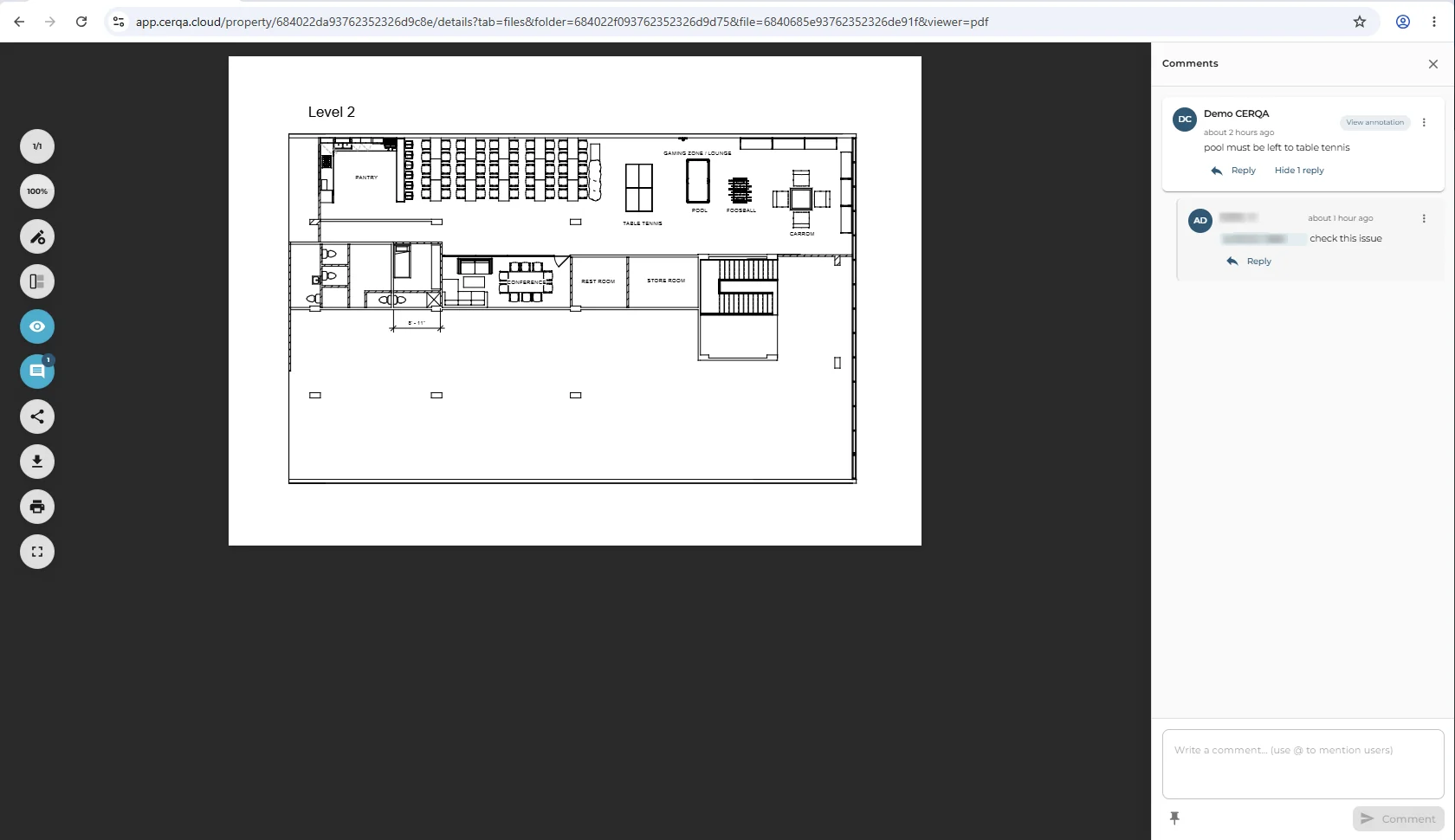
@mentioning teammates
Inside any comment box (the original comment or a reply), type @ to open the teammate autocomplete. Start typing a name; CERQA filters the list to teammates on the property. Pick a teammate to insert the mention.
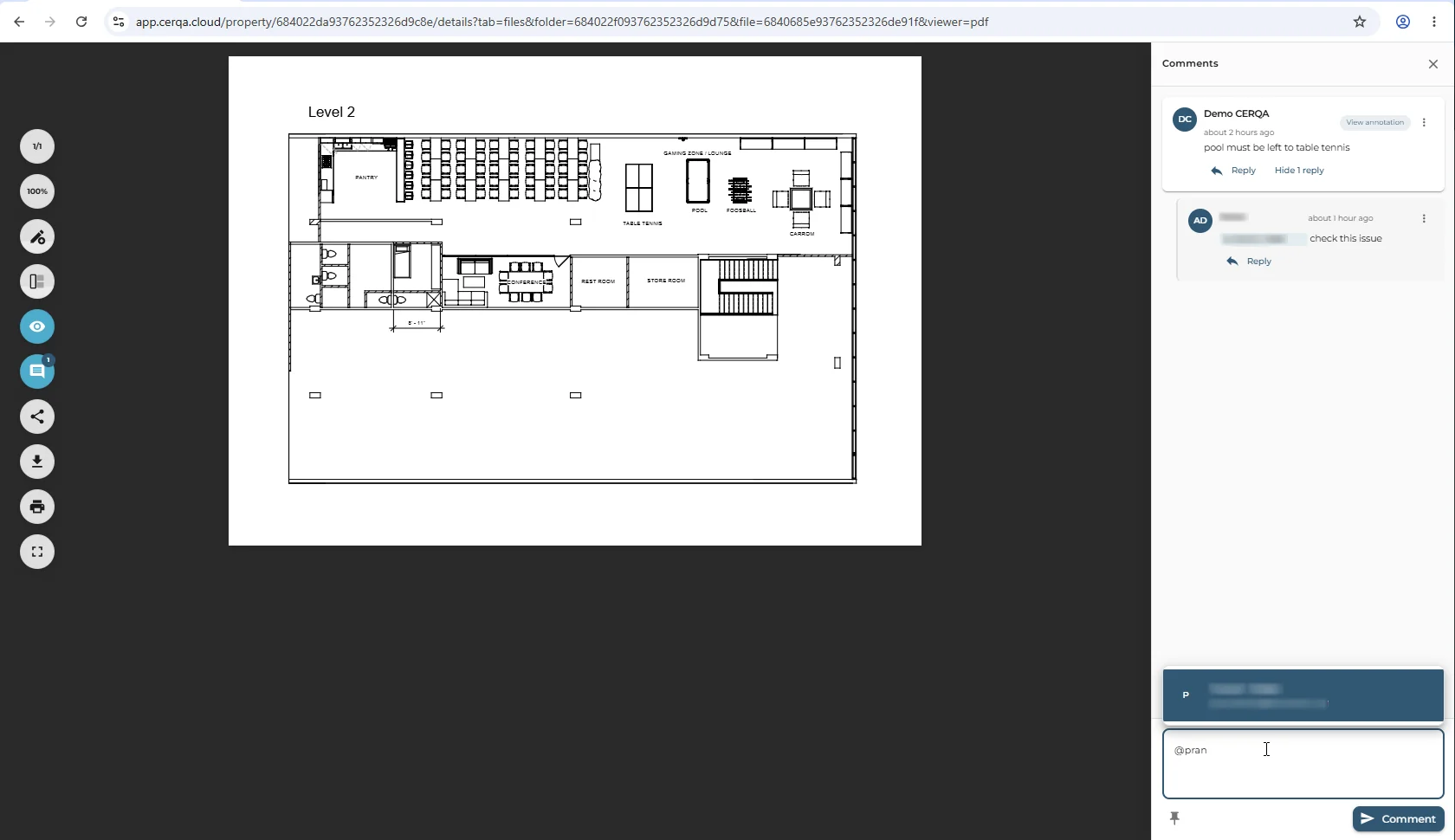
When you save the comment, the tagged teammate receives a notification linking back to the thread. Mentions are the fastest way to bring a specific person into a markup discussion without leaving the viewer.
Reading markups left by others
Open the PDF as usual; all existing markups appear on load. Comment pins, shapes, text, and freehand strokes from every teammate appear in the same view. Click any pin to read its thread.
Markup persistence
Markups save to a cloud layer on top of the file rather than into the PDF itself. That means the underlying file stays untouched, the markup layer can be edited by the team without re-uploading, and version history tracks what changed and by whom.
Edit and delete rules
Who can edit or delete which markup follows a layered rule:
- 1Edit your own comments - Anyone with markup rights can edit comments they authored. Open the thread, pick your comment, edit and save.
- 2Edit others' comments - A Company Admin can edit comments authored by other teammates. Useful for tidying up a thread.
- 3Delete your own comments - Anyone with markup rights can delete their own comments and pins.
- 4Delete others' comments - A Company Admin can delete comments authored by others. A member with full control document permission on the specific file can also delete others' comments on that file.
No Project Manager edit-others gate
Editing or deleting comments authored by other teammates is not a Project Manager capability by virtue of the PM role. The capability sits with a Company Admin, or with whoever holds full control on the document (delete-only). A PM who needs to clean up someone else's markup either coordinates with the author, escalates to a Company Admin, or holds full control on that file through the document-permission system.
Related pieces
- D-01 - Files & Models module overview - where Files lives, the single-pane file list with breadcrumb navigation, accepted file types, and the role-gated actions at the file level.
- F-04 - Roles and permissions - the complete matrix: the markup row confirms Contributor and above can annotate (Viewer is view-only).
- VS-03 - Vision annotations & measurements - the same edit-and-delete pattern applied to text annotations on Vision 360 captures.