Modules
Vision annotations & measurements
Inside a 360 view in CERQA Vision you can mark up the panorama with text annotations, thread comments below each annotation, and take numeric measurements using the 4-mode Beta measurement suite. This page is the reference for those tools. For the Vision overview (entering a 360, walkthrough pins, Capture image, Viewpoints), see VS-01 - Vision & 360 walkthroughs overview. VS-03 is Vision-only; for the BIM viewer's element-data panels (Element Info on Hover, Element Properties, Sheets and Views), see M-01.
Placing a text annotation
Open a 360 view, activate the annotation tool from the Vision sidebar, then click the spot on the panorama where you want the annotation to anchor. A pin lands at that point and the Add Annotation dialog opens, showing the exact look direction (yaw and pitch) of the placement. Type the annotation text (use @ to mention a teammate) and click Add or press Ctrl+Enter to save. The annotation is now pinned to that spot.
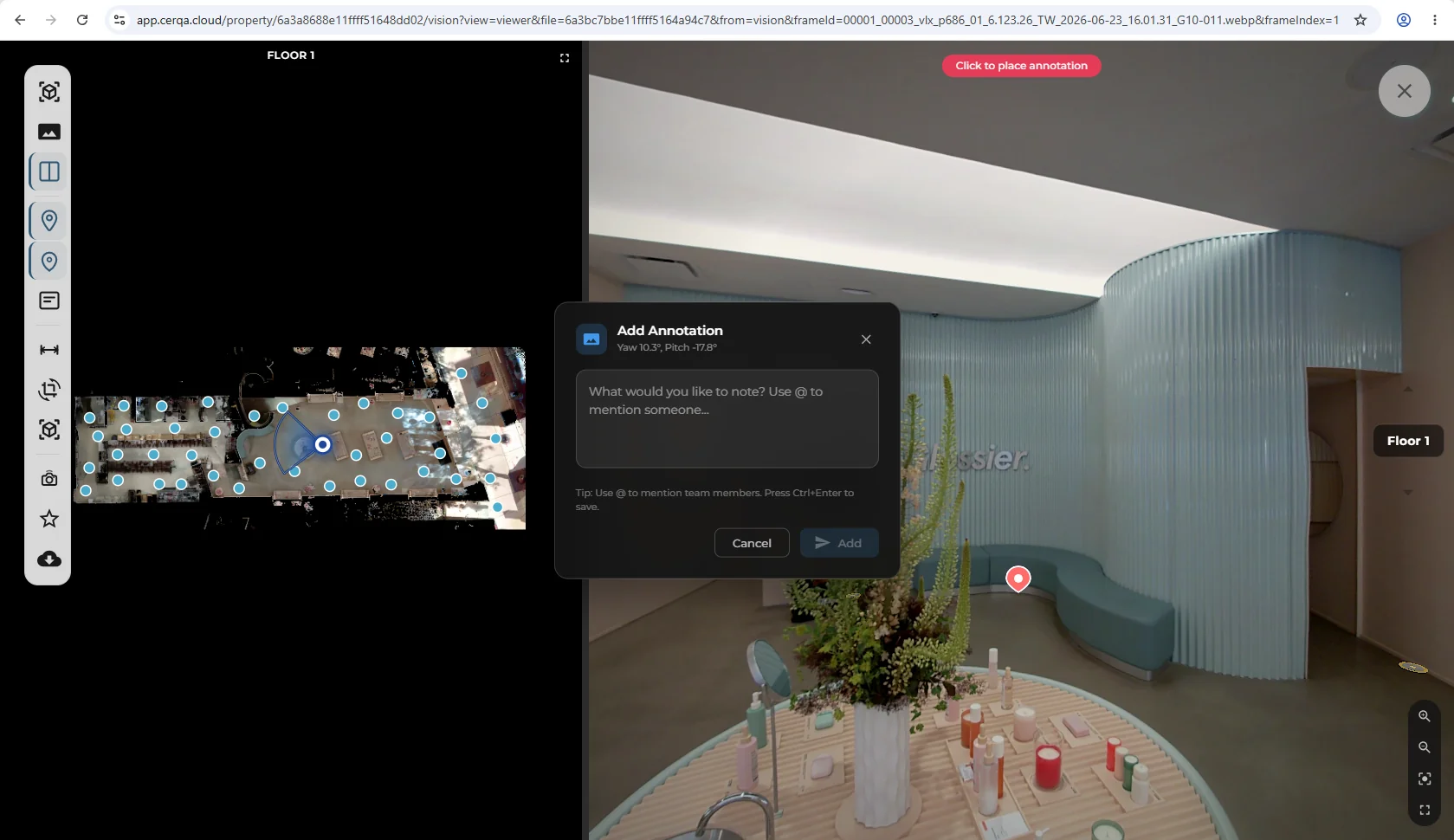
Annotations are text only
CERQA Vision supports text annotations as the single annotation type. There is no arrow tool, no shape tool, no freehand drawing tool inside a 360 view. If you need shapes, freehand, or boxed regions, the workflow is in PDF markup on a captured floor plan instead, covered in D-03 - PDF annotations & markup.
How annotations anchor
A 360 capture is a sphere; every direction you can look is a position on that sphere. When you place an annotation, CERQA stores its position as coordinates on the sphere (the look direction at the moment of placement; the Add Annotation dialog shows this as yaw and pitch). As you pan or rotate the camera inside the 360, the panorama moves but the annotation stays anchored to its sphere position. Look away and the annotation moves out of frame; look back at the same direction and it returns to the same spot.
Annotations are scoped to a single 360 capture. They do not appear on neighboring captures even if those captures are spatially close; each capture carries its own set of annotations on its own sphere.
Comment threading and @mentioning teammates
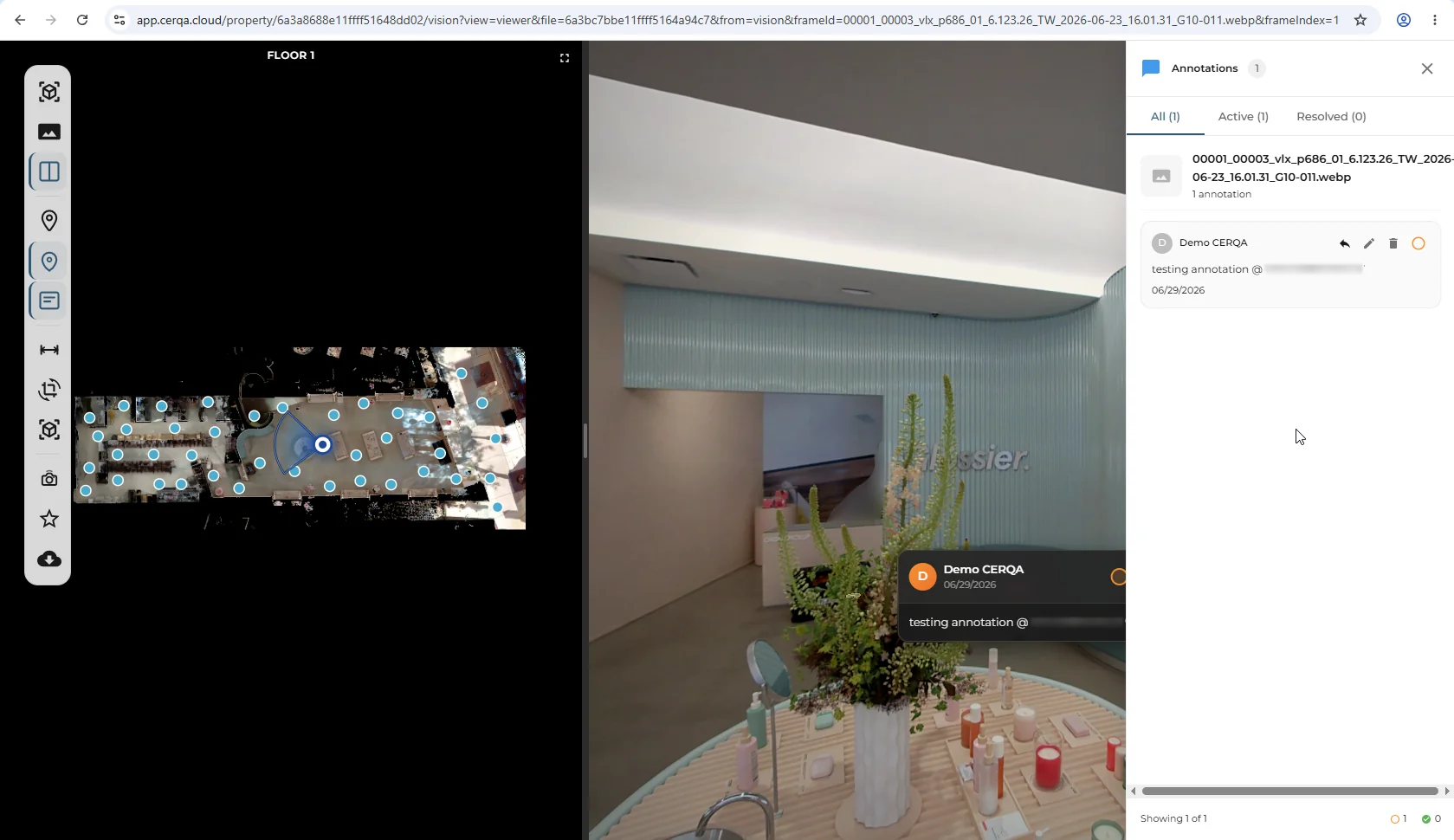
Each text annotation opens a comment thread when clicked. Teammates with read access to the property can read the thread; teammates with markup rights can reply.
- 1Open the thread - Click an annotation pin on the panorama. The annotation expands into a thread panel with the original text + any replies.
- 2Reply inline - Type a reply in the input at the bottom of the thread. Save. The reply appears below the original annotation with your name and timestamp.
- 3@mention a teammate - Type @ inside the Add Annotation dialog or any reply input to open the teammate autocomplete. Pick a teammate; CERQA tags them and sends a notification linking back to the thread.
4-mode Beta measurement suite
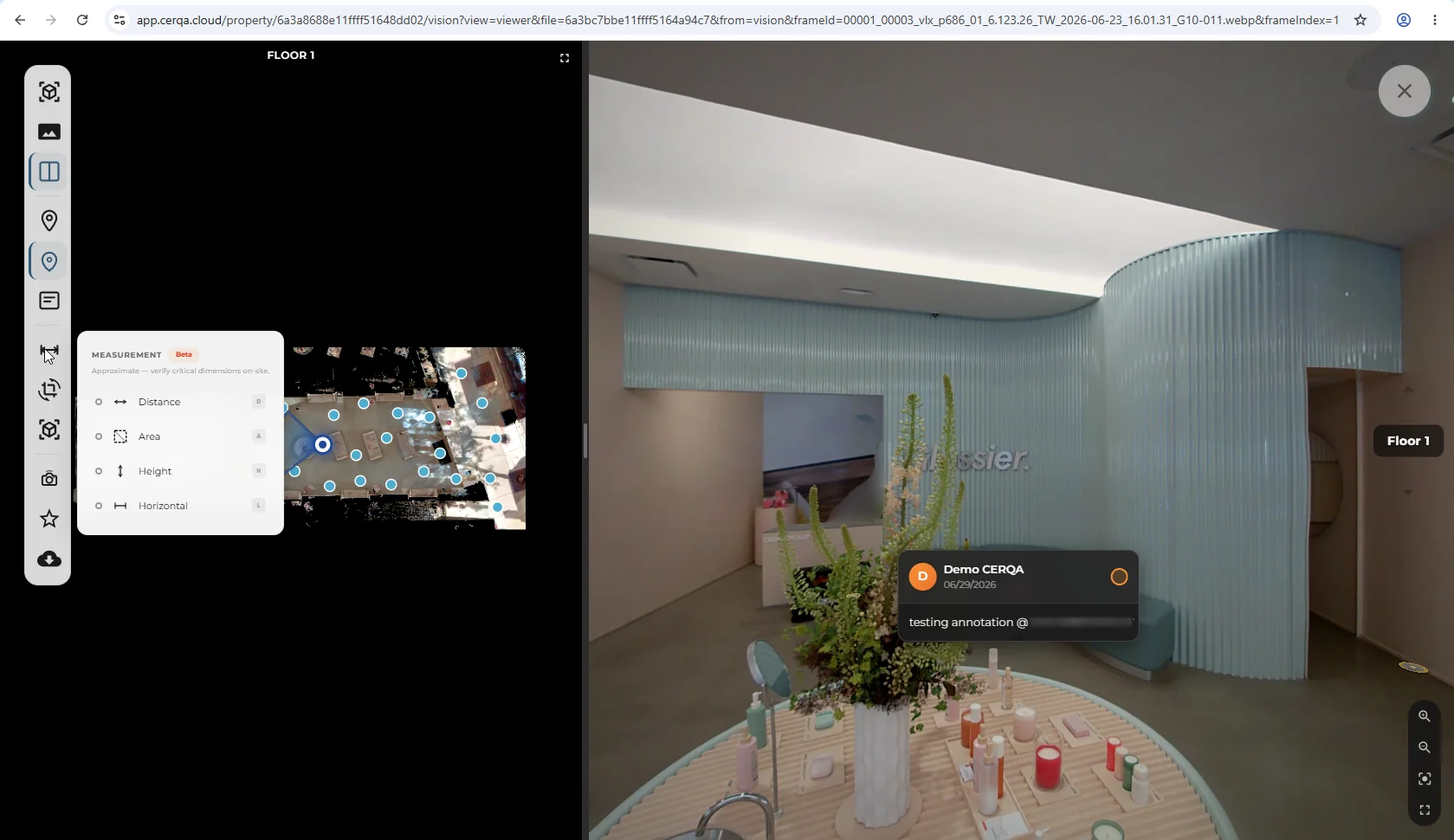
The Vision sidebar inside a 360 also exposes a 4-mode measurement suite. All four modes carry the Beta badge. Each mode supports both metric and imperial units, toggleable.
- Distance - point-to-point linear measurement on the panorama.
- Area - polygon area inside the panorama.
- Height - vertical measurement.
- Horizontal - horizontal measurement.
While you place measurement points, a magnifier appears at the cursor showing that area at higher zoom, so you can set the start and end points precisely.
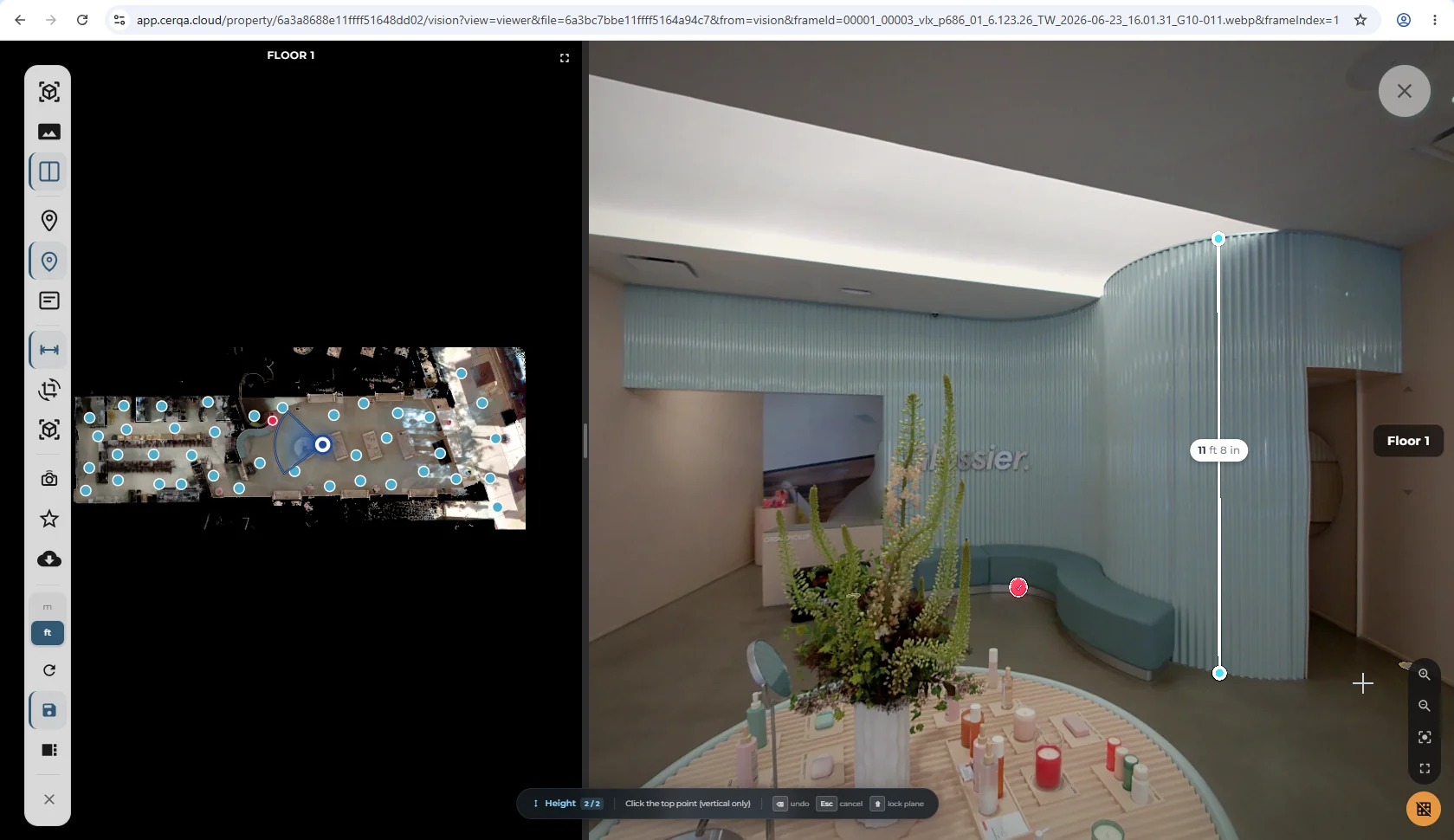
Numeric measurement on 360 captures
For numeric distance, area, height, or horizontal measurement on a 360 capture, use the Vision suite documented here. For the BIM viewer's section box and measure control, see M-02 - Section tools. For the Vision mesh tooling that backs improved measurement accuracy on mesh-reconstructed captures, see VS-05 - Vision mesh tools.
Reading others' annotations and the edit/delete rules
All annotations on a 360 view are visible to every property member who can see the capture. The Vision sidebar lists annotations on the active capture; filter to your own or show all. Clicking any entry opens the annotation in the panorama and expands its thread.
Edit and delete follow a layered rule, same pattern as PDF markup in D-03:
- 1Edit your own annotations and replies - Anyone with markup rights can edit annotations and replies they authored. Open the thread, pick your entry, edit and save.
- 2Edit others' annotations and replies - A Company Admin can edit entries authored by other teammates. Useful for tidying up a thread.
- 3Delete your own - Anyone with markup rights can delete their own annotations and replies.
- 4Delete others' - A Company Admin can delete entries authored by others. A member with full control document permission on the specific capture can also delete others' entries on that capture.
No Project Manager edit-others gate
Editing or deleting annotations authored by other teammates is not a Project Manager capability by virtue of the PM role. The capability sits with a Company Admin, or with whoever holds full control on the capture (delete-only). A PM who needs to clean up someone else's annotation either coordinates with the author, escalates to a Company Admin, or holds full control on that capture through the document-permission system. Same pattern as PDF markup in D-03.
What lives elsewhere (not VS-03)
Three BIM-viewer panels share a “show element data” intent with Vision annotations but live on the Model tab, not in Vision. They read structured Revit element properties from the BIM model; VS-03 reads free-form text annotations placed on a 360 panorama. For the BIM-side panels see M-01 - 3D Model Viewer overview:
- Element Info on Hover - BIM viewer hover-anchored inline panel.
- Element Properties panel - BIM viewer full-properties sidebar.
- Sheets and Views - BIM viewer switcher between the 3D model and 2D sheet views.
Different tabs, different data sources, different interactions. VS-03 doesn't cover them; M-01 does.
Related pieces
- VS-01 - Vision & 360 walkthroughs overview - entering a 360, walkthrough pins, Capture image, the Viewpoints panel, and how Vision is distinct from the BIM viewer.
- VS-05 - Vision mesh tools - the same 4-mode Beta measurement suite backed by mesh-reconstructed geometry for improved accuracy.
- M-01 - 3D Model Viewer overview - the BIM viewer side; home of Element Info on Hover, Element Properties, and Sheets and Views.
- M-02 - Section tools - the BIM viewer's section box and measure control.
- D-03 - PDF annotations & markup - PDF markup uses the same edit/delete tier (own / Company Admin / full-control delete; no PM-role gate).
- F-04 - Roles and permissions - the complete role matrix for who can do what across CERQA.