Modules
Sharing & external links
CERQA shares files two ways. Give another CERQA member direct access, or generate a time-limited share link for someone outside your organization. This page walks through both modes and the Share Folder dialog that controls them.
Two ways to share
Pick the mode that matches who you're sharing with:
- 1Direct access for a CERQA member - Share with someone who already has a CERQA login in your company. Their existing role determines what they can do with the file. Use this for internal collaboration where the person is already on the platform.
- 2Share link for an external partner - Generate a time-limited link for someone outside your company who doesn't have a CERQA login. The recipient opens the link in a browser and sees only the files you shared. Use this for sending one or a few files to an external collaborator.
For adding an external partner to a whole property (instead of one file or folder), see PM-07 - Sharing with external partners. That flow is property-scoped; this page covers item-level sharing (files, folders, and models).
Generating a share link
Open the Share Folder dialog from any file or folder; the same dialog also opens when you share a model or model set from the Model tab. The dialog has two tabs: Share for setting up a new link, and History for the links you've already created.
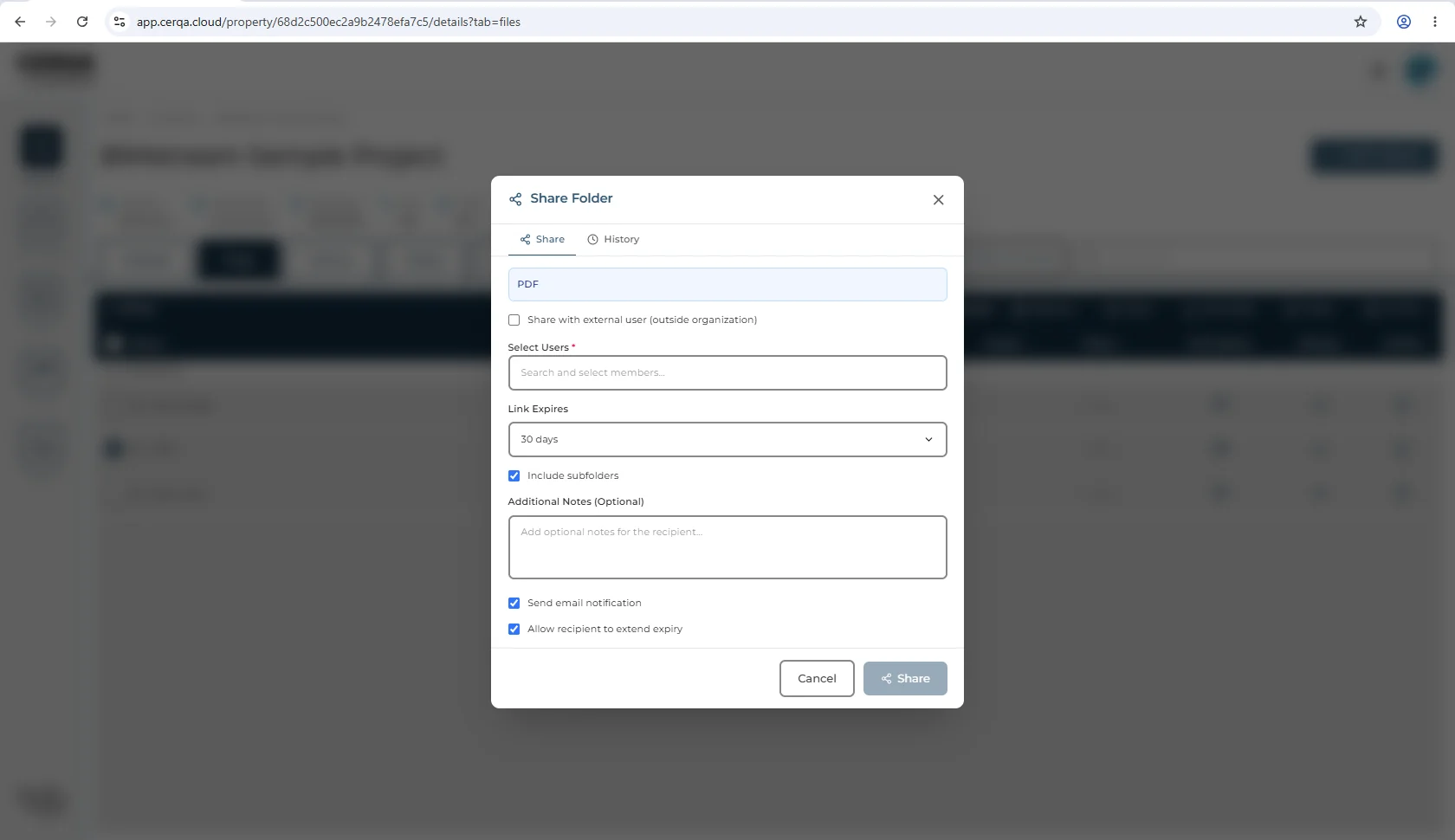
The Share tab has these fields, top to bottom:
- 1Share with external user (outside organization) - Checkbox. Check this when the recipient does not have a CERQA login in your company.
- 2Select Users - Required. Searchable list. Pick the recipients of the link.
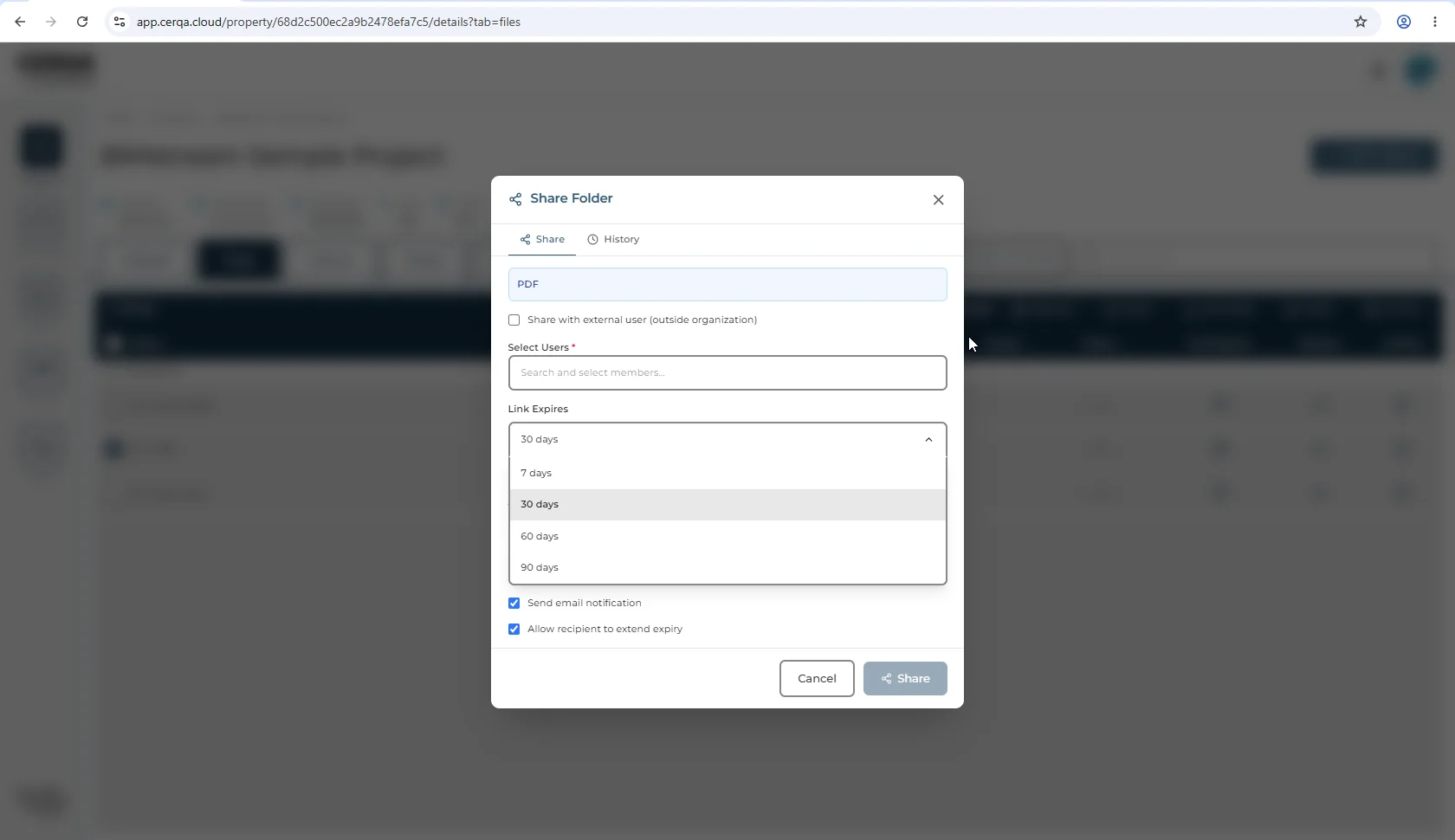
- 3Link Expires - Dropdown with four fixed durations: 7, 30, 60, or 90 days. The default is 30 days. The link stops working automatically when it expires.
- 4Include subfolders - Checkbox. When sharing a folder, check this to share everything nested inside it too.
- 5Additional Notes - Optional. A short message that travels with the link.
- 6Send email notification - Checkbox. When checked, CERQA emails the link to the recipients you picked.
- 7Allow recipient to extend expiry - Checkbox. When checked, the recipient can push the expiration date out themselves. Leave it off to keep expiry under your control.
Expiration and access settings
Link Expires is a fixed-duration dropdown, not a free date picker. The choices are 7, 30, 60, or 90 days from when the link is generated. The default is 30 days.
The "Share with external user" checkbox controls whether recipients need a CERQA login. With it unchecked, the share works only for members already in your company. With it checked, the link works for someone outside the platform.
The "Allow recipient to extend expiry" checkbox is opt-in. Use it when the work might run past 90 days and you trust the recipient to extend rather than coming back to you for a new link.
What the external partner sees
The recipient opens the link in a browser and lands on a CERQA-branded page showing only the files or folders you shared. They cannot reach the rest of your property, other properties, or anything else in your company.
The partner view is intentionally narrow
Revoking or updating an active share
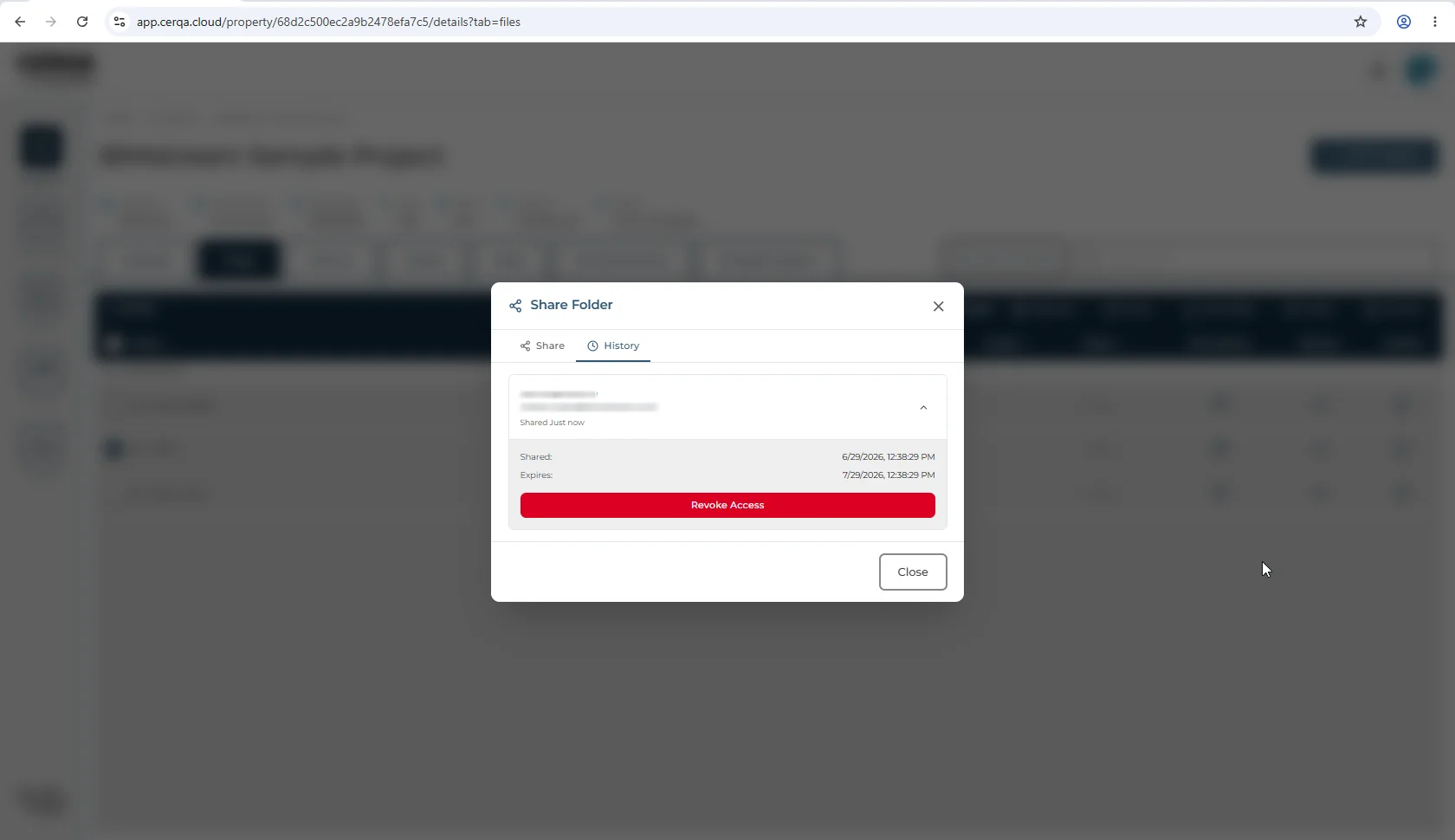
Switch to the History tab on the Share Folder dialog to see every link you've created for the file or folder. From there you can revoke a link before it expires, which immediately stops the recipient from opening it.
File-link expiry is not member Access Expiry
Related pieces
- D-01 - Files & Models module overview - where Files lives, the single-pane file list with breadcrumb navigation, and which actions are role-gated (markup and file-link share both Contributor and above; Viewer opens files read-only).
- PM-07 - Sharing with external partners - the property-level partner-sharing flow, distinct from file-level share links.
- F-04 - Roles and permissions - the role matrix that governs who can generate share links.
- CA-05 - Managing members - where member Access Expiry lives, distinct from file-link expiry.