Project Manager
What a Project Manager does in CERQA
As a Project Manager in CERQA, your work lives inside property workspaces, not in company admin pages. You run properties: the files, the models, the field walks, the site visits. The company-wide setup (members, integrations, company settings) is handled at the layer above you. This piece sets the boundary so you know which tabs your day-to-day lives in, and which screens you can ignore unless someone loops you in.
The PM scope
One sentence: you run properties, not the company. A PM's workspace is the property workspace. Your work happens in the tabs of a specific property; which tabs you see depends on the modules your company has been granted, plus Project Team. Every property opens with Model, Files, Vision, Field, and Property Members; companies with the Site, Experiences or Connections module see those tabs as well. You move between properties by returning to the Properties page (see F-03) and picking another one, but the work itself is always inside one property at a time.
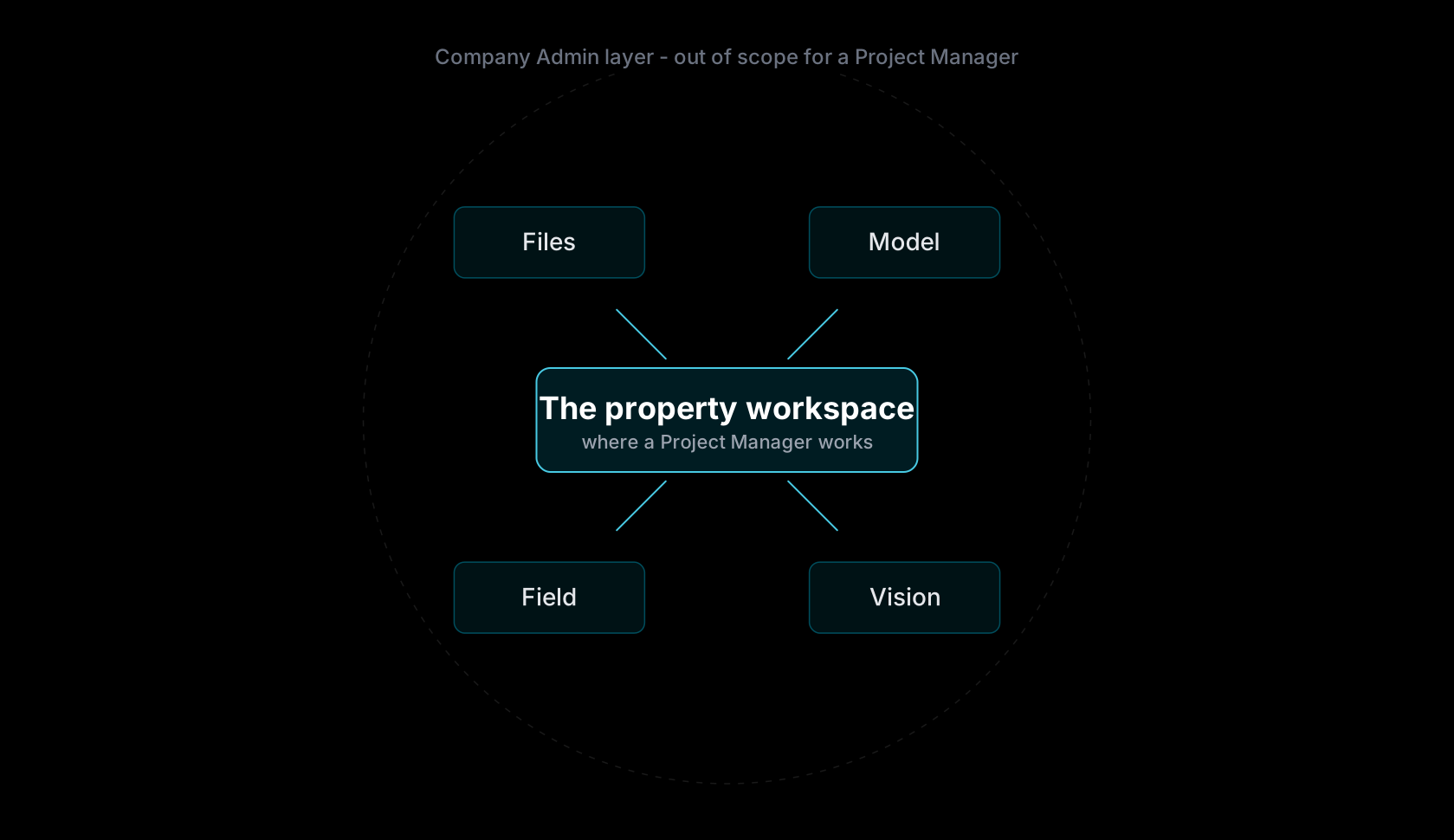
PMs at companies with the Site module also work in the Site tab; it joins the same picture where present.
The framing matters because CERQA also has a company-admin layer (members, subscriptions, integrations) that PMs typically do not touch. The rest of this piece walks the boundary line: what falls inside your scope, what sits above it, and where to go next once you're oriented.
What you own
Inside a property workspace, these are the things that belong to the PM's daily work:
- 1Files - Drawings, specs, reports, PDFs, CAD, photos - anything attached to the property as a file lives here. Upload, organize, search, share. Covered in D-01 - Files & Models module overview and PM-03.
- 2Model views - The 3D model viewer, model sets (architectural + structural + MEP loaded together), and saved coordination views. Covered in M-01 - 3D Model Viewer overview.
- 3Field pins - Issues, observations, and follow-ups pinned to a location on the model or on a drawing. Covered in FL-01 - Field overview.
- 4Walkthroughs - 360-degree captures of the property, with annotations and pin overlays linked to the model. Covered in VS-01 - Vision & 360 walkthroughs overview.
- 5Drawings - 2D drawings and sheets that live alongside the 3D model and can be pinned to from Field. Part of Files & Models and surfaced inside the property workspace.
What's above your scope
A few things are handled at the company-admin layer, not by the PM. You may interact with the results (a teammate gets added, an integration starts flowing data), but the setup itself is not your job:
- 1Member management - Adding new members to the company, changing roles, deactivating people who leave. Handled by Company Admin.
- 2Integrations setup - Connecting external systems (e.g., Autodesk Construction Cloud, Energy Star, aerial-survey providers) to the CERQA account. Setup is one-time and lives at the company level.
- 3Company-wide settings - Subscription tier, module gating, branding, and other settings that apply across every property the company owns. Handled by Company Admin.
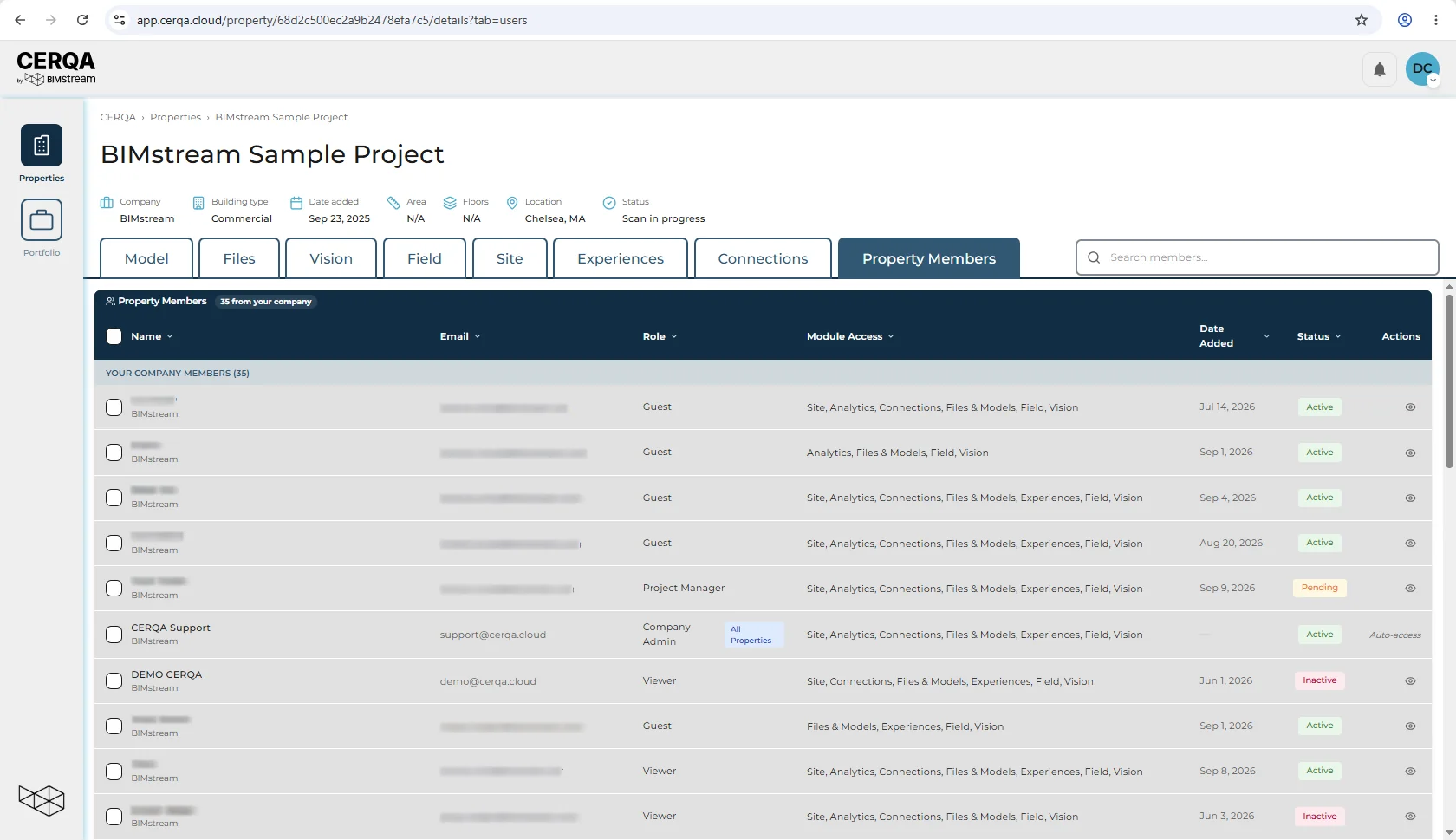
- 4Cross-company partner sharing - Granting an outside-company member structured access to your team's properties is handled at the BIMstream platform level; only your CERQA Account Manager can set it up. PMs have no Members page at all and see membership only on a property's Property Members tab; the Cross-Company Access tab is not visible to a PM. Within PM scope, you can still collaborate with externals via Guest membership on a property (a Project Admin or Company Admin invites them) and via time-limited file share links from the file itself. For the PM-side framing of this boundary, see PM-07 - Sharing with external partners.
If you're curious about the layer above you, the Company Admin track in the library covers it. See CA-01 - What you actually own as Company Admin for the parallel scope-setter from the admin side.
Where to start
The fastest way to get productive is to pick your most-used module and read its overview. Most PMs spend the bulk of their time in Files or Model; field-heavy roles start in Field or Vision. From there the rest of the property workspace falls into place.
When you're ready for the next step in the PM track itself, PM-02 - Working in the property workspace is the tab-by-tab tour of the workspace you'll be living in.
Related pieces
- F-01 - Welcome to CERQA - the three-layer model (Platform, Company, Properties) that underlies the scope split here.
- F-04 - Roles & permissions - the role matrix that formalizes what each role (PM included) can and can't do.
- CA-01 - What you actually own as Company Admin - the layer above the PM scope, useful for context when an admin loops you in.
- PM-02 - Working in the property workspace - the next step in this track: a tab-by-tab tour of the workspace.