Company Admin
What you actually own as Company Admin
Company Admin is the highest level of access on your side of the platform. You sit between the BIMstream team above you and your property-level team members below. This page maps the boundary of what you control: members, properties, integrations, module access, and the limits where you hand off to your CERQA Account Manager.
If you haven't read F-01 - Welcome to CERQA yet, start there first. The platform-level three-layer model is the orientation this piece builds on.
The three layers from a Company Admin point of view
F-01 introduced the three administrative layers from the platform's point of view. This section walks the same three layers from your seat as a Company Admin.
Above you is Platform, owned by BIMstream. Your CERQA Account Manager lives in this layer. They control which modules your company subscribes to, your single sign-on configuration, your contract, and platform-wide settings. You don't reach Platform directly.
You sit in the middle layer, Your Company. This is where your work happens: managing the member roster, creating and configuring properties, setting up integrations, and granting module access. The rest of this page is about everything you own at this layer.
Below you is Properties. Each property has its own team and its own per-property module permissions. Project Admins, Project Managers, and Contributors work here day to day. You can step into a property at any time to manage its team or update its data.
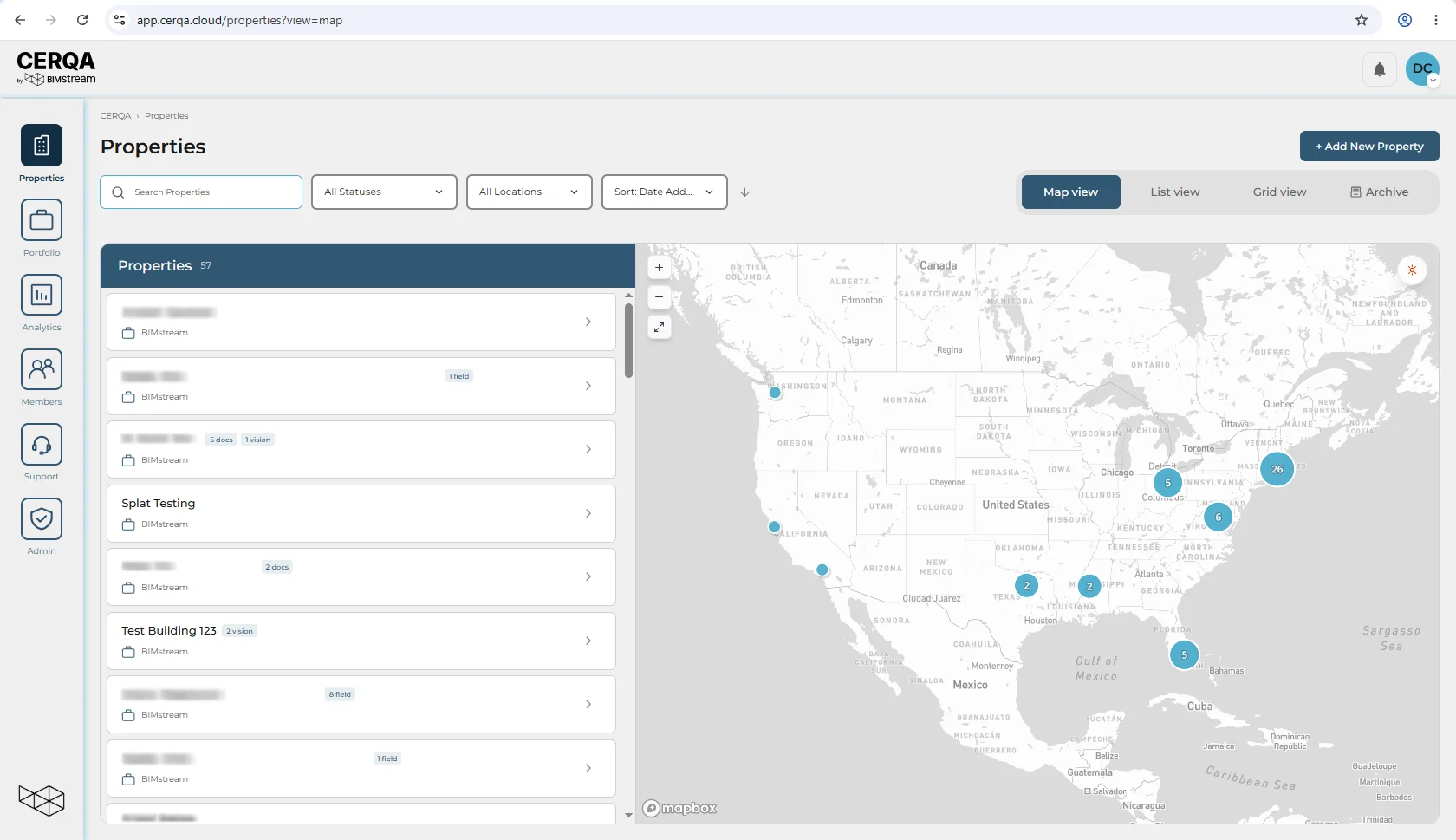
What you own at the company layer
Inside Your Company you own:
- 1Members - The full member roster for the company. You add members, deactivate them when they leave, and change their roles or module access at any time. You can also permanently delete a lower-role member in your own company when their record itself should not persist.
- 2Property metadata - Each property's name, address, and assigned team. You create new properties and edit their metadata.
- 3Integrations - Connections to Energy Star, Arc, and any other external systems your company has wired up.
- 4Sustainability data - Whatever your team uploads to the Sustainability section of the Connections tab sits within your company.
- 5Module access - Both per-member company-wide module access and per-property module access. Covered in the next section.
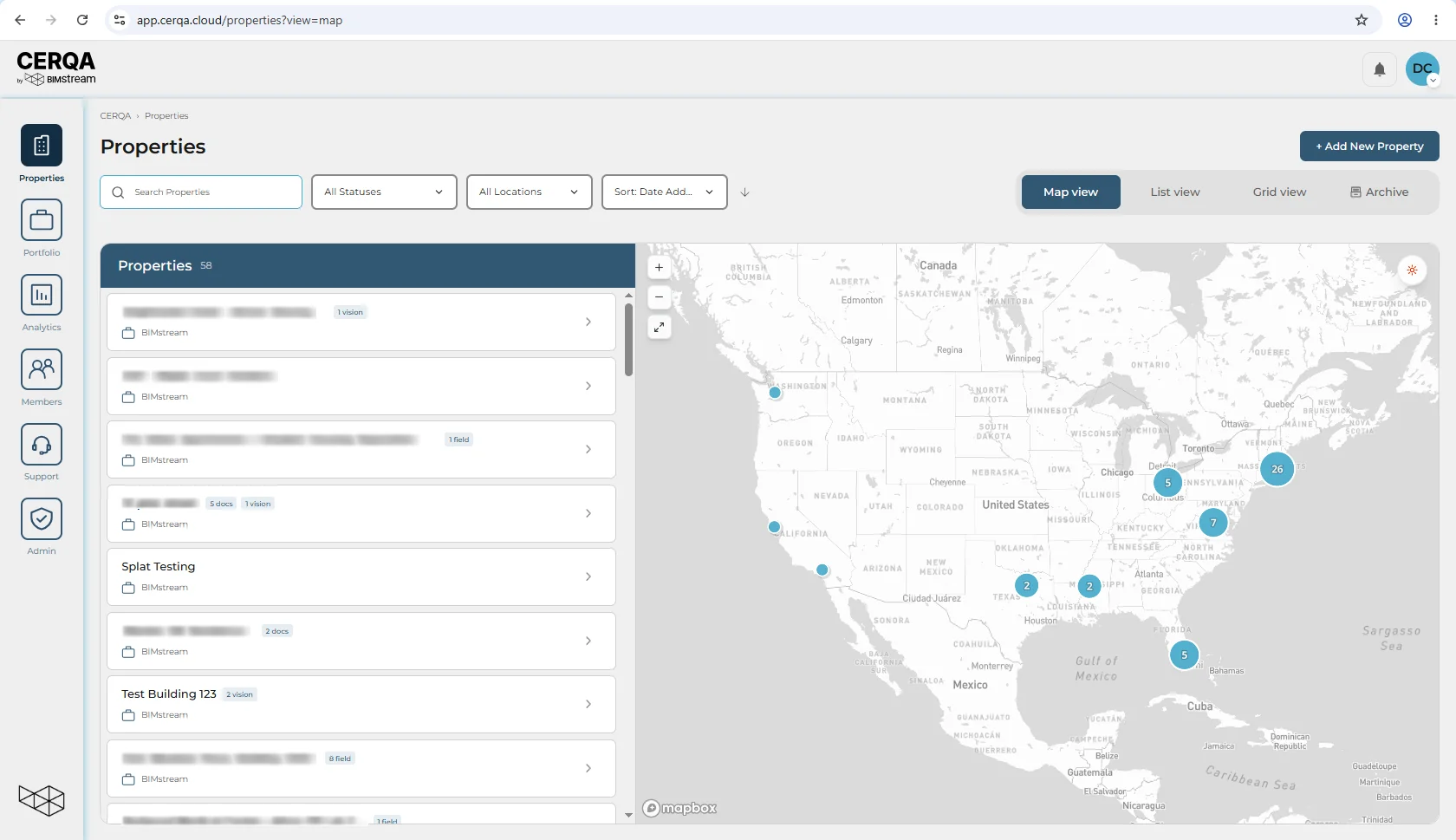
The Team icon in the sidebar is the entry point to everything in this layer. Only Company Admins see it. For the full sidebar and avatar menu tour, see CA-02 - Logging in and your sidebar.
The three-layer module access model
Module access in CERQA isn't a single toggle. It's gated at three layers, and each one has to allow access for a member to reach a module on a specific property.
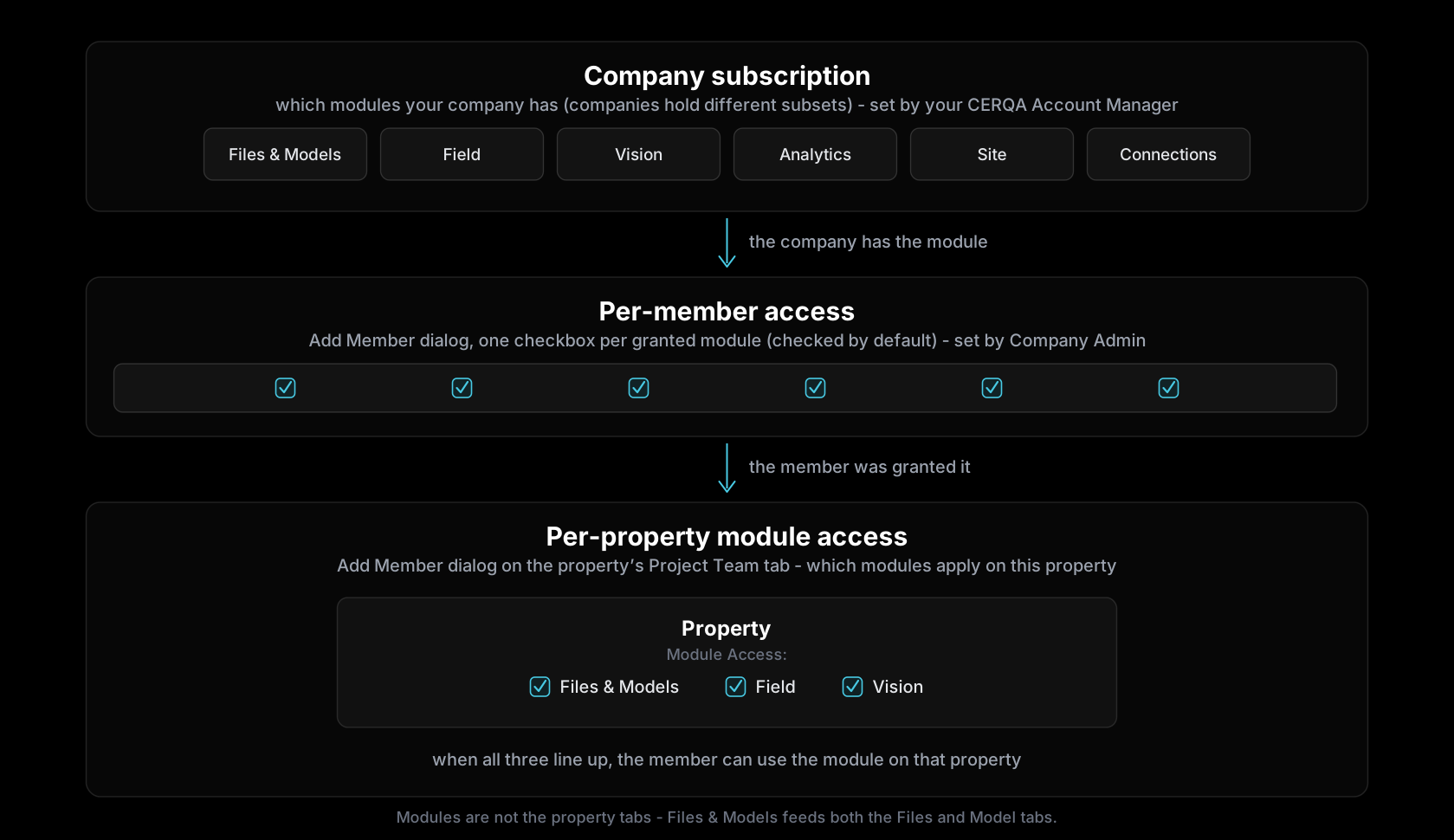
Layer 1: Company subscription. Which modules your company is licensed for, as a whole. This is set by your CERQA Account Manager, not by you. If your company doesn't subscribe to a module, no one in your company can reach it, regardless of what you do at the lower layers.
Each module has an internal code paired to its display name: DOCUMENTS (Files & Models), FIELD (Field), VISION (Vision), AERIAL (Site), CONNECTIONS (Connections), ANALYTICS (Analytics), and EXPERIENCES (Experiences). Every company works with Files & Models, Field, and Vision; Site, Connections, Analytics, and Experiences appear for companies granted those modules.
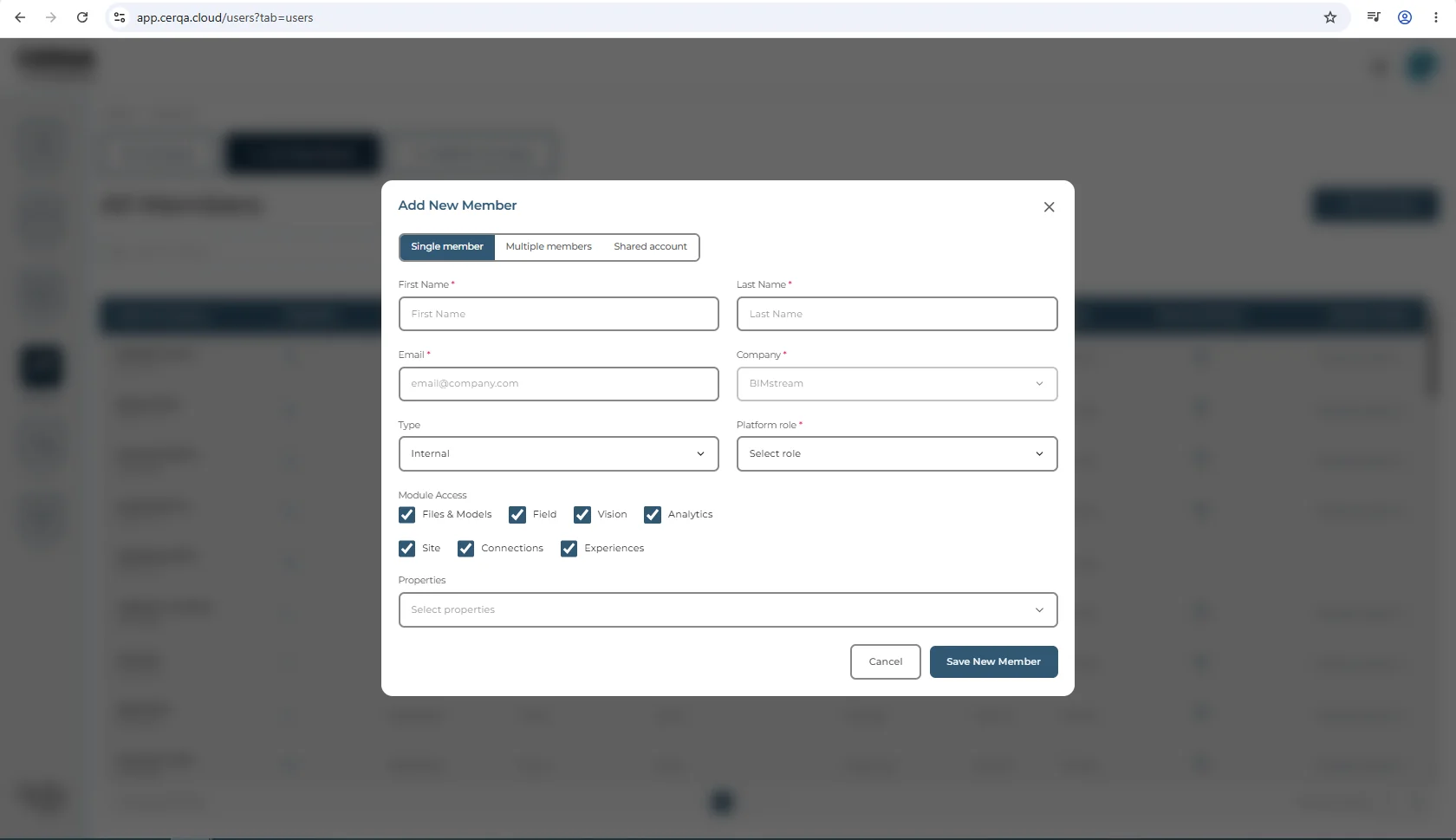
Each module is granted to a company at the company level, and each appears as a Module Access checkbox in the Add Member dialog only when your company has been granted that module (checkboxes are checked by default when present). Most modules gate a property tab. Analytics differs in what it gates: the company-wide Analytics sidebar page, not a property tab. Sustainability is not a module of its own; it is a section inside the Connections tab.
Layer 2: Per-member company-wide module access. When you add a member on the Team page, the Add Member dialog has a Module Access section with one checkbox per module your company has been granted. Every company sees Files & Models, Field, and Vision here; companies with more modules see more checkboxes. The company in the screenshot has every checkbox. There is no Sustainability checkbox: Sustainability is a section inside the Connections tab, and the Connections grant covers it. The member can reach the checked modules anywhere across the company. This is the layer you set most often.
Layer 3: Per-property module access. On a specific property's Property Members tab, the Add Member dialog adds a member to that property with a property-level role and a narrower set of module checkboxes: Files & Models, Field, and Vision. This module section is shown only to Company Admins; a Project Admin opening the dialog does not see it. Other modules (Site, Connections, Analytics) are governed by the member's company-level access and do not appear at property level; the Sustainability section inside Connections follows the Connections tab's access.
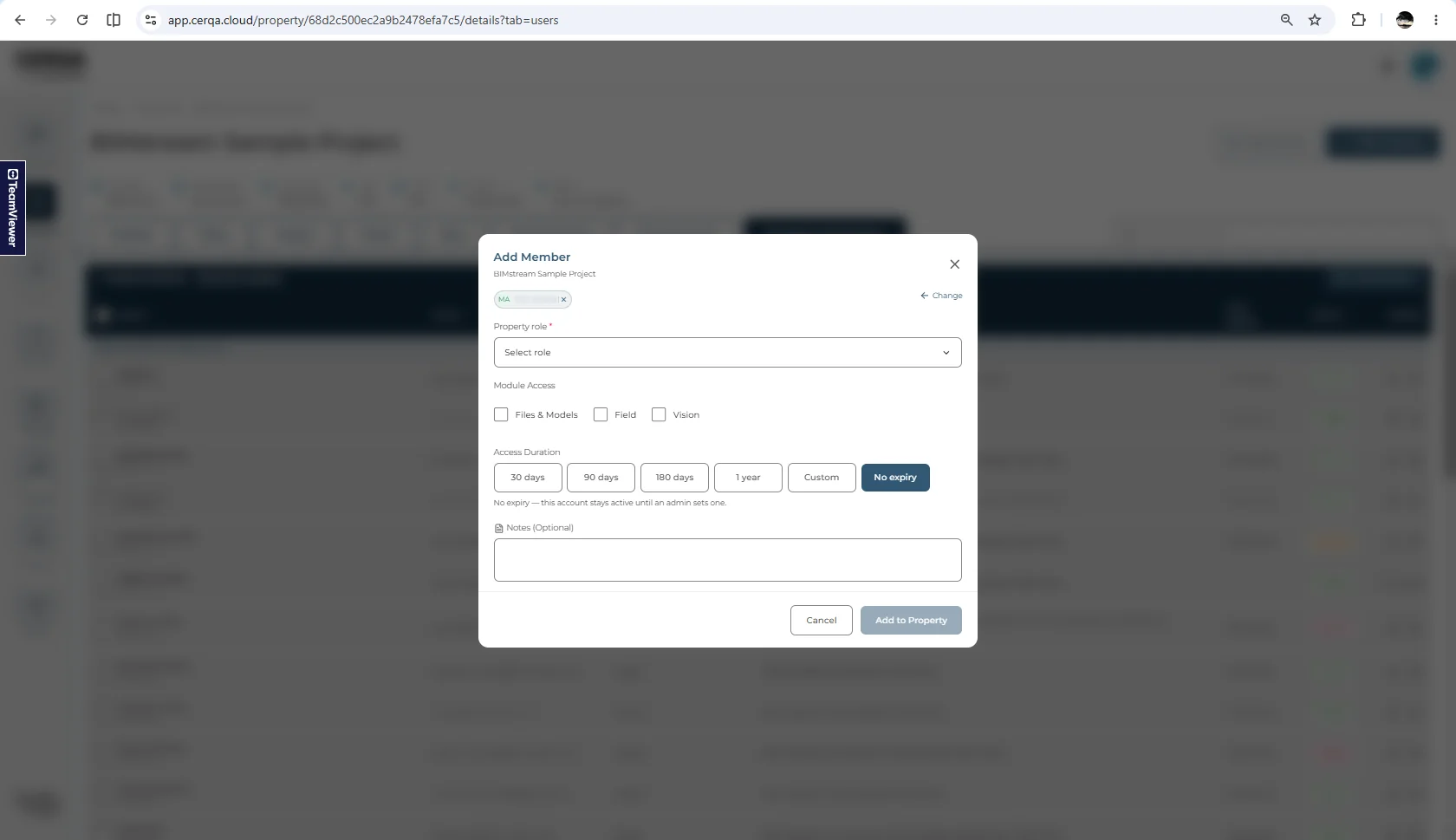
All three layers stack. A member reaches a module on a property only when the company subscribes (Layer 1), the member has it checked at the company level (Layer 2), and (for DOCUMENTS, FIELD, or VISION) the member has it checked on that specific property (Layer 3). For the full module reference and the order of operations when access is denied, see CA-07 - Module gating reference.
For the Add Member walkthrough including all the other fields in the dialog, see CA-04 - Adding members to your company.
The role hierarchy you can assign
The role dropdown in Add Member is labeled “Platform role”. As a Company Admin you see six options in this dropdown (Company Admin, Project Admin, Project Manager, Contributor, Viewer, Guest).
Adding a member and changing one follow different rules
When you add a new member you can assign any role the dropdown offers, Company Admin included - a Company Admin can create another Company Admin in the same company. The at-or-above-your-own-level restriction applies to changing an existing member's role, where a new role equal to or above your own is rejected.
Effectively, as a Company Admin adding a new member, you can assign any of the six roles, Company Admin included. Promoting an existing member to Company Admin is rejected, so that change goes through your CERQA Account Manager.
At the property level, the Add Member dialog does not show Company Admin as an option at all, since Company Admin is a company-level role and not property-scoped.
For the role-by-role view of what each role can see and do across modules and at both levels, see F-04 - Roles and permissions.
The properties layer where day-to-day work happens
Properties are where Project Managers, Project Admins, and Contributors do day-to-day work. Each property has its own team, set on the Property Members tab. A member can hold one role on Property A and a different role on Property B.
You can step into any property at any time and use Add Member to add or remove team members. Project Admins assigned to a property can also use Add Member on that property. Project Managers see the team list in view-only mode and can't add members.
For role changes, deactivating members, deletion (covered below), and per-property team management workflows, see CA-05 - Managing members.
What your CERQA Account Manager owns
Above your layer sits Platform, owned by BIMstream and reached through your CERQA Account Manager. They control which modules your company subscribes to (Layer 1 above), your single sign-on configuration, your contract, and transferring a property between two companies. They also handle a handful of platform-level features above the standard Company Admin tier (Member Groups and Cross-Company Access).
Member deletion: what you can do vs what your CERQA Account Manager handles
As a Company Admin you can permanently delete a lower-role member in your own company. That is a normal CA capability, covered in CA-05 - Managing members. This matches F-04: a Company Admin can permanently delete members below their own role, within their own company.
Three deletion scenarios go beyond your scope and require escalation to your CERQA Account Manager: deleting a member across companies, deleting a Company Admin or above, and recovering a previously-deleted member (there is no self-serve restore).
Other signals that it's time to call your CERQA Account Manager: a module is missing from every member's checkbox list (which means the company subscription needs to change), SSO behavior is wrong, you need a property moved between two companies, or you need access to one of the platform-level features above. The full nine-item checklist lives in CA-14 - When to call your CERQA Account Manager.