Workflows
Sharing with external partners
Cross-company partner sharing in CERQA, the formal structured grant of access for an outside-company member, is handled at the BIMstream platform level; no customer role can grant it. Even a standard customer Company Admin does not have it. This page is a boundary doc rather than a procedural walkthrough: it explains what a Company Admin CAN do for partner-like sharing without the Cross-Company Access tab, what is above the CA scope, and how to escalate when a structured grant is required.
No CA-side procedural tour here
This piece doesn't walk through “adding a partner via the Cross-Company Access tab” because the tab is not visible to a standard customer Company Admin. Instead it names the within-CA-scope paths that do real partner-like work, and points at the escalation path for what is not. For the PM-side framing of the same boundary, see PM-07 - Sharing with external partners.
The boundary
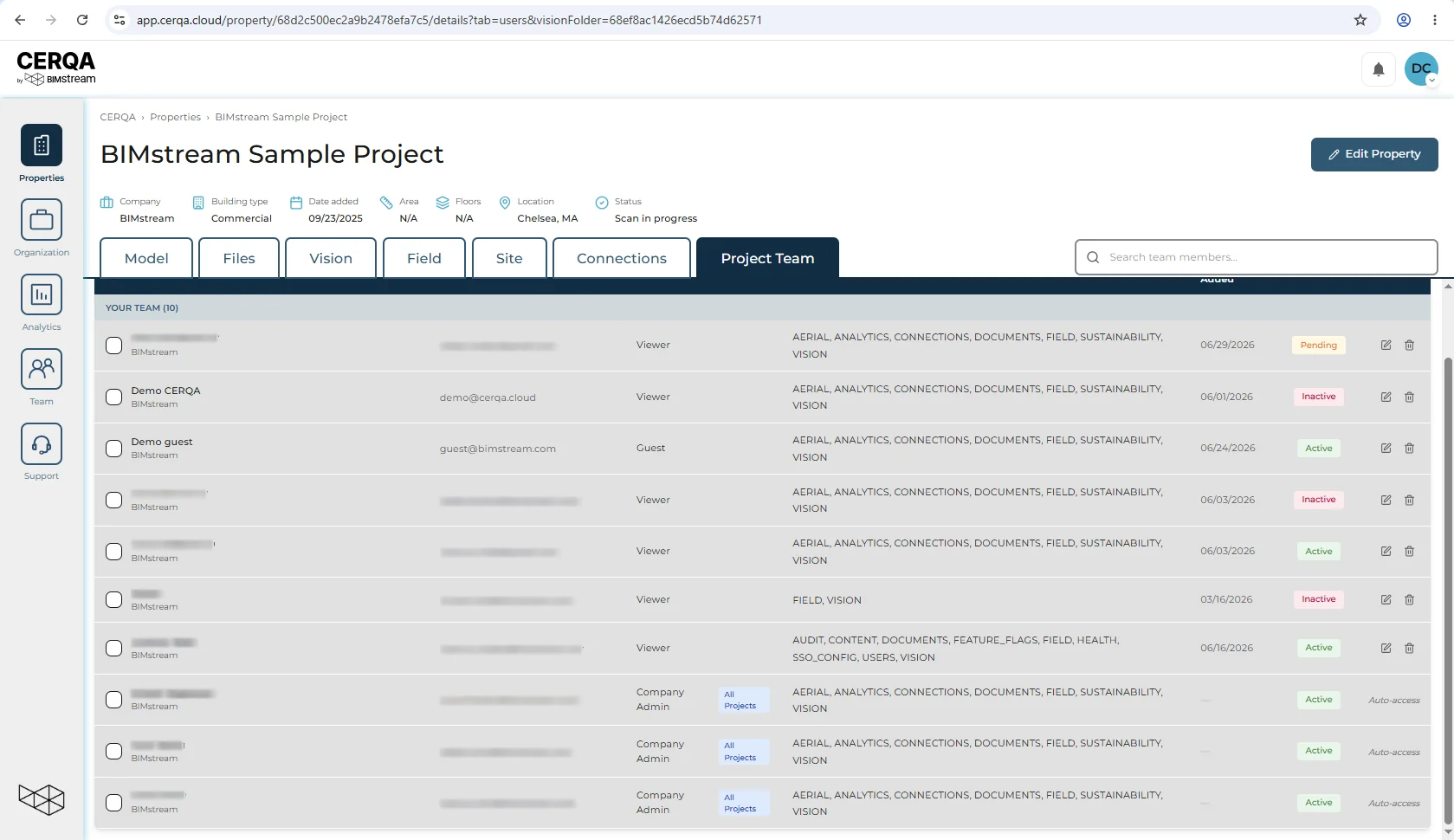
Cross-Company Access (granting an outside-company member access to your company's properties as a formal structured grant) is a BIMstream platform capability, held by BIMstream staff rather than any customer-side role. The Cross-Company Access tab appears only for that platform tier. A standard customer Company Admin does not see the tab. A Project Manager has no Members page at all; what a PM sees of membership is a property's Property Members tab (covered from the PM side in PM-07).
What CAs can do
Three real paths are available to a Company Admin for partner-like sharing. All three are CA-capable without the Cross-Company Access tab.
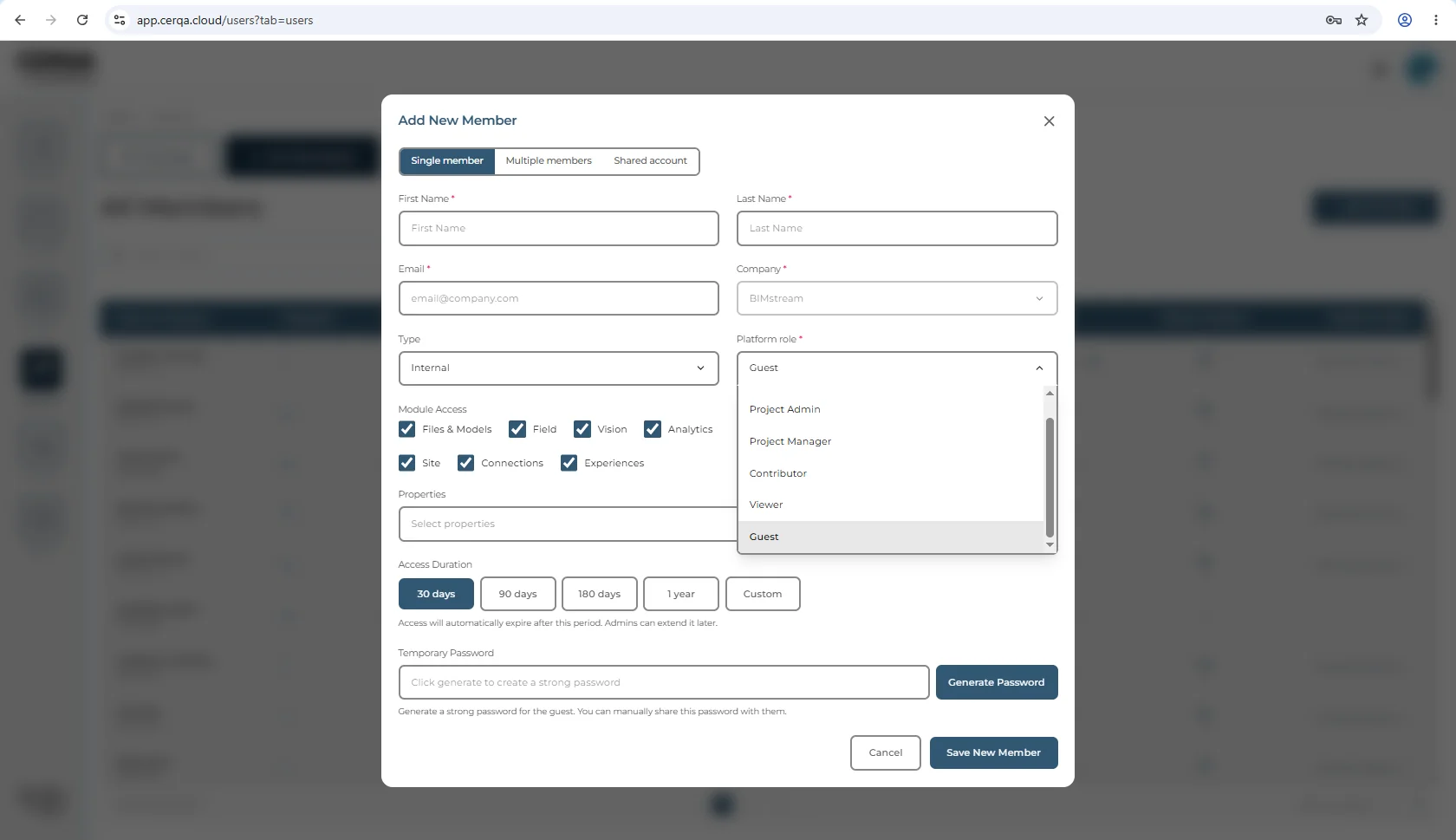
1. Add the partner as a Guest member at the company level
On the Team page, use the Add Member flow (see CA-04 - Adding members to your company). The “Platform role” dropdown includes Guest, labeled “Limited access”. Checking Guest gives the partner a company-level identity in CERQA: they can log in, they appear in your All Members list, and they can be assigned to specific properties. This is the closest thing to “give a partner a CERQA account” that a standard CA can do.
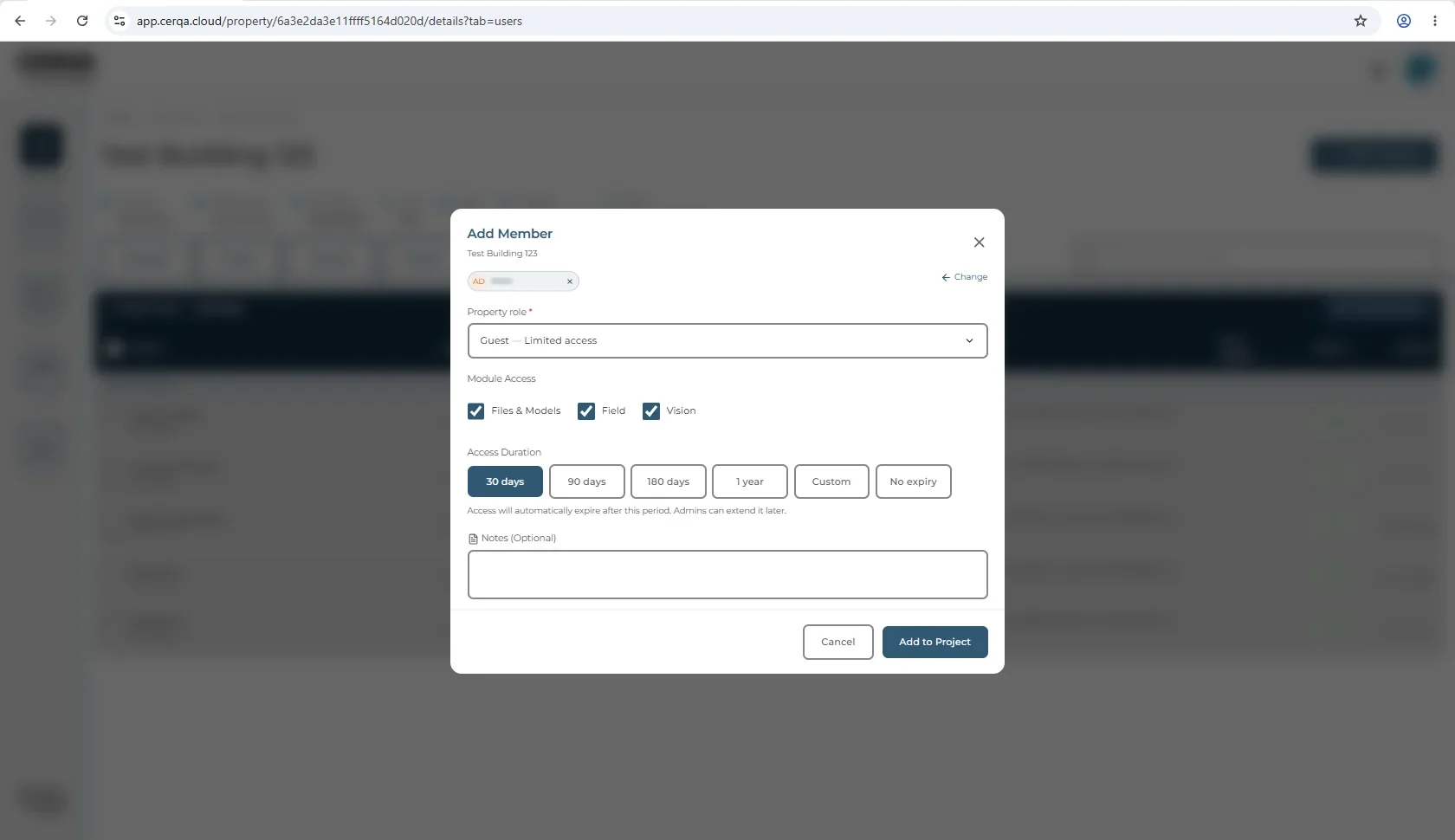
2. Assign the Guest member per-property with an Access Expiry
Once the Guest member is in your company, scope their access to specific properties using CA-05 - Managing members's Add Member dialog on a property's Property Members tab. The property-level role is typically Guest (“Limited access”) and the access is given an expiry via the dialog's Access Duration preset picker (30 days / 90 days / 180 days / 1 year / Custom / No expiry; 30 days is the default). Setting the expiry on this surface is gated to Project Admin and above. If you later need to change the expiry date, do it from the Member Details modal on that member; the Member Details surface uses a plain date input (per CA-05's two-UI model). Both UIs are the same underlying Access Expiry; only the picker shape differs by context.
3. Share a specific file or folder via a time-limited share link
For one-off handoffs of a single file or folder, use the Share dialog. The Share action is available to Contributor and above, following the same edit permission as markup. The Link Expires presets are 7 / 30 / 60 / 90 days (default 30) with “Allow recipient to extend expiry” and “Send email notification” toggles. This is the lightest-weight partner-handoff and the most-used in practice.
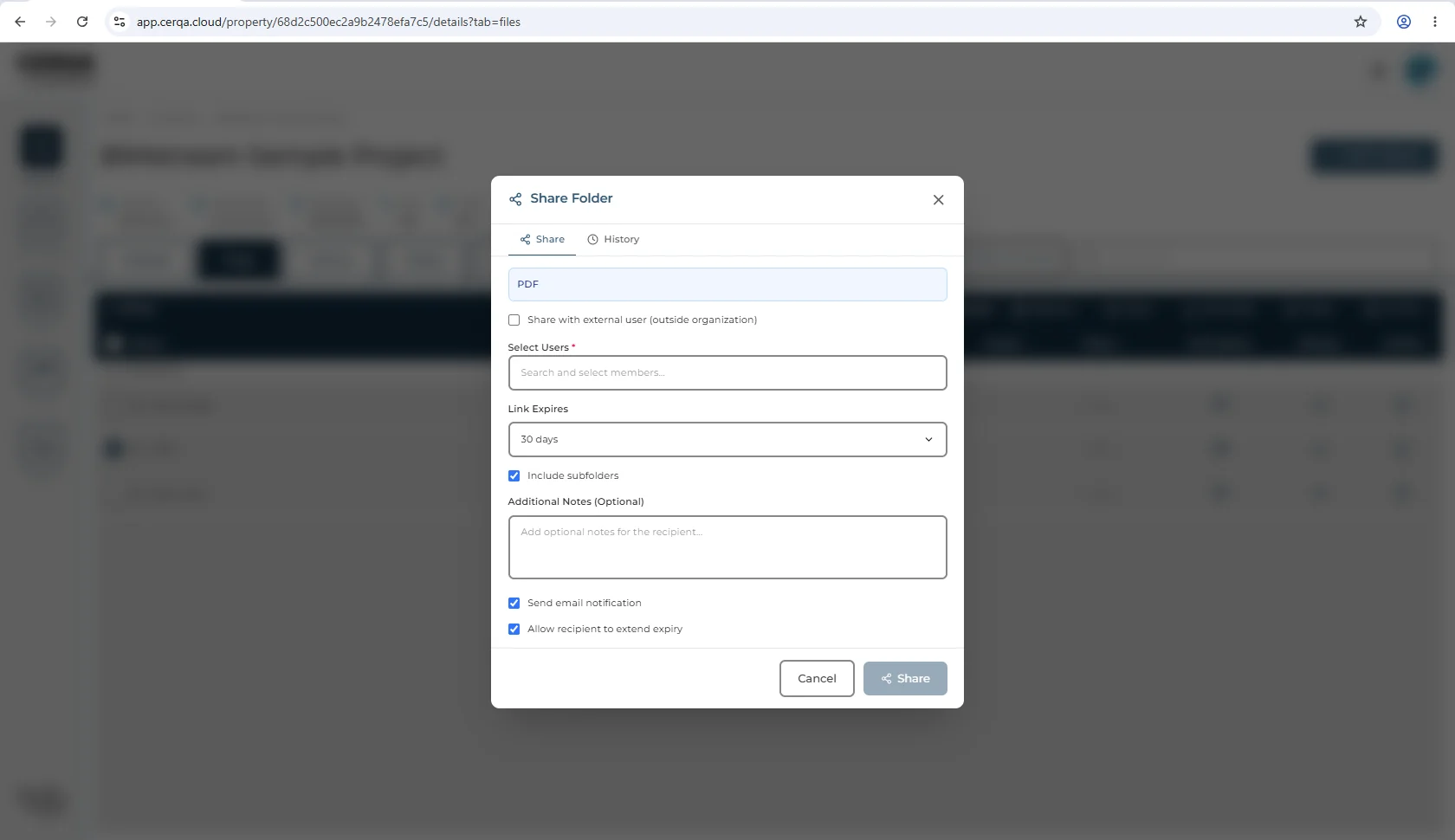
For the full Share dialog walkthrough, see D-02 - Sharing & external links.
Where the expiry options land
A common question about when access expires actually covers two distinct features. The file-link presets (7 / 30 / 60 / 90 days) belong to D-02's Share dialog (Path 3). The property-level Access Expiry has two UIs by context per CA-05: Access Duration preset chips (30 / 90 / 180 days / 1 year / Custom / No expiry) in the Add Member dialog for a new member (Path 2), and a plain date input in the Member Details modal for editing an existing member. Both are CA-capable and neither requires the Cross-Company Access tab.
What is above your scope
Four features sit above the standard customer Company Admin role; BIMstream handles them. They are listed here so you understand the boundary and recognize when an escalation is the right path.
Cross-Company Access tab
The Team-page tab for managing structured cross-company grants. A BIMstream platform surface; no customer role sees it. It holds the active cross-company grants, pending invitations, a grant-level activity log, and the grant settings.
Member Groups
Member Groups exist in CERQA as a complete feature: create, edit, add members, share access at the group level, archive. The Groups tab is a BIMstream platform surface; a standard customer Company Admin does not see it. Use cases that escalate here: bulk operations on many members at once, group-level access grants across multiple properties, archiving an entire team in one action.
Partner-activity audit log at the grant level
Per-grant audit trail (who accessed what, when) lives inside the Cross-Company Access surface, behind the same BIMstream platform gate. If you need this audit detail, it's an escalation.
For the complete role-by-role matrix covering all four gates, see F-04 - Roles and permissions.
The PM vantage
Project Managers see less than you do. Where you open the Members page from the sidebar and see the All Members tab (and no Cross-Company Access tab), a PM has no Members entry in the sidebar at all; a PM sees membership only on each property's Property Members tab. The PM-side framing of this same boundary, including what a PM can still do for partner-like sharing (file-share links via D-02; per-property Guest membership via CA-05, if the PM also holds Project Admin on the property), lives in PM-07 - Sharing with external partners.
WR-07 and PM-07 are sister boundary docs: same gates, framed for the CA reader here and for the PM reader there.
How to escalate
When the partner relationship requires a formal structured grant (rather than per-property Guest membership plus file-share links), the path is: you (CA) reach out to your CERQA Account Manager, who holds the BIMstream platform access and can create the Cross-Company Access grant on your behalf. The escalation checklist in CA-14 - When to call your CERQA Account Manager covers what your CERQA Account Manager handles in this domain. Item 8 in particular is the complete reference for Cross-Company Access grants, Member Groups, and the partner-activity audit log.
A request to review the current permissions settings is fully answered by F-04's matrix: cross-company partner sharing, member groups, and platform support tooling are all handled by BIMstream on your behalf, the same boundary documented here.