Modules
Model sets & multi-model coordination
A property in CERQA often has more than one model attached to it: an architectural model, a structural model, an MEP model, and sometimes more. A model set is the combined view of those models loaded together. This page covers loading a set, controlling per-model visibility, saving a coordination view, and sharing it with teammates.
For the broader walkthrough of the 3D Model viewer itself, see M-01 - 3D Model Viewer overview. This piece builds on that base, focused specifically on the multi-model case.
What model sets are
A model set is a saved combination of two or more models that load together in the 3D Model viewer. Each model in the set stays identifiable in the model tree, but they appear in shared 3D space so you can see how they line up.
A typical property has these as separate uploads:
- 1Architectural model - Walls, doors, windows, floors, ceilings - the building shell.
- 2Structural model - Columns, beams, slabs, foundation - the structural system.
- 3MEP model - Mechanical, electrical, and plumbing - the building systems that run through the shell.
- 4Specialty / consultant models - Façade, landscape, fire protection, or any other discipline-specific model added to the property.
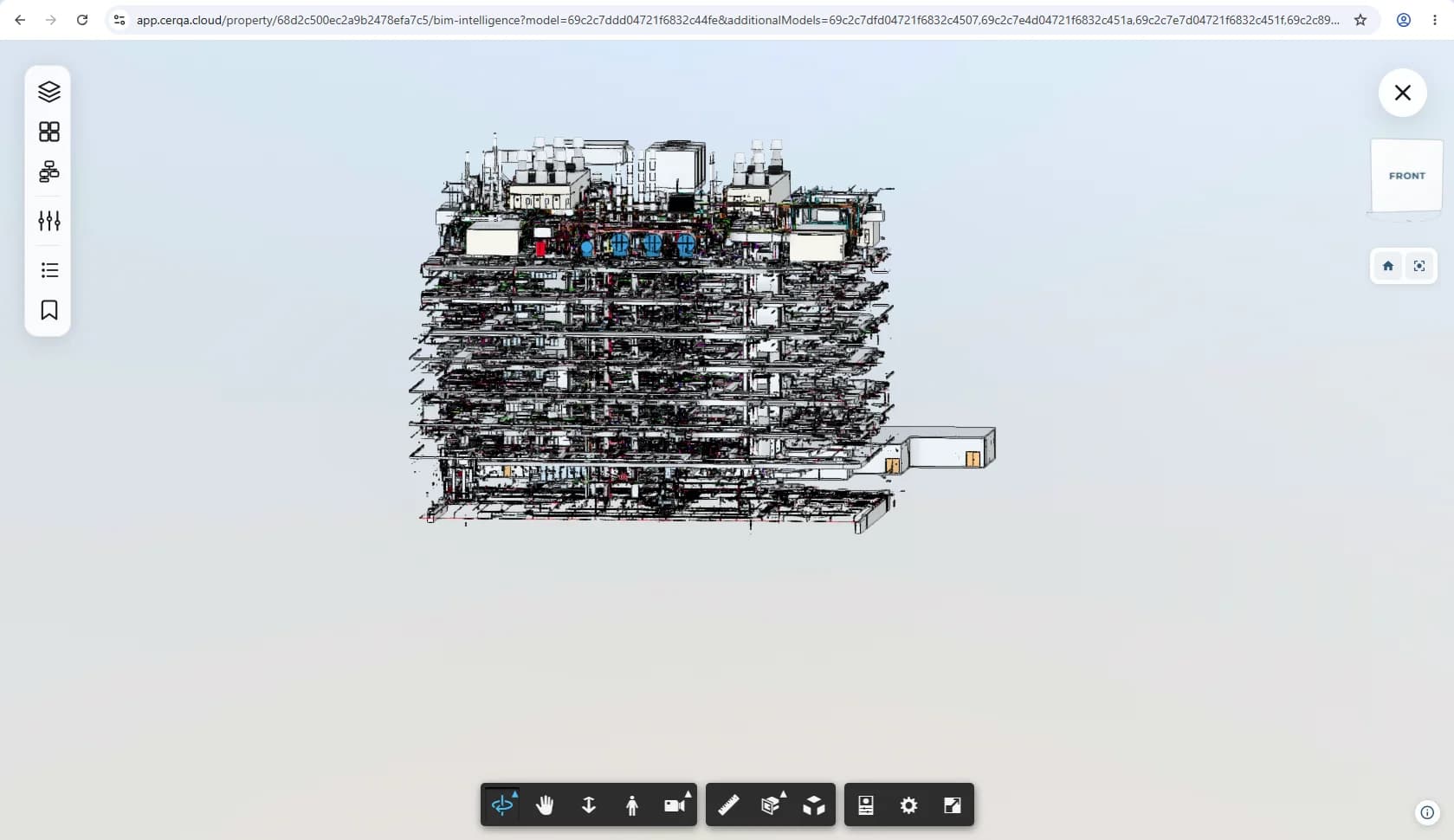
Loading a model set
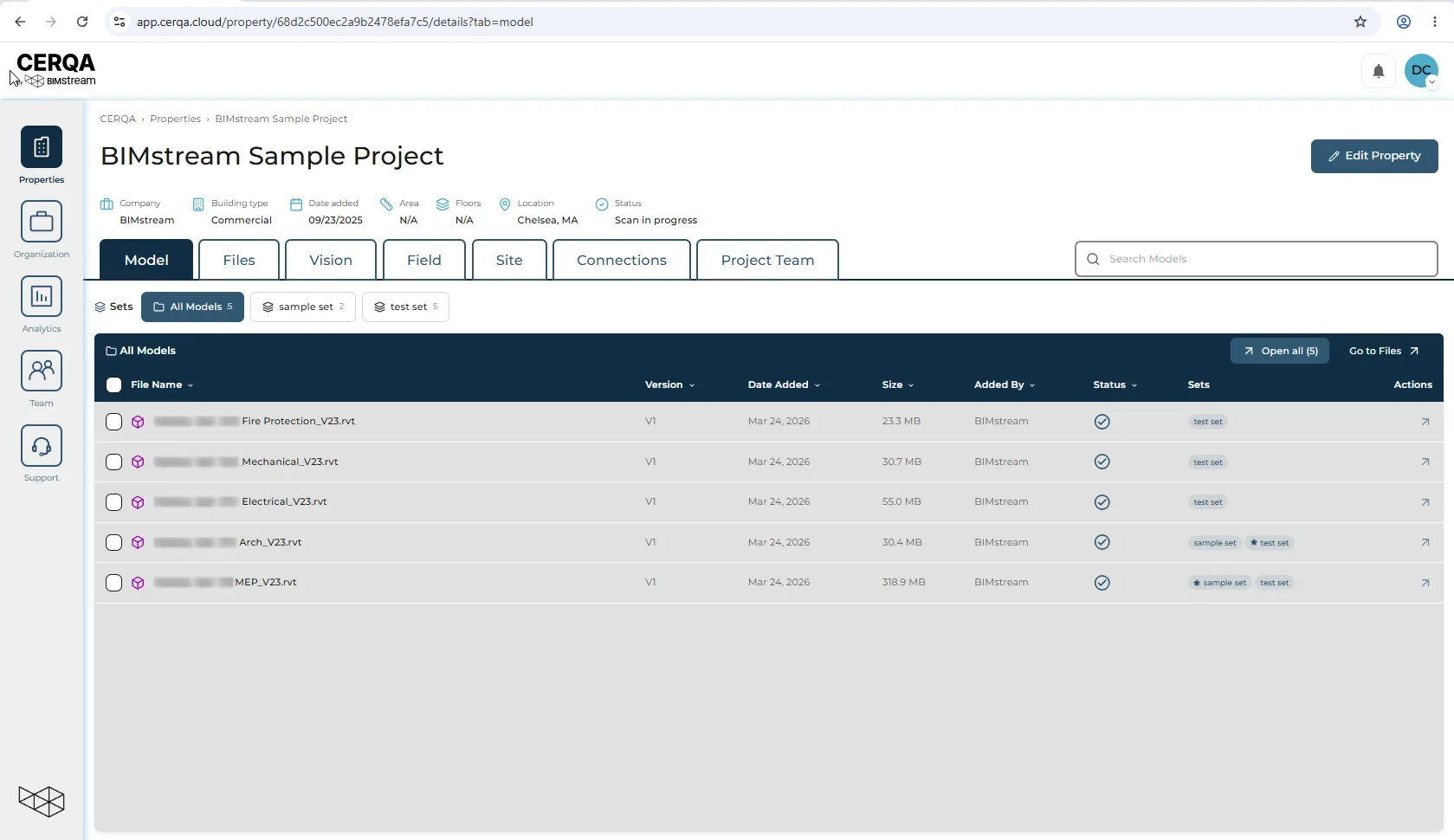
On the property's Model tab, the Sets row sits above the model list. It shows an always-visible pill selector for each set: “All Models” on the left (default) plus each named set. Each pill carries its model count in parentheses, so a set holding four models reads sample set (4). Clicking a pill filters the model list below to just that set's models.
Next to the pill row is a context-dependent load button. Its label changes with the selected pill:
- “Open all” when All Models is selected - loads every model on the property into the viewer together. The button carries the same count as the pill, so eight models on the property reads “Open all (8)”.
- “Load Set” when a named set is selected - loads that set's models into the viewer.
The model list itself carries a Sets column that tags each row with the set (or sets) that model belongs to. A ★ star before a set name on a tag marks that model as the primary model of that set. Primary is per-set: the same model can be starred in one set and appear as a non-primary member of another (for example, the tag ★ test set on one row's tag list and ★ sample set on a different row's tag list).
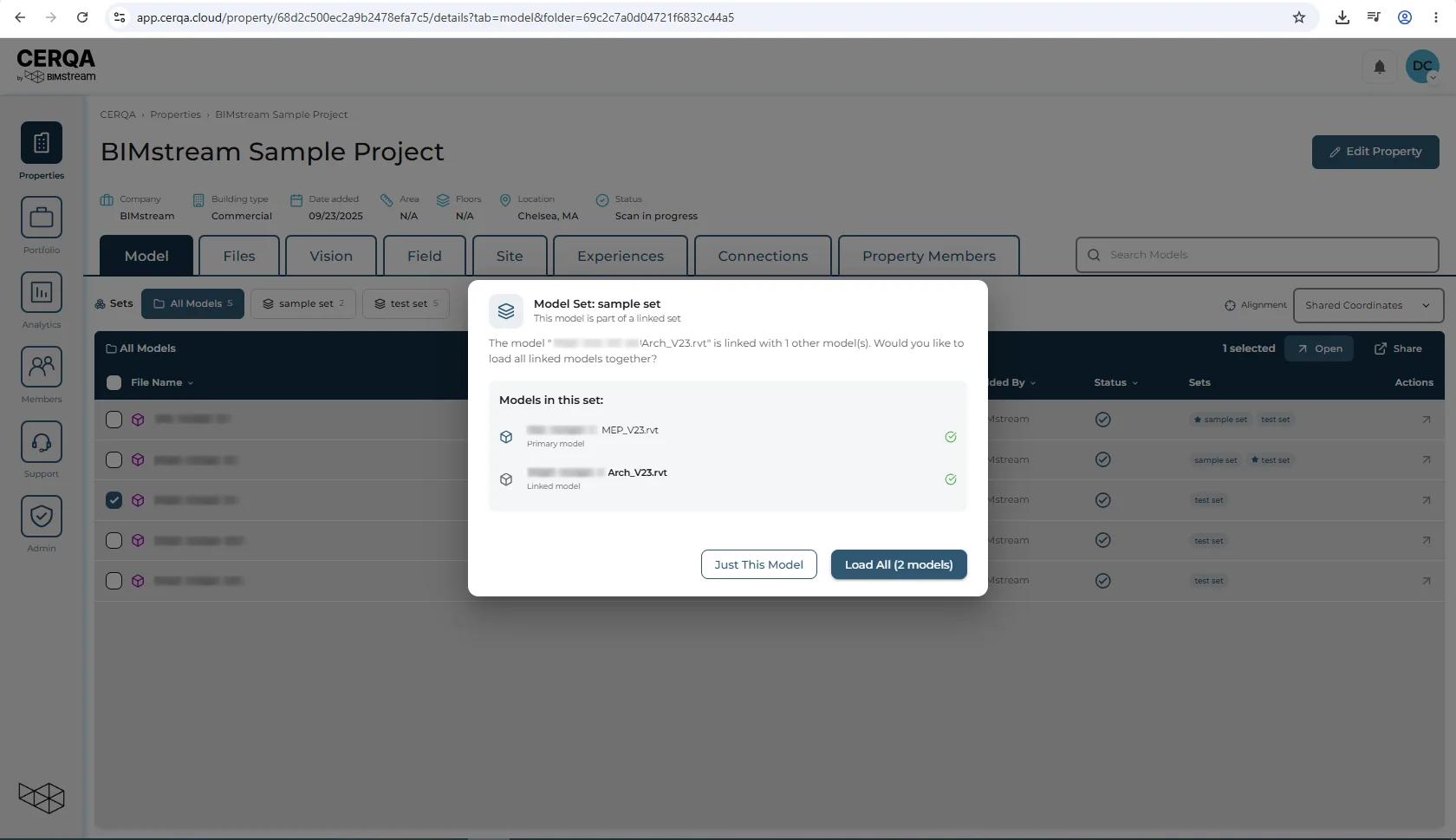
Clicking a model row in a linked set
If you click a model row that belongs to a linked set, CERQA opens a popup titled “Model Set: [name]”, with “This model is part of a linked set” on the line beneath it. The popup lists every model in that set, each labeled “Primary model” or “Linked model”, and offers two actions:
- “Just This Model” - load only the clicked model into the viewer.
- “Load All” - load every model in the set into the viewer together. The label names the count, so a three-model set reads “Load All (3 models)”.
Use this when you want to jump into a specific member of a set without loading the whole set, or when you want the whole set from a single row-click.
The “Go to Files” button in the header takes you to the property's Files tab, where the source model uploads live.
Per-model visibility controls
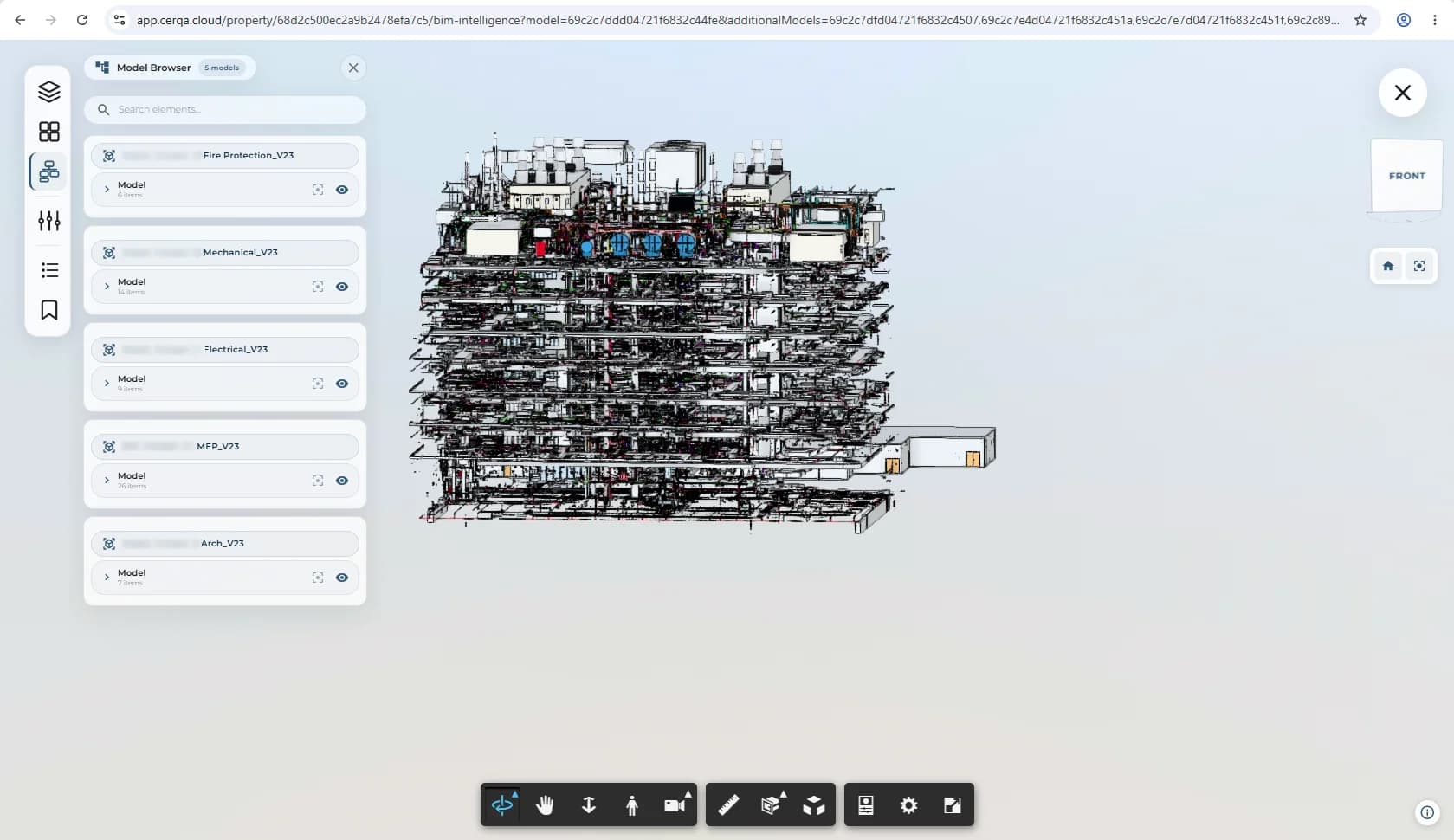
Once a set is loaded, each model in the set has its own visibility controls in the model tree. The patterns inherited from single-model viewing (level isolation, layer / category toggles) apply per-model across the set:
- 1Show / hide a whole model - Toggle a model on or off at the top of the tree. Useful for isolating one model against the others, e.g., the structural alone to inspect a beam run.
- 2Isolate a single model - Show only that model, hiding everything else in the set without losing the set's loaded state.
- 3Per-model layer / category toggles - The same layer and category visibility controls available in single-model viewing apply per-model in a set. Hide the architectural ceiling layer while keeping the MEP runs visible, for example.
Saving a coordination view
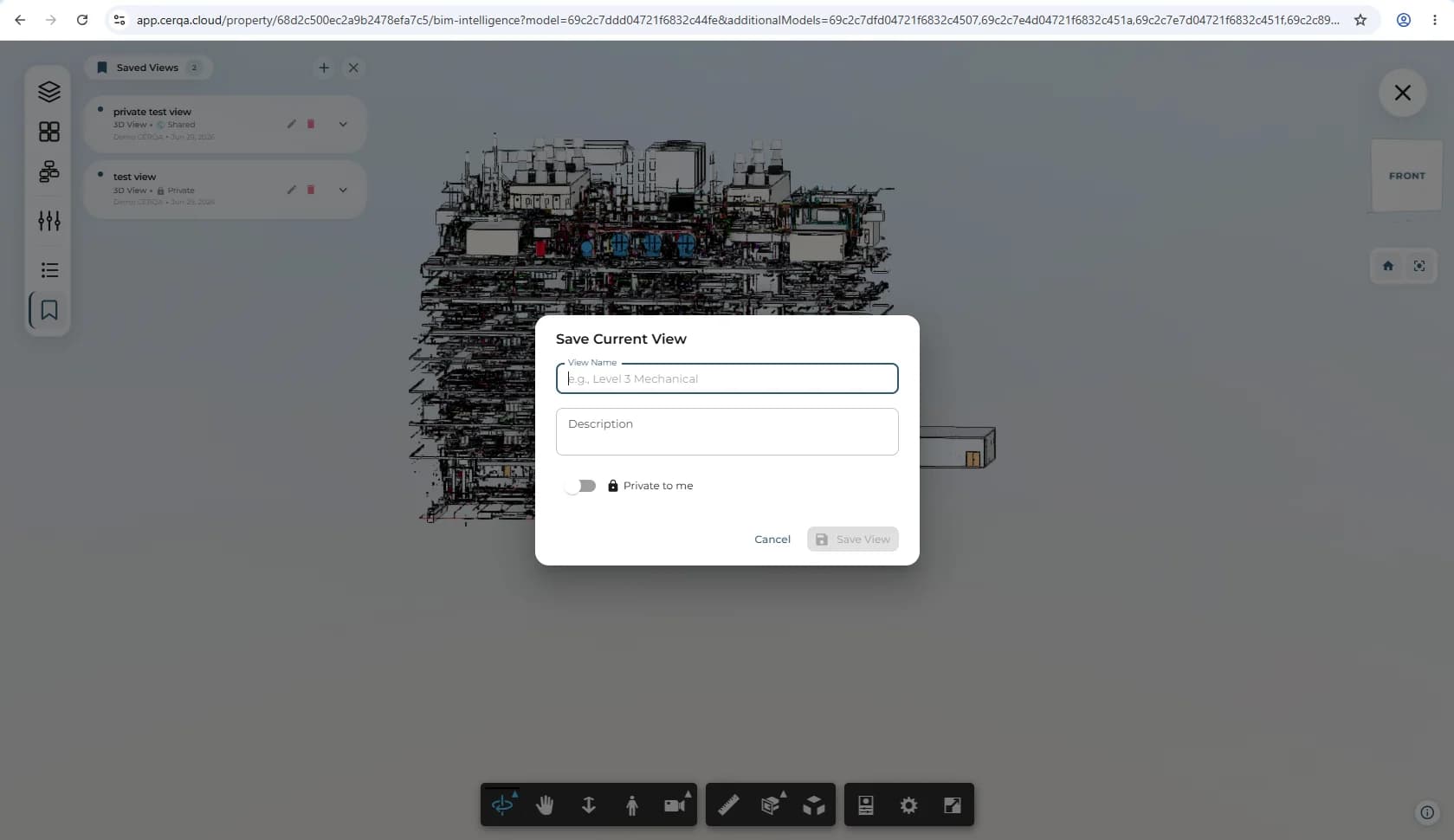
A coordination view captures the current state of the loaded set so the same combination can be reopened later by anyone with access. The saved state includes:
- 1Which models are loaded - The set itself plus the on/off state of each constituent model.
- 2Active layer / category visibility - The toggles applied to each model at save time.
- 3Camera angle - Position, rotation, and zoom level so the next opener lands on the same view.
Save-view is open to any property member
Sharing coordination views with teammates
Saved coordination views appear in the saved-views panel for anyone on the property with access to the relevant models. Opening a saved view reloads the same set, visibility state, and camera angle, so two teammates open exactly the same scene.
Coordination-view sharing is distinct from file sharing
Coordination views are the typical handoff between a coordinator flagging an issue and the rest of the team being able to see exactly what they meant.
Related pieces
- M-01 - 3D Model Viewer overview - the base walkthrough of the 3D viewer; this piece extends it for multi-model cases.
- M-02 - Section tools - the section box works the same way in a multi-model context; useful for clash review across loaded models.
- M-04 - Importing from Autodesk - where the models in a set often originate; the 'Import from Autodesk' option in the Files upload dialog pulls them in from Autodesk Construction Cloud.
- D-02 - Sharing & external links - file-level sharing, distinct from coordination-view sharing.